Jobs
Recording and reviewing interviews with the Goodfit Meeting Assistant
How the Meeting Assistant records, transcribes, and AI-reviews your video interviews on Google Meet and Microsoft Teams.
How it works, in short
The Meeting Assistant joins your scheduled video interviews, records them, writes a full transcript, and produces an AI summary and scorecard on the candidate's profile — so you can focus on the conversation instead of taking notes. It works with Google Meet and Microsoft Teams.
- You schedule an interview as usual.
- The Meeting Assistant is added to the invite automatically.
- It joins the call at the scheduled time and records.
- Shortly after the call ends, the recording, transcript and AI review appear on the candidate's profile.
- Interviewers get a short feedback form, and the candidate is asked how the interview went.
You don't need to install anything, and you don't need to connect your calendar.
Scheduling an interview with recording
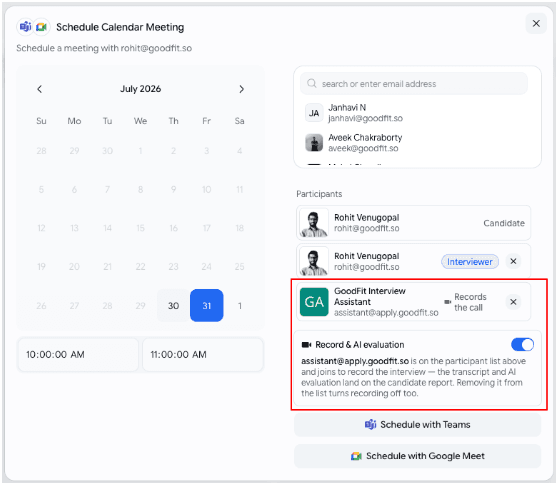
Recording is on by default. When you open the scheduling window you'll see the assistant listed alongside the other participants:
Goodfit Interview Assistant · assistant@apply.goodfit.so
Just pick your date and time, choose who's attending, and schedule. That's it.
You can also see a Record & AI evaluation switch. It's already on — you only need it if you want to turn recording off for a particular interview.
Turning recording off for one interview
Two ways, both do the same thing:
- Switch Record & AI evaluation off, or
- Remove Goodfit Interview Assistant from the participant list.
The interview is scheduled normally; it simply won't be recorded. The card will show Not recorded so it's clear at a glance.
Adding the assistant to a meeting later
Changed your mind, or the meeting was set up outside Goodfit? Any of these work:
Invite it by email — add assistant@apply.goodfit.so as a guest on the calendar event, exactly as you'd invite a colleague. It will join and record. This works for meetings created anywhere, including ones Goodfit doesn't know about.
Use the card button — on the candidate's card, click Add meeting link to record and paste the Google Meet or Teams link from the calendar event.
Turn it on when rescheduling — open Reschedule and switch recording on.
Reading the results
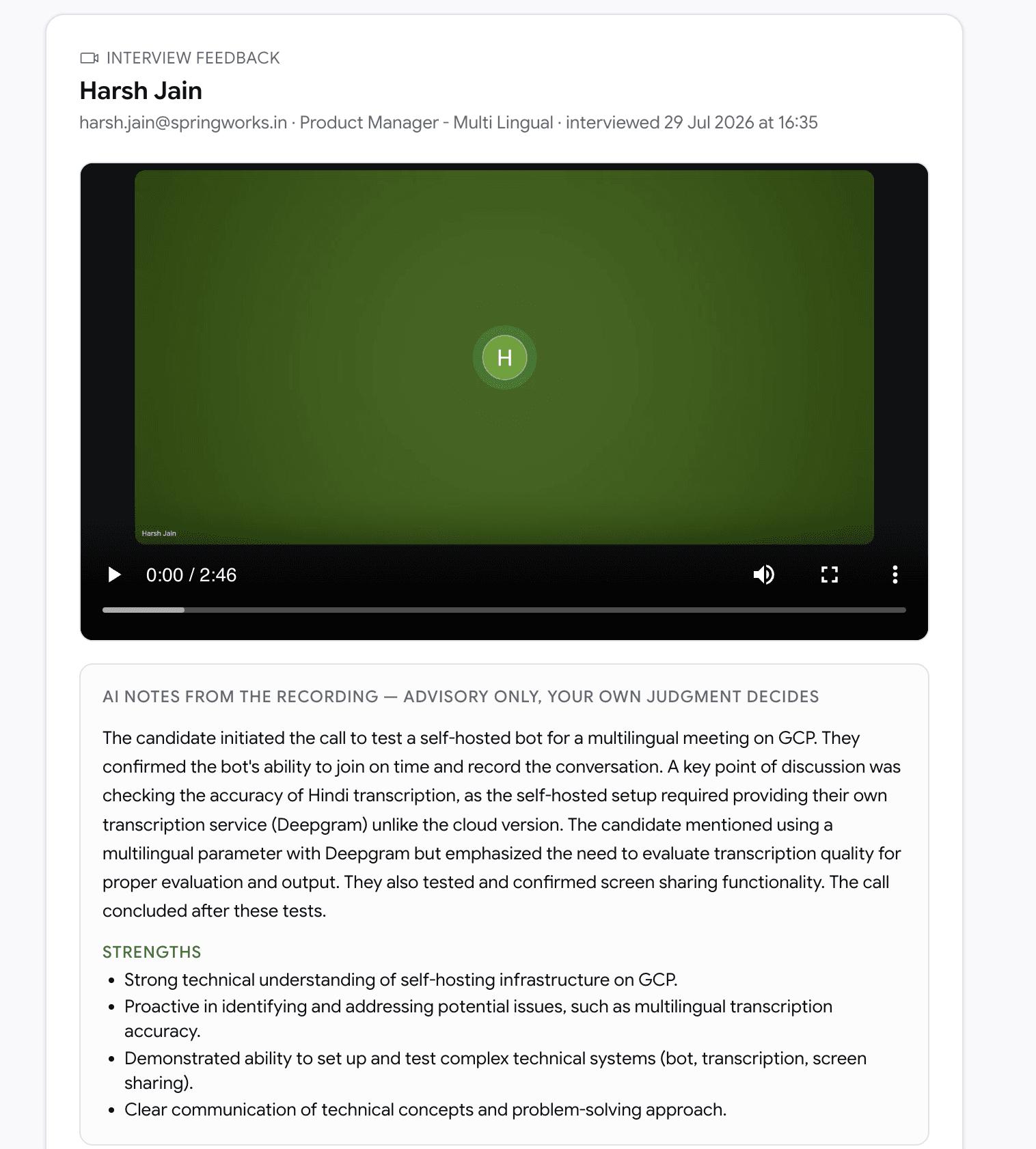
Open the candidate and go to the Scheduled interview card. You'll find:
- The recording — play it in the browser, or download it.
- The full transcript — every timestamp is clickable and jumps the video to that moment.
- AI review — a neutral recap of the call, a summary of how the candidate did, competency scores with the reasoning behind each one, strengths, concerns, and any red flags. Every point links back to the exact moment in the recording it came from.
- A recommendation — Advance, Hold or Reject. This is a suggestion to help you review faster, never a decision.
Interviewer feedback
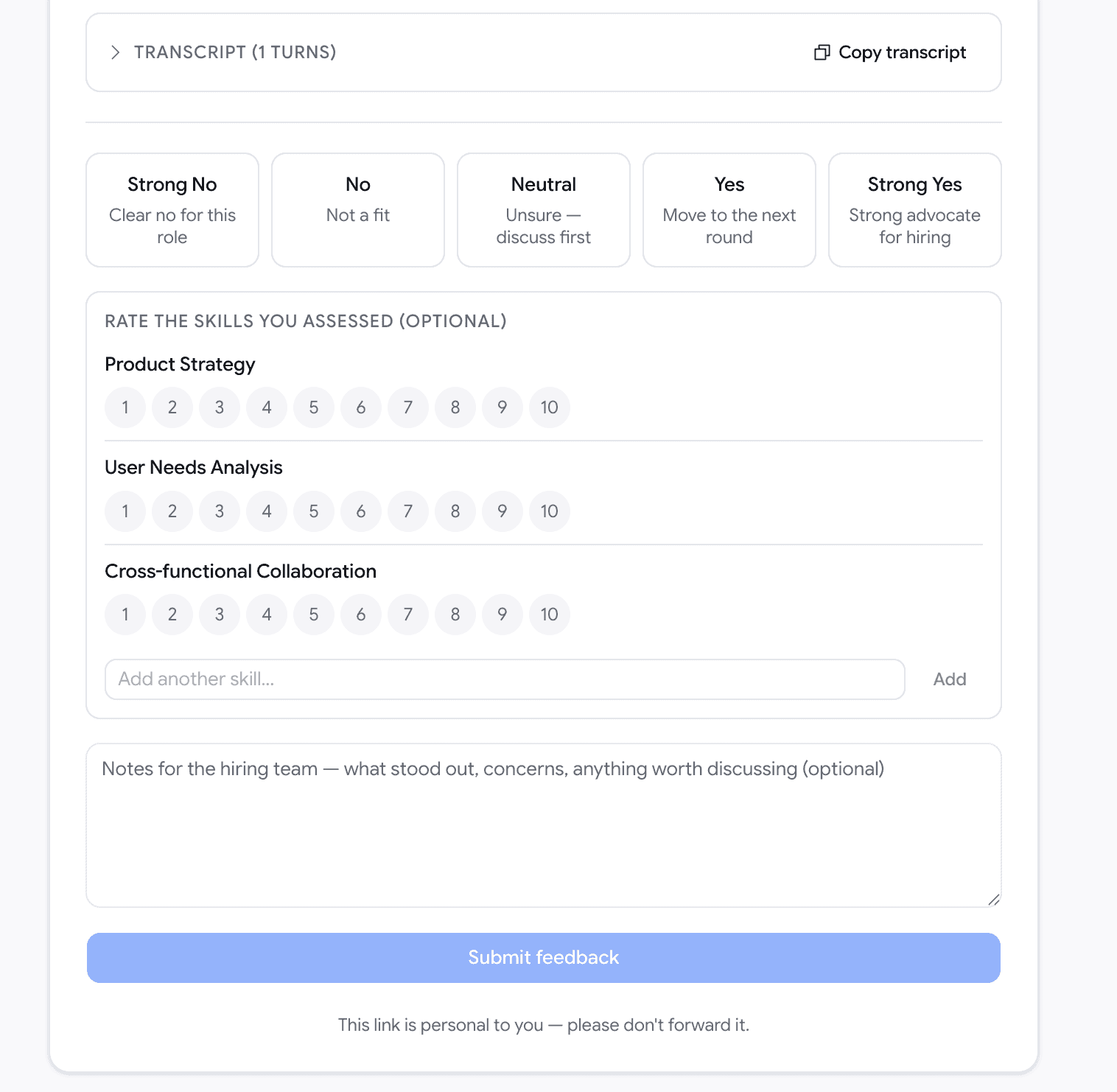
After the call, everyone marked as an Interviewer gets an email with a private link to score the candidate: Strong No · No · Neutral · Yes · Strong Yes, plus per-skill ratings and notes. No login needed, so external panellists can use it too.
Mark someone as an Observer while scheduling if they're joining but shouldn't be asked for feedback.
Candidate experience
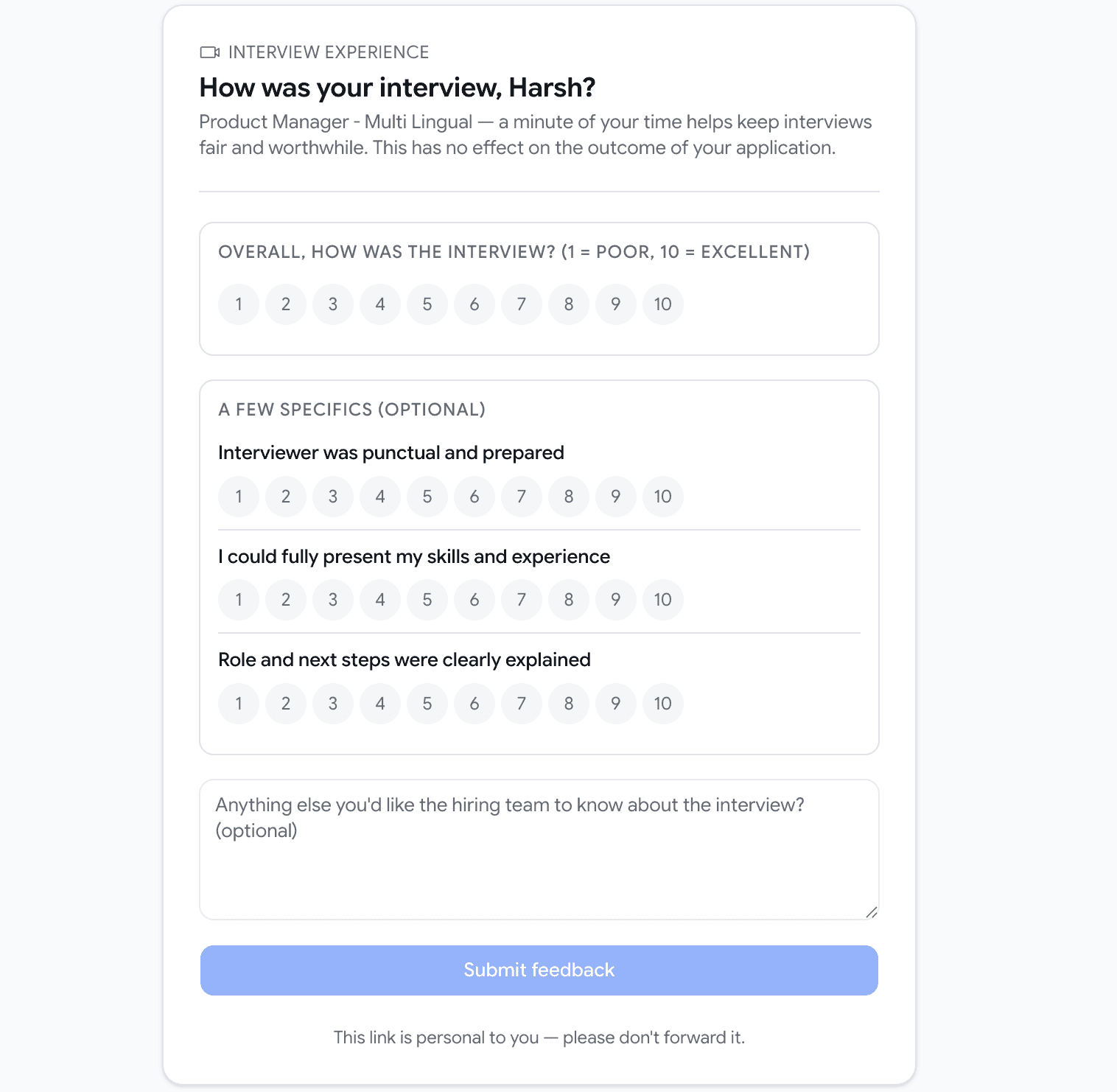
The candidate gets a short, optional survey about how the interview felt — whether the interviewer was prepared, whether they could show their skills, whether the role was explained clearly. Their answers appear on the same card. It has no effect on their application, and they never see your notes, the recording or the AI review.
Checking the status at a glance
The interview card on your pipeline board tells you where recording stands:
| What you see | What it means |
|---|---|
| Will record | The assistant is on the invite and will join at the scheduled time |
| Recording | It's in the call now |
| Recorded | Done — recording and review are on the candidate's profile |
| Not admitted | It waited but was never let into the call, so there's no recording |
| Recording blocked | It joined but wasn't allowed to record |
| Not recorded | Recording was switched off for this interview |
| Couldn't record | Something went wrong; there's no recording for this one |
If you move or cancel the meeting
You don't need to do anything special.
- Rescheduled? The assistant follows the new time automatically.
- Cancelled the event? Recording is cancelled with it.
- Changed the attendees? The update carries through.
Moving a candidate to a different stage — including rejecting or hiring them — will not cancel a scheduled interview or its recording. If a meeting shouldn't go ahead, cancel the meeting itself.
Troubleshooting
The assistant didn't appear in the call.
It joins like any other participant and may be waiting to be admitted. If your meeting has a lobby or waiting room, admit Goodfit Interview Assistant the same way you would a guest. If nobody admits it, the card will later show Not admitted and there'll be no recording.
It joined but nothing was recorded.
The card will show Recording blocked. This happens when the meeting's own settings prevent participants from recording. Check the meeting or organisation policy for the platform you're using, then try again on the next interview.
The recording isn't there yet.
Processing takes a few minutes after the call ends — the recording, transcript and AI review don't all arrive at once. If it's still missing well after the interview, contact support and include the candidate's name and the interview time.
The transcript has the wrong person's name.
The assistant matches speakers by the names shown in the call. If two participants share a name, or someone joined under a shared device name, the labels can be off. The recording itself is unaffected, and the AI review flags it when it isn't confident about who was speaking.
Good practice
Tell candidates the interview is recorded. The assistant appears by name in the participant list, but a sentence at the start of the call — and ideally a note in the invite — is fairer, and in many places it's expected. A simple "we record interviews so the hiring team can review them properly, is that alright with you?" is enough.
Mark observers as observers. It keeps feedback requests going only to the people who actually interviewed.
Use the AI review as a starting point. It's there to speed up your reading of the conversation and point you to the right moments — not to make the call for you.
Frequently asked
Do I need to connect my calendar?
No. It helps — invites go out automatically and updates sync — but recording works either way.
Does it work with both Google Meet and Microsoft Teams?
Yes.
Can I record a meeting that wasn't scheduled in Goodfit?
Yes — invite assistant@apply.goodfit.so to the calendar event.
Who can see the recording?
Only people with access to that candidate in Goodfit. Candidates never see the recording, the transcript or the AI review.
Can I schedule more than one interview with the same candidate?
Yes. Each round is scheduled separately and keeps its own recording and review.
Can I delete a recording?
Contact support and we'll remove it for you.