Assessments
The second camera: proctoring with the candidate's phone
How Goodfit turns the candidate's own phone into a side camera that records their screen, keyboard and hands for the whole assessment, and how to enable it per hiring stage.
The second camera
A webcam sees a face. It cannot see the desk below it: the second monitor, the notes beside the keyboard, the person whispering out of frame, or what the candidate's hands are actually doing. The second camera closes that gap by turning the candidate's own phone into a side camera for the length of the assessment.
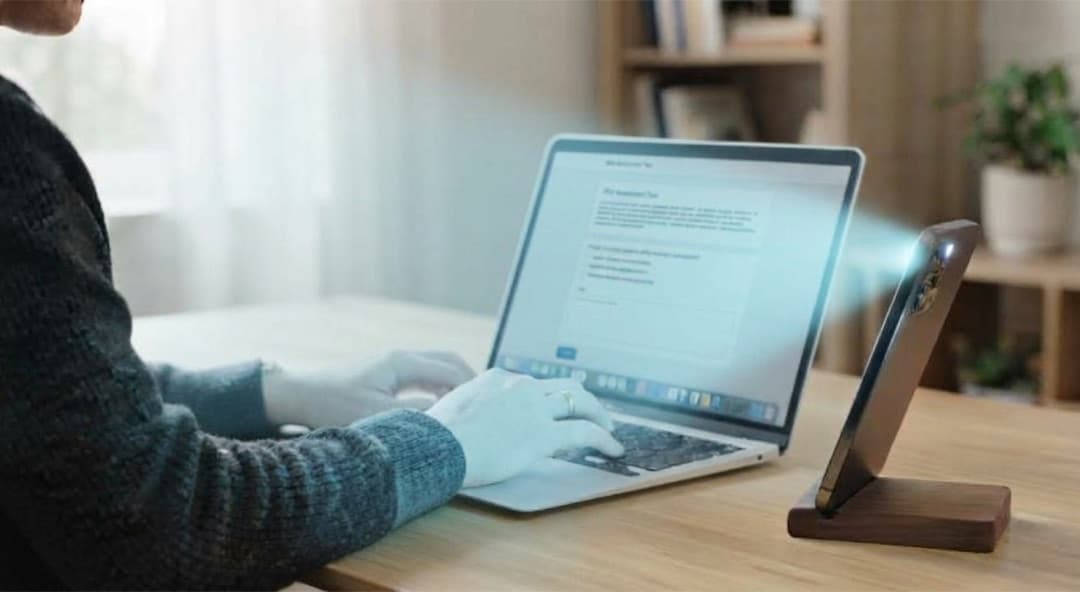
The phone stands beside the laptop, angled back at it, and records the screen, the keyboard and both hands from start to finish. The footage lands in the candidate's report next to the webcam recording, and it goes through the same review passes as everything else Goodfit records.
Turning it on
The second camera is available to every organization and is switched on per hiring stage. Open the job, go to Hiring Stages, expand the stage's advanced options and turn on the second camera requirement. Candidates who start that stage from then on are asked to set it up before the assessment begins; candidates already mid-assessment are not interrupted.
It applies to assessments taken on a computer, including AI video interviews and coding, skill and psychometric assessments. AI phone interviews are the phone, so they are not part of this.
What the candidate does
Setup takes about a minute and needs no app. Before the assessment starts, the candidate's screen shows a code to scan with their phone camera. On the phone they then:
- Record a short scan of their surroundings, so the room itself is on record once.
- Stand the phone beside the laptop, angled so its camera sees the screen and keyboard, with their hands in frame.
- Keep the phone's screen on. Recording starts when the assessment starts and stops when it ends.
If the phone drops off mid-assessment, the assessment keeps running. The candidate sees a prompt to unlock the phone or put it back; the moment it returns, recording resumes on its own. A phone that never comes back leaves a visible gap in the footage, and the report shows exactly when coverage stopped.
What you see in the report
Two artifacts join the recording tabs on the candidate's report:
Surrounding Recording. The one-time scan of the room, captured during setup.
Auxiliary Camera Recording. The side camera's footage for the whole assessment, reviewed alongside the webcam: whether the screen and keyboard stayed in frame, whether both hands stayed visible, and what the candidate was doing when the browser or webcam raised a flag.
A report that ran without the second camera shows the empty slot where these tabs would be, with a one-click way to turn it on for that job's stage.
For how the rest of the proctoring stack works, see Inside Goodfit's interview proctoring. For how flags are weighed and reviewed, see How Goodfit measures candidate integrity.