May Week 4
Accept applications by email, write your own branded email templates with file attachments and send them straight from a job's pipeline, see a candidate's face and their work side by side, brief the AI interviewer with each candidate's resume, evaluate against the same rubric the interview used, slice the talent pool by resume keyword and assessments completed, and download just the slice the kanban shows.
- prescreening
- voice
- talent-pool
- recordings
- scorecards
- insights
- jobs
Prescreening
Accept applications by email
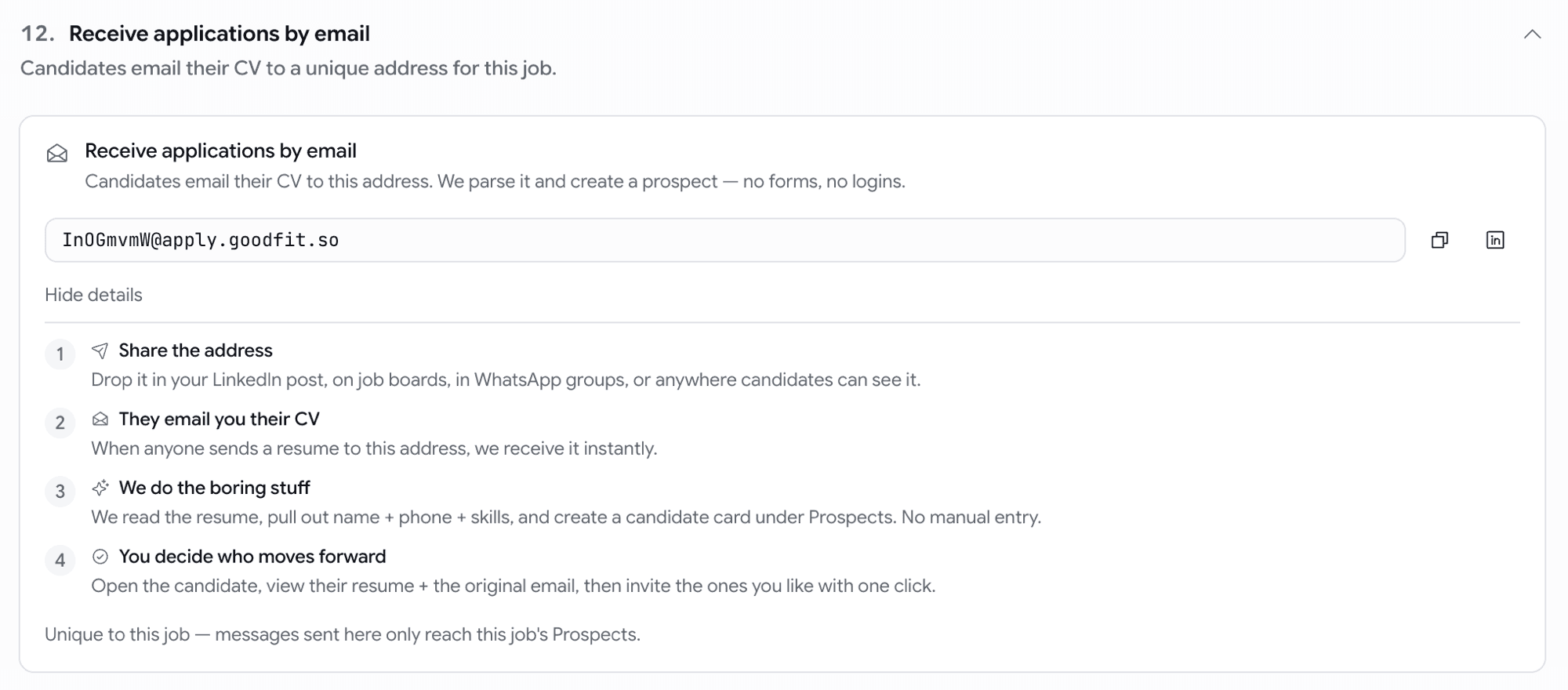
Every job now has its own intake email address — candidates apply just by emailing their resume.
- Turn the address on for a job and share it on LinkedIn, X, WhatsApp, or anywhere else.
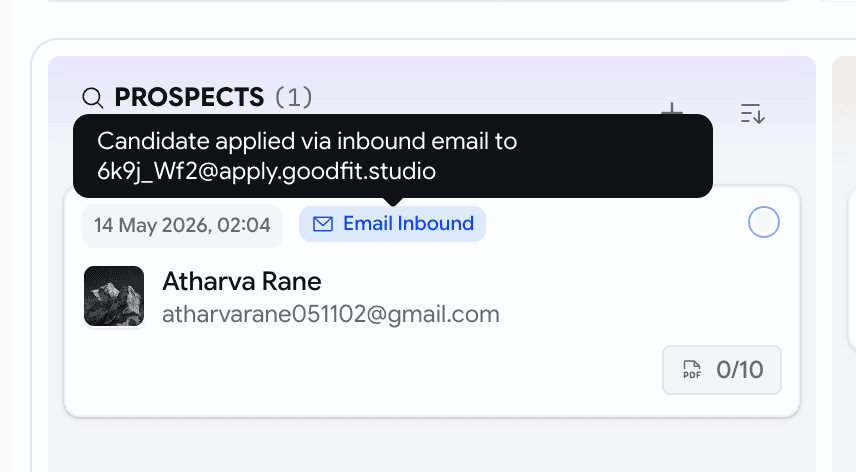
- A candidate emails their CV from anywhere; we parse the resume, score it against the JD, and create a prospect card with a 📧 Email Inbound badge.
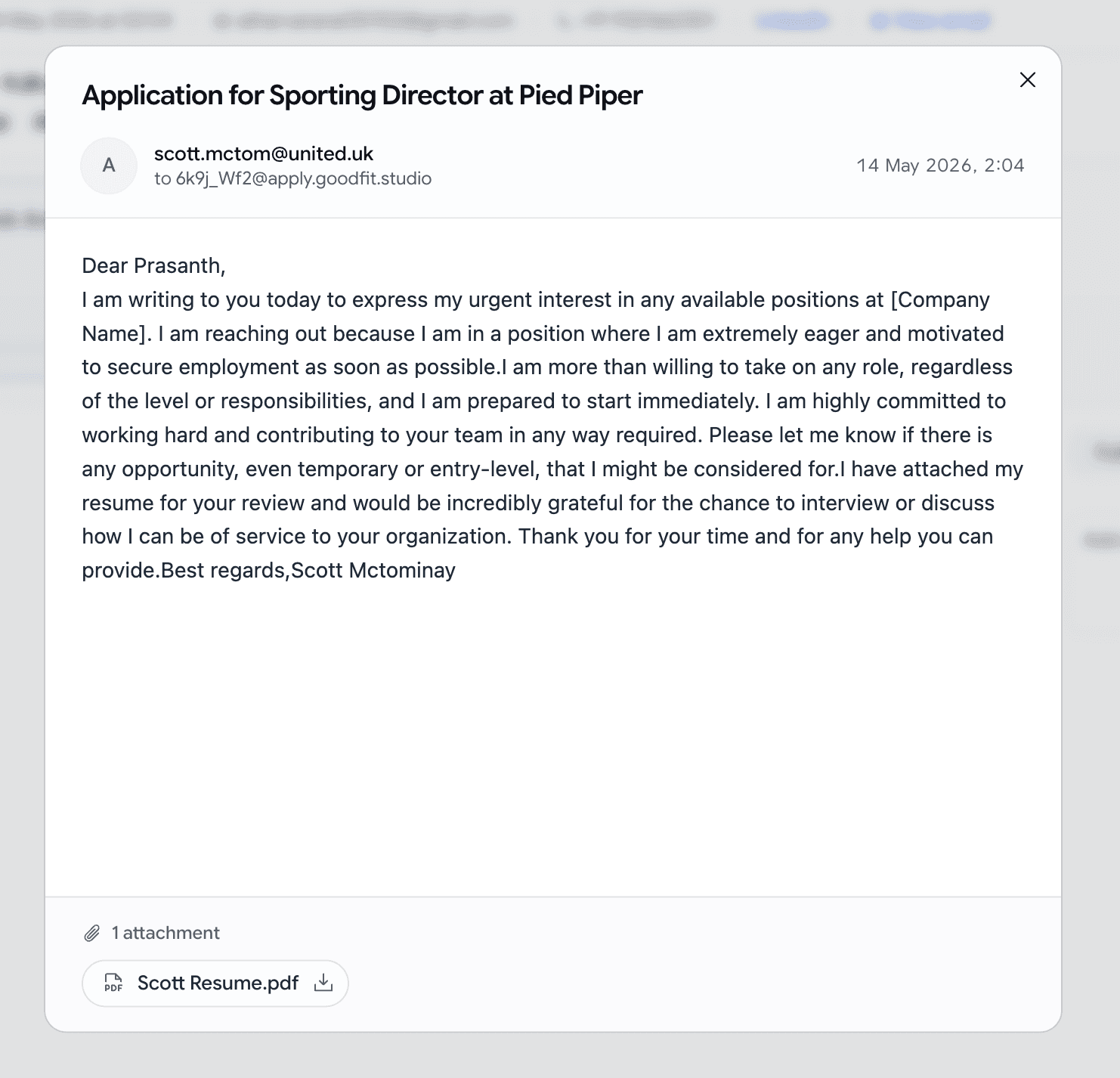
- Click View email on the application to read the original message and download every attachment.
Custom email templates, now with attachments
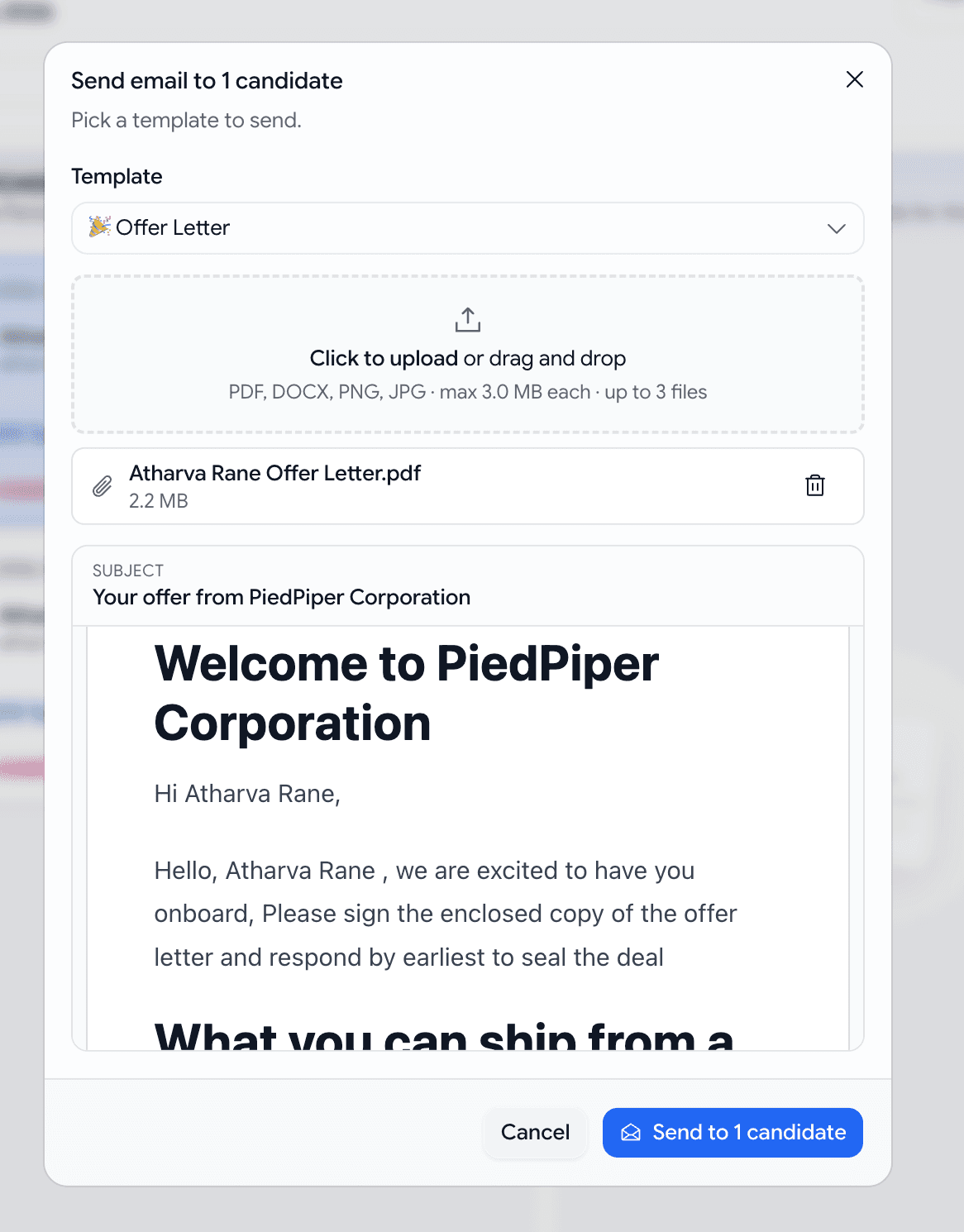
Until now you had four built-in emails (invitation, assessment, rejection, hired) and nothing else. You can now write your own — interview confirmations, take-home briefs, offer letters, polite nudges, reference-check requests — and send them straight from a job's pipeline.
- Settings → Email Templates → + New template. Author a subject and body with click-to-insert variables for candidate name, job title, company, and the sender.
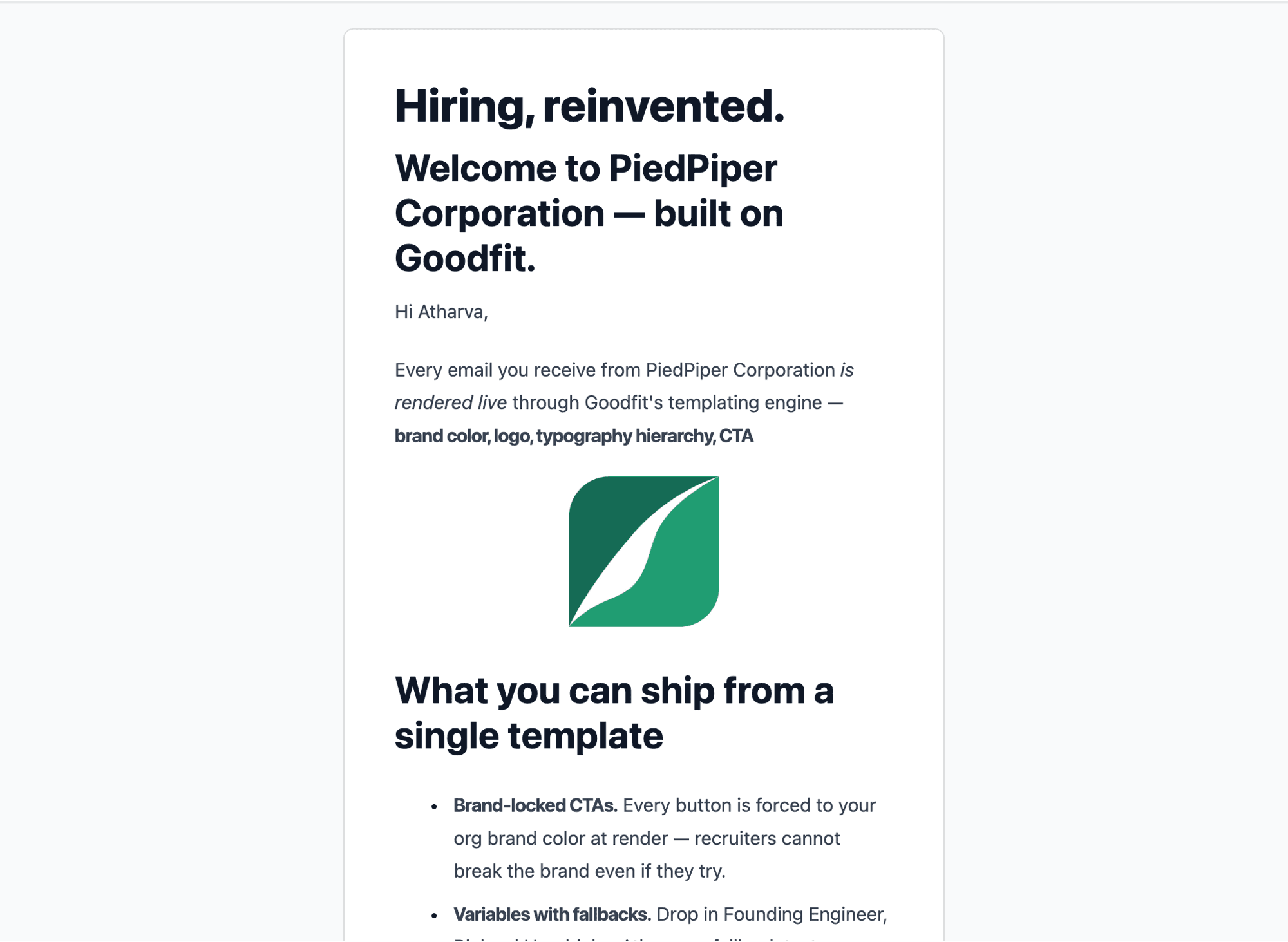
- Every template renders inside your branded layout — your logo on top, your brand color on every button — so what you preview in-product is exactly what the candidate sees in their inbox.
- Send from the kanban: select candidates on a job's board, open the Send email dialog, pick a template, hit send. One email, branded, audit-logged, done — no copy-paste from Gmail.
- Attach real files to any template. Flip Requires attachment on (e.g. "Offer Letter" or "Take-home brief"), and the kanban will only let you send it to one candidate at a time up to 3 files, 3 MB each: PDF, DOCX, PNG, JPG.
- The candidate gets a branded email with a real paperclip. The application's activity timeline records the template name and the files that went out — so "what did we send Bob three months ago?" stops being a mystery.
Get emailed when a candidate finishes an assessment
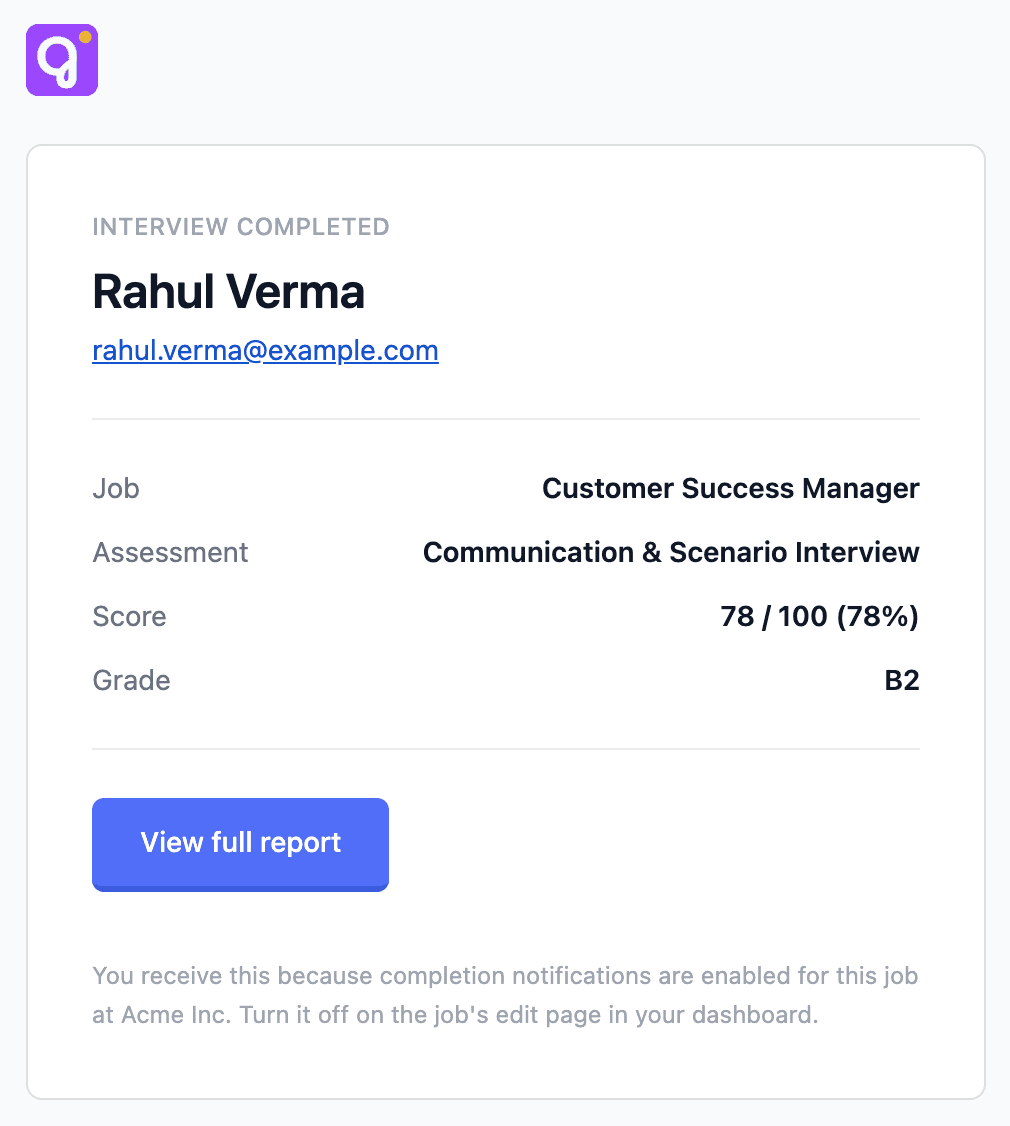
Don't want to keep refreshing the pipeline? Let the job email you the moment a candidate completes.
- On the job edit page, flip Settings → Email on assessment completion (off by default).
- When on, the person who created the job gets an email per completed attempts. View full report button straight to the application.

Voice
Give the AI interviewer your candidate's resume
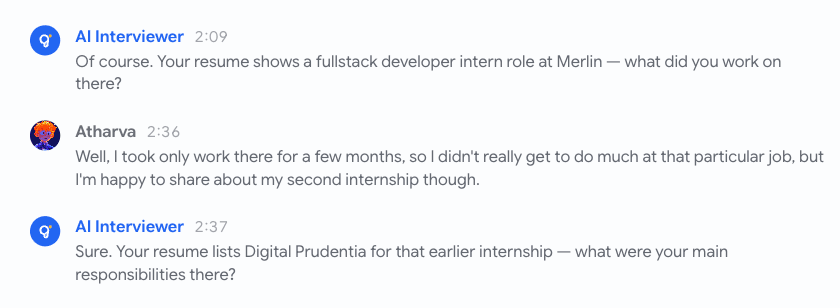
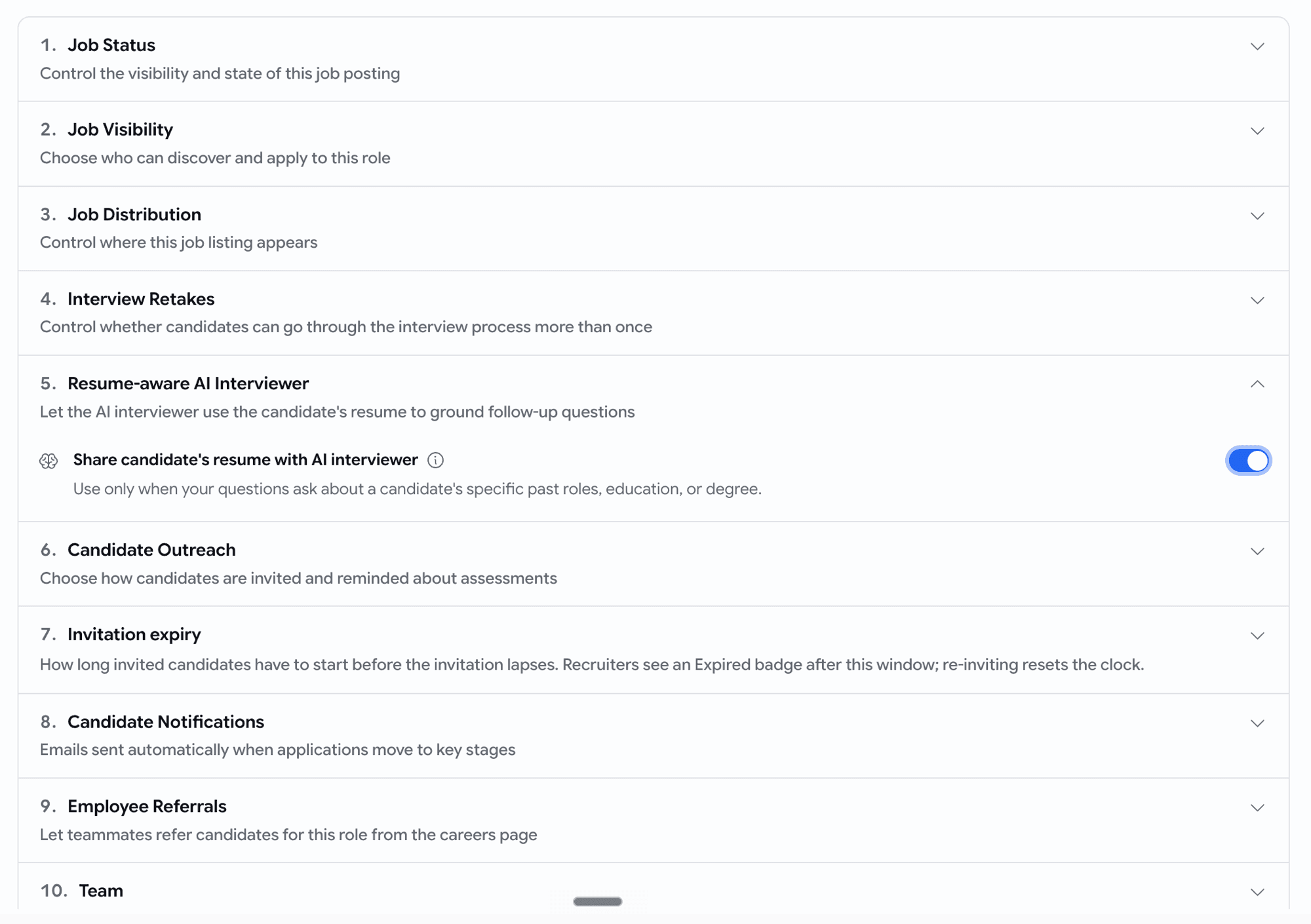
Turn on Resume-aware AI Interviewer on a job and the voice bot reads each candidate's resume before the call — then uses it during the interview.
- It anchors on what's on the CV ("Your resume shows ~6y with React — how do you approach state management?")
Assessments
See the candidate's face and their work, together
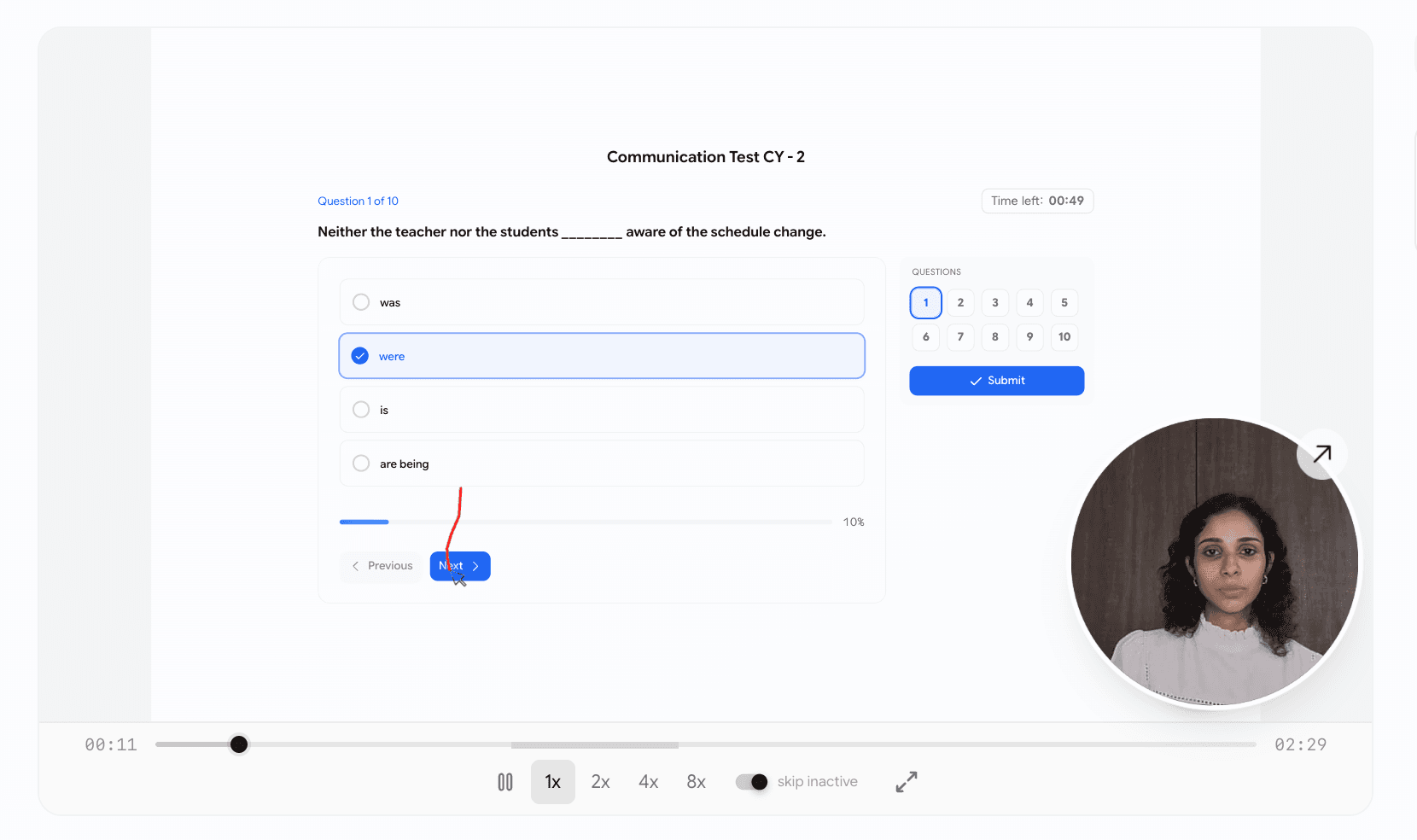
Reviewing a proctored attempt used to mean flipping between two separate recordings — one of the candidate, one of what they were doing — and trying to line up the timing by eye. Now they play together.
- When a candidate pauses for forty seconds, you can see at a glance whether they were thinking, looking away, or no longer at their desk — without ever leaving the page.
- The candidate's video sits as a small circle in the corner of their work. Hover it to enlarge; click it to open in a new tab.
Hiring
Scorecards now follow the voice interview rubric
Evaluations on the application's Evaluation tab used to rate against the job-level skill list — which often drifted from what the voice interview actually assessed. Now the scorecard mirrors the interview.
- The skills you see on the scorecard are pulled straight from your voice interview skills for that stage. If the job has more than one voice round, we combine them and drop duplicates.
- When there's no voice round, the scorecard falls back to the job's skill list and lets you add a custom skill row.
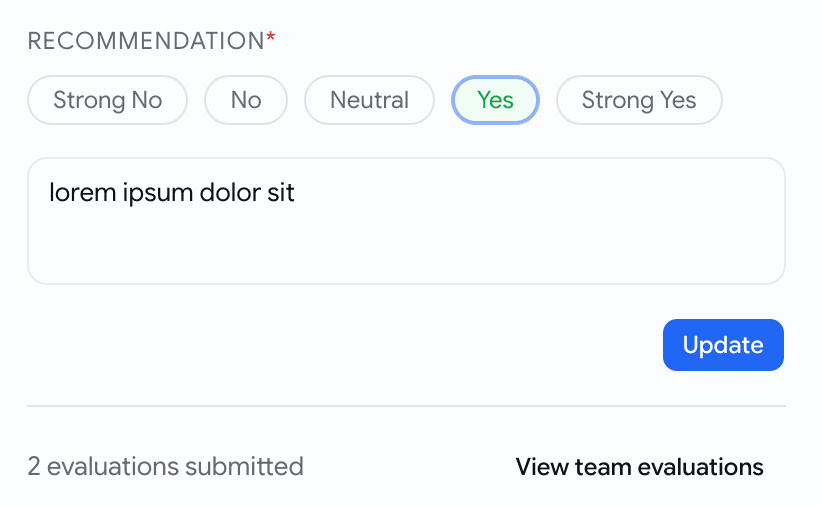
- Your teammates' scores are hidden by default — no more anchoring on "2 Yes, 1 No" before you've written your own. Click View team evaluations when you're ready, Hide team evaluations to collapse them again.
- Forget to rate a skill or pick a recommendation? You get a clear message saying what's missing, instead of a silently disabled button.
Talent pool
Advanced filters on the candidate pool
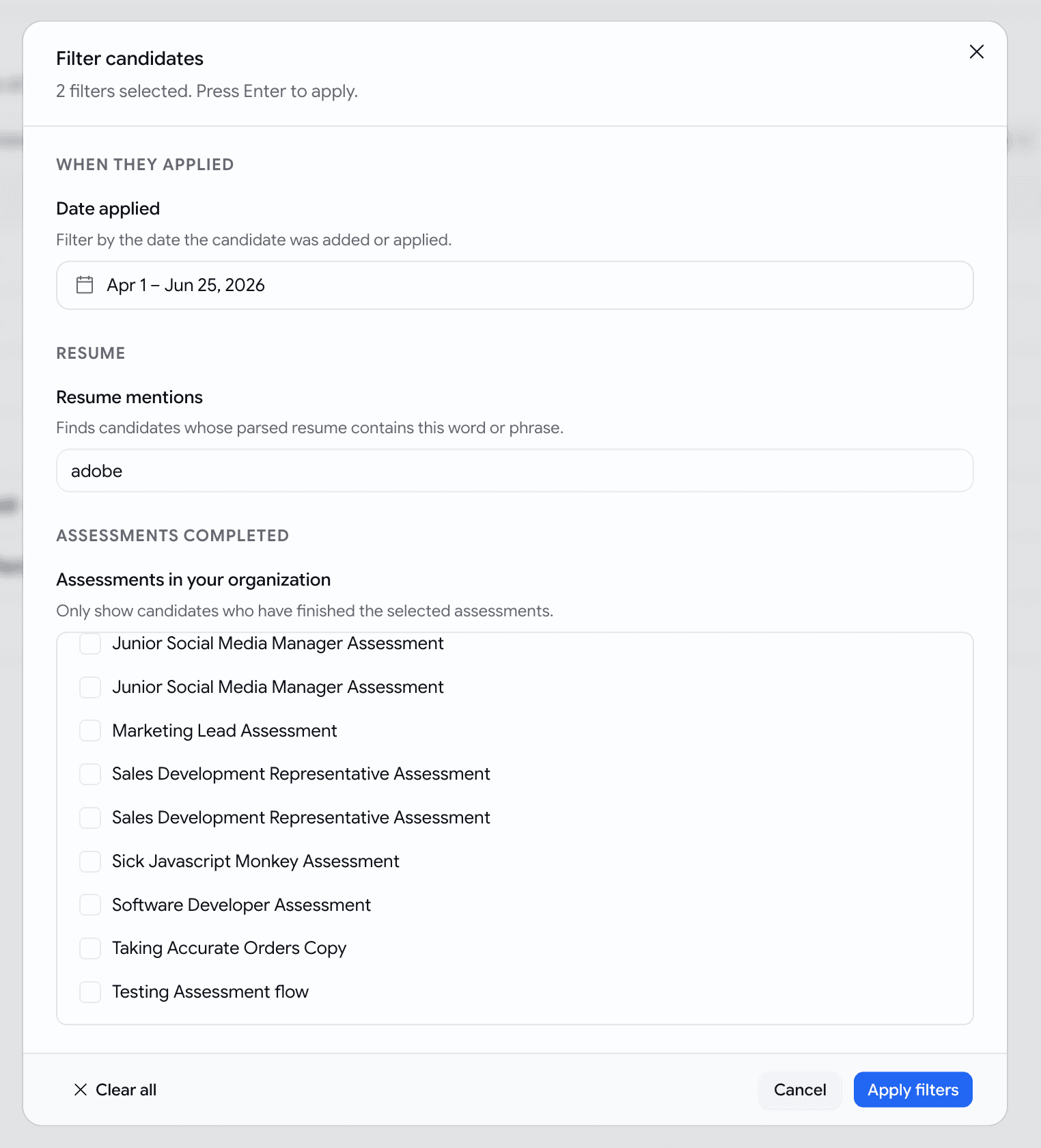
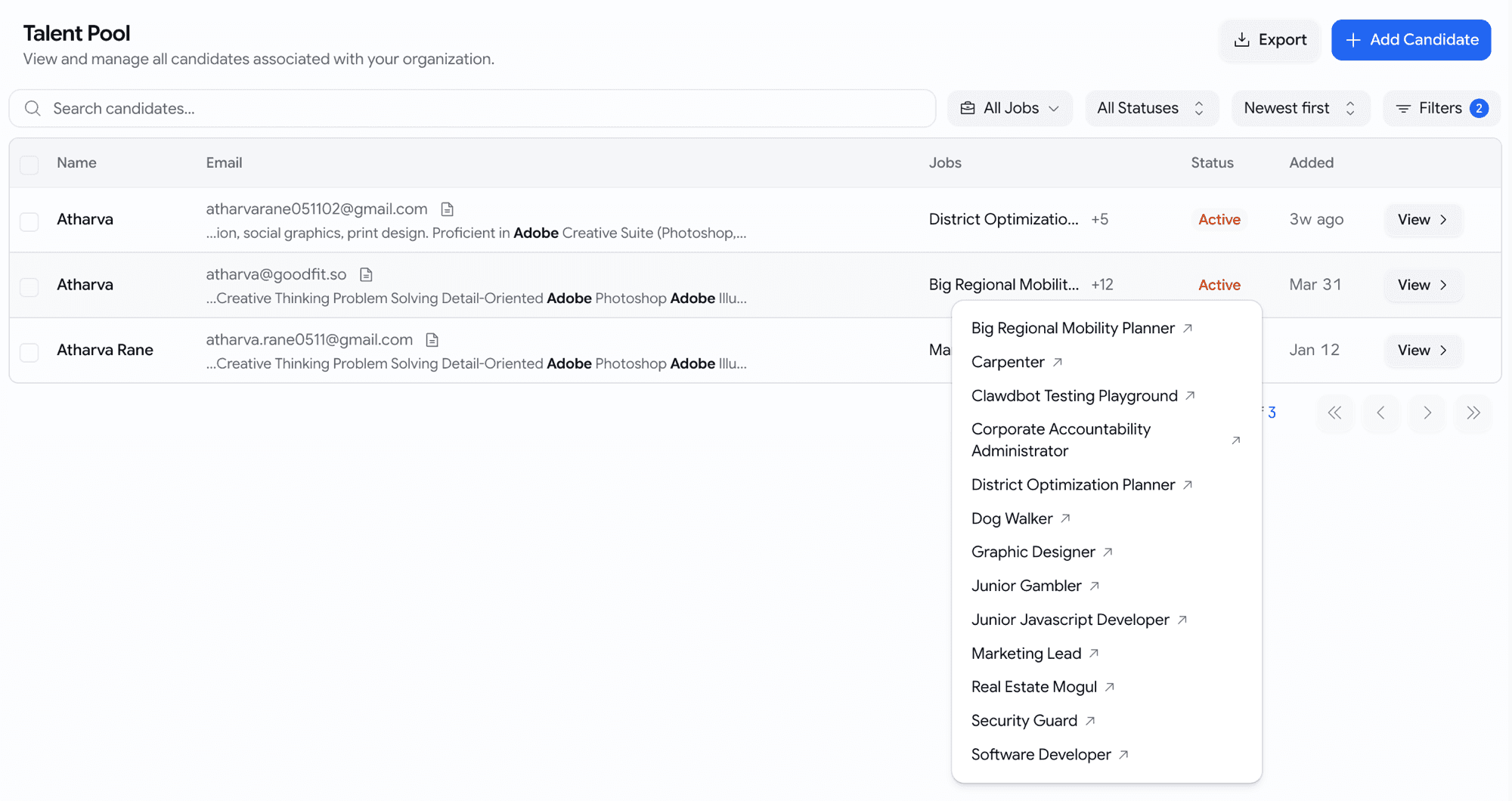
The Talent Pool gets a new Filters button next to the search / job / status / sort row, with three deeper ways to narrow down candidates.
- When they applied — pick a date range with the two-month calendar.
- Resume mentions — type a keyword (e.g.
react,adobe,gst). We search the parsed contents of every resume. Each matching candidate shows the surrounding snippet right under their email with the keyword bolded — so you can tell real Java from JavaScript-only at a glance. - Assessments completed — pick from a list of your organisation's actual assessments by name (not generic types). Selecting one means "this candidate has finished and been evaluated on this specific assessment."
- Filters live in the page address — bookmark a useful slice, share it with a teammate, reload the page and it's still there.
Hiring
Export only what the kanban shows
The Download Applications button on a job's kanban now respects your active filters. The CSV contains exactly what's on screen — not the whole job.
- No filters active? You'll get the full applications list, as before.
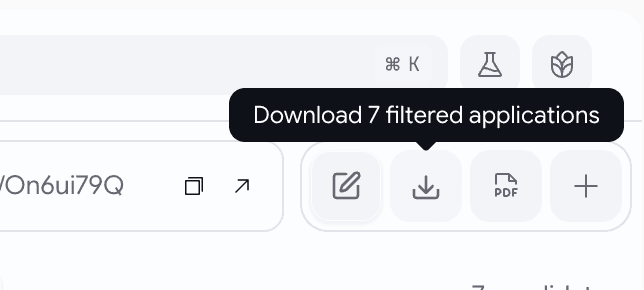
- Filters active? Hover the download button and it tells you exactly how many applications are about to leave with you —
Download 12 filtered applications— and the CSV mirrors that. - If your filters narrow the board to zero candidates, the button stays disabled — never a silent full-job export when you thought you were narrowing.
- Hover the Download CSV button on Overview, Pipeline Health, Sourcing Analytics, or Team Activity and you'll now see
Download filtered data— a small, clear confirmation before you click. - Narrow to "Q1 2026, recruiter X" and the CSV is that slice, every time.
Jobs
A calmer job edit page
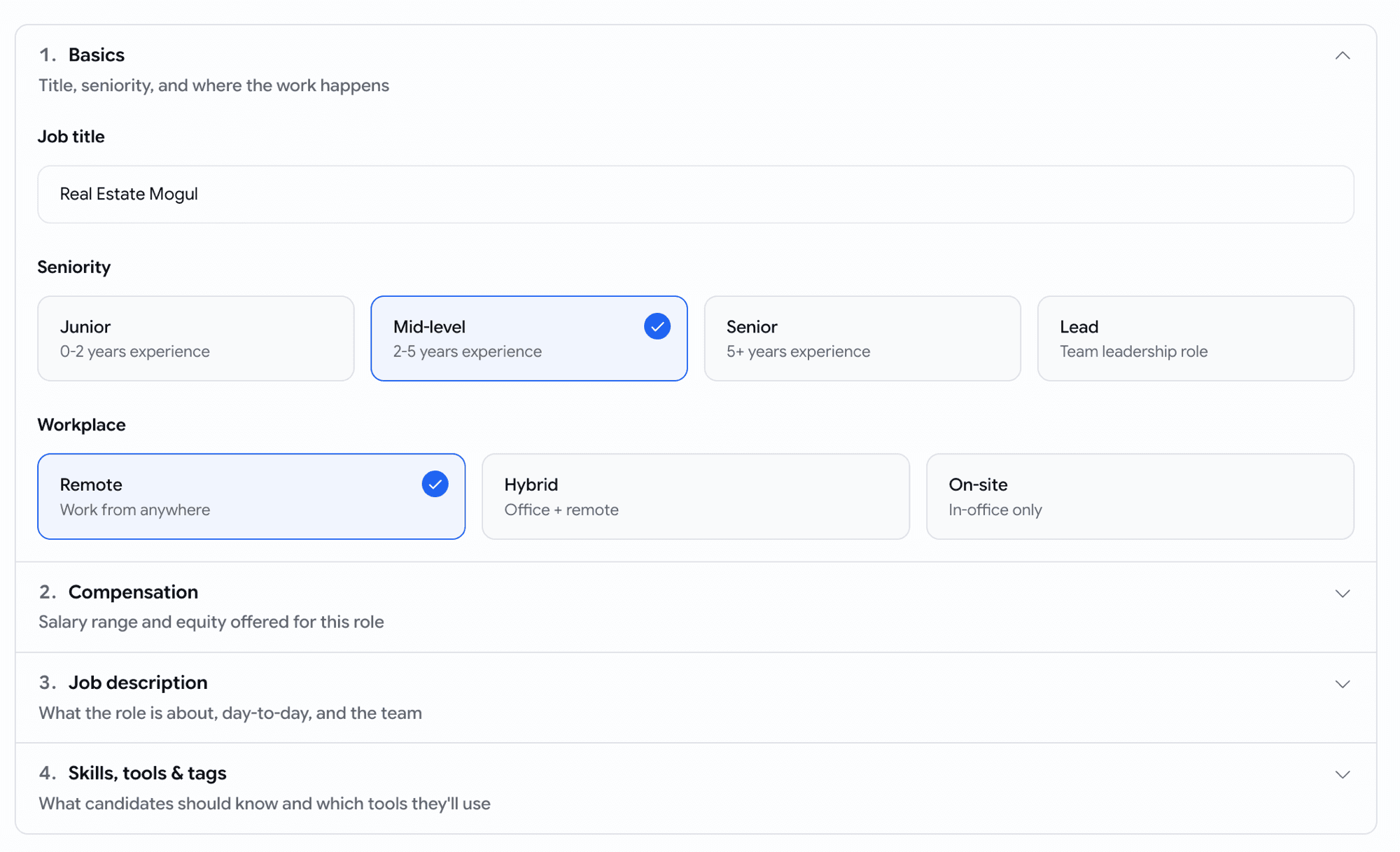
Creating or editing a job used to throw fourteen open cards at you in one wall — overwhelming, hard to scan, and easy to lose your place in. We've cleaned that up.
- The most important sections are open when you arrive — job status, visibility, basics, job description — and everything else sits one click away, in order, ready when you need it.
- No more scrolling through settings you don't care about to reach the one you do.
June Week 1
Slice the talent pool by every signal you collect — assessment scores, language levels, resume details, and quality flags — or just describe who you want in plain English and let AI build the filters, style your public careers page from a gallery of templates with a live desktop-and-mobile preview, and hand a hiring manager a shareable walkthrough of every screen a candidate will see.
May Week 3
Accept applications by email, pick from a 500+ verified coding bank and ~10k reusable skill questions, personalise voice scripts, run language tests in 10+ languages, send mail through Microsoft 365, and stop silently losing emails.