May Week 2
Score candidates inside application forms, branch questions based on earlier answers, preview psychometric frameworks before assigning them, see if a bad voice interview was a bad connection, flag suspicious reports, and inline help on every page.
- prescreening
- scored-mcq
- conditional-logic
- psychometric
- voice
- help
- flags
Prescreening
Score answers inside the application form
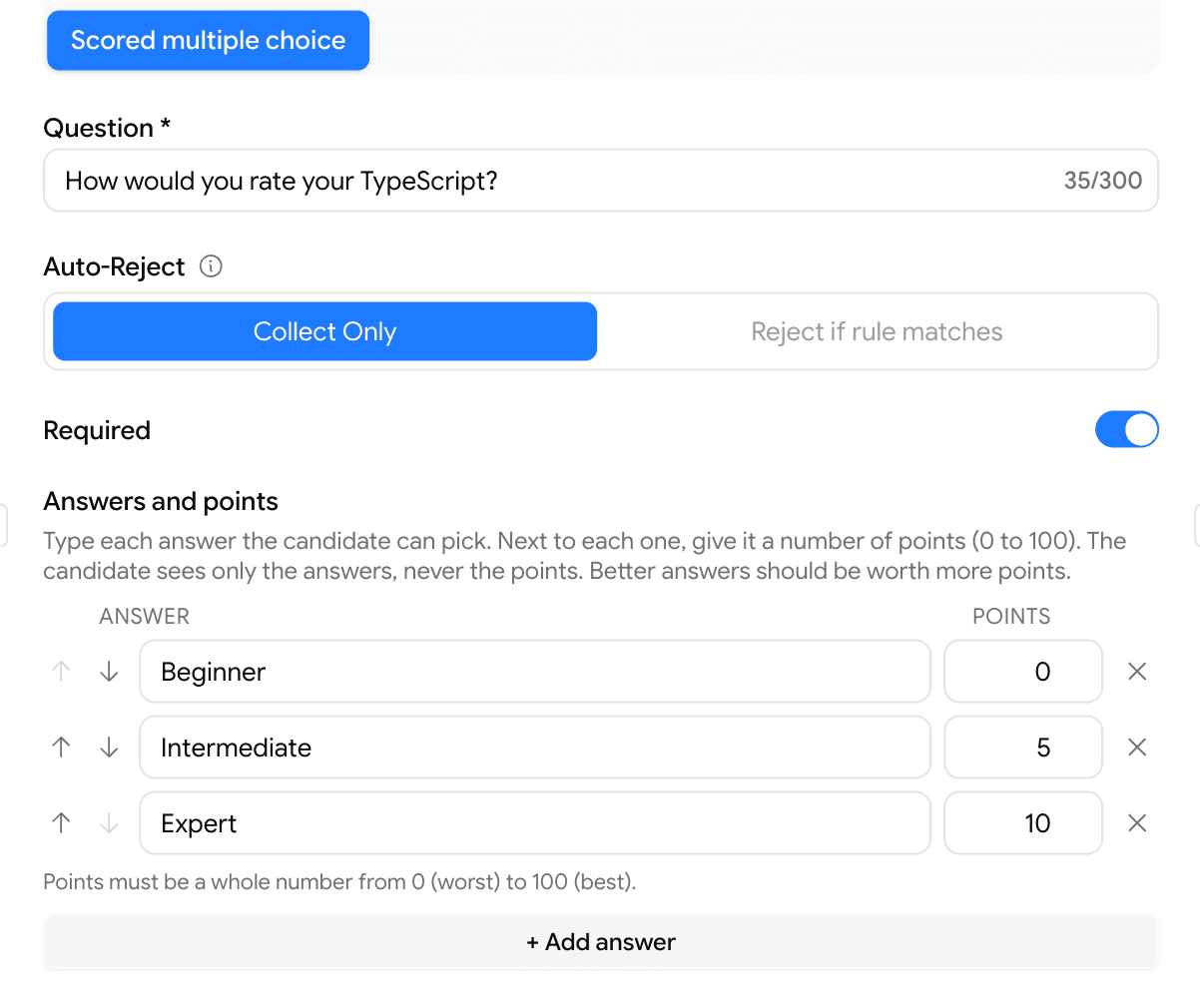
Application forms can now grade candidates with points — not just pass / reject.
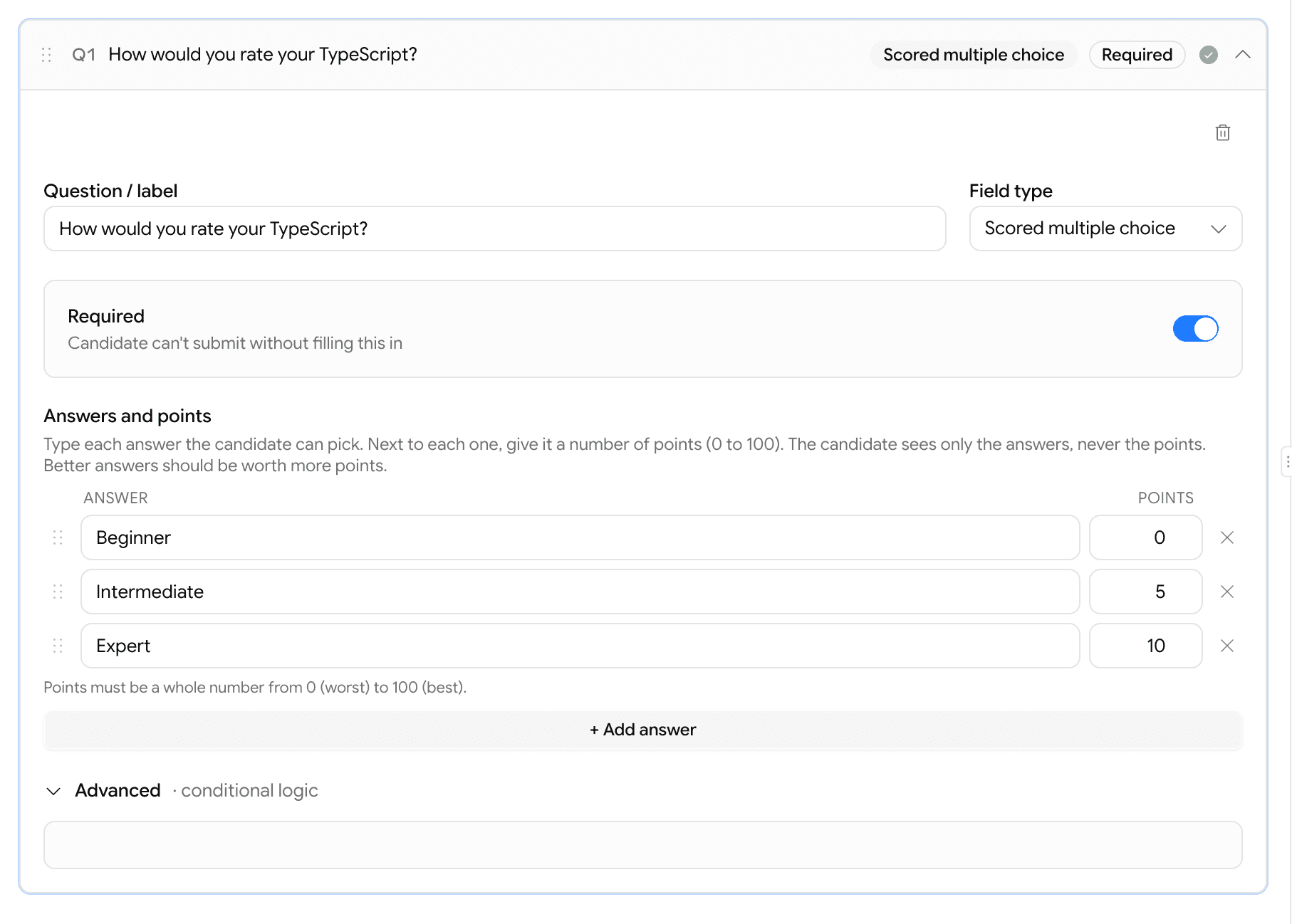
- New question type: Scored multiple choice. Each answer carries 0–100 points (better answers = more points).
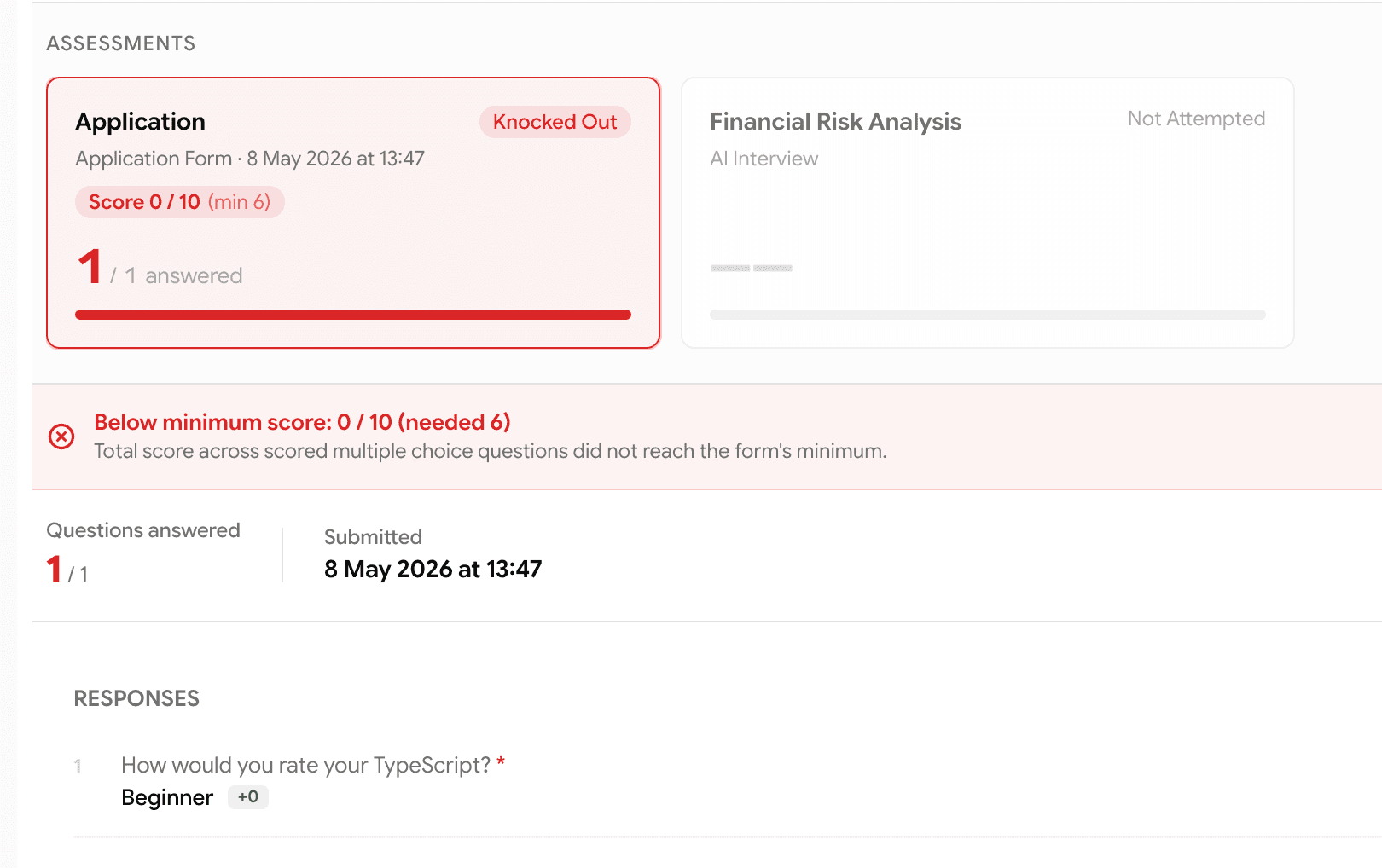
- Set a Minimum total points under the form's settings — anyone below it is auto-rejected, the same way knockout questions already work.
- Live helper shows the best possible total as you build, so the minimum is never set higher than what's achievable.
- Candidates only see the answers — never the points.
- Recruiters see the score on the report — total, max, and a green +points chip next to the answer the candidate picked.
Prescreening
Show a question only when it actually matters
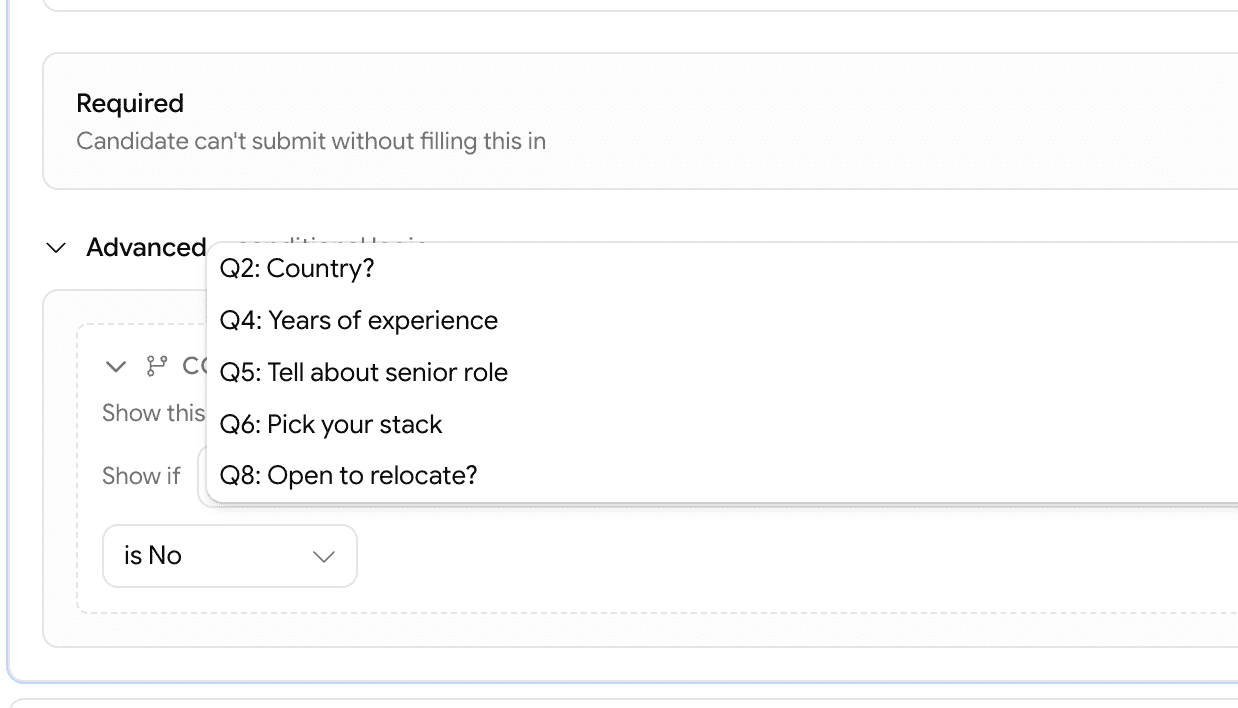
Application forms can now branch — a question can be set to appear only when an earlier answer matches.
- On any question, open Advanced → Conditional logic and pick an earlier question + the answer that should trigger it.
- Works with: yes/no, dropdown, scored multiple choice, multi-select, number, and date questions.
- Hidden questions are completely ignored — not asked, not required, and they can't reject anyone.
- Candidates see a clean, shorter form tailored to their earlier answers.
Assessments
Preview the psychometric test before you assign it
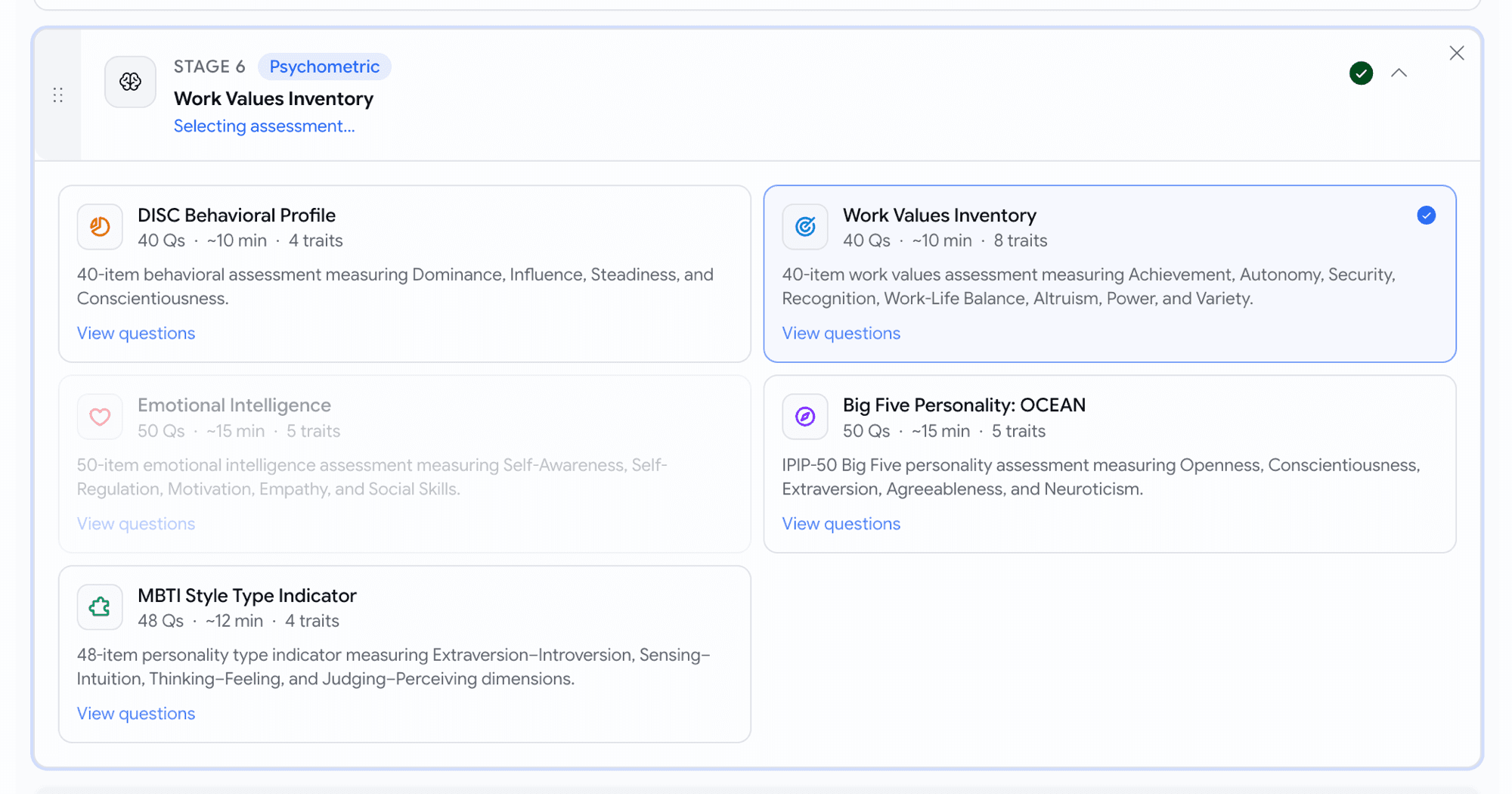
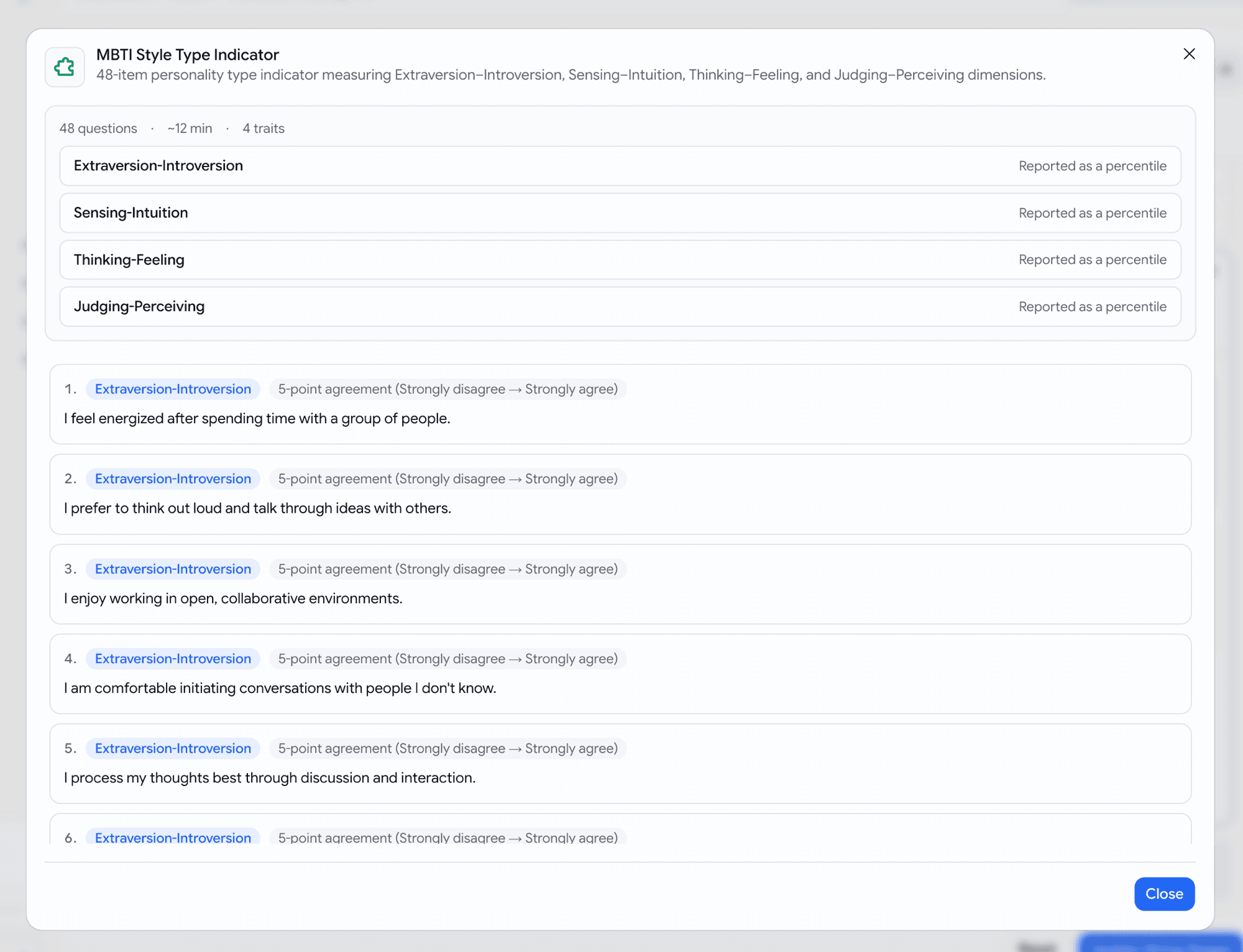
Picking a psychometric stage is now a visual choice — and you can read every question before committing.
- All 5 frameworks now appear as cards with number of traits measured and a description. With an ability to view every question, the trait it measures, and the response scale used
Voice
Was it the candidate — or their internet?
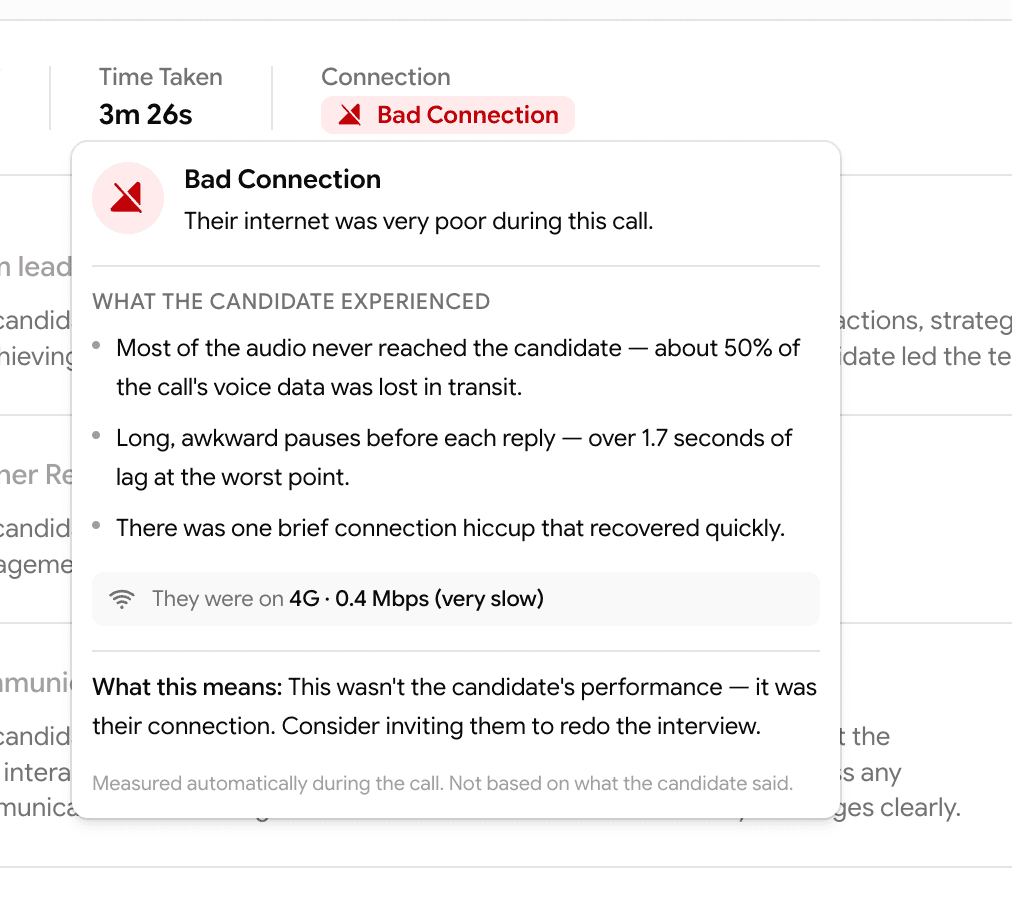
Voice interview reports now tell you, whether the candidate's connection held up during the call.
- A small Connection tag appears next to "Time Taken" on every voice attempt — Spotty Connection (amber) or Bad Connection (red).
- Hover the tag for a narrative explanation: what the candidate experienced ("about half the call's voice data was lost in transit"), what network they were on, and — for bad connections — a clear recommendation.
- Clean calls show nothing — the tag only appears when it's worth your attention.
Reports
Flag a report when something looks off
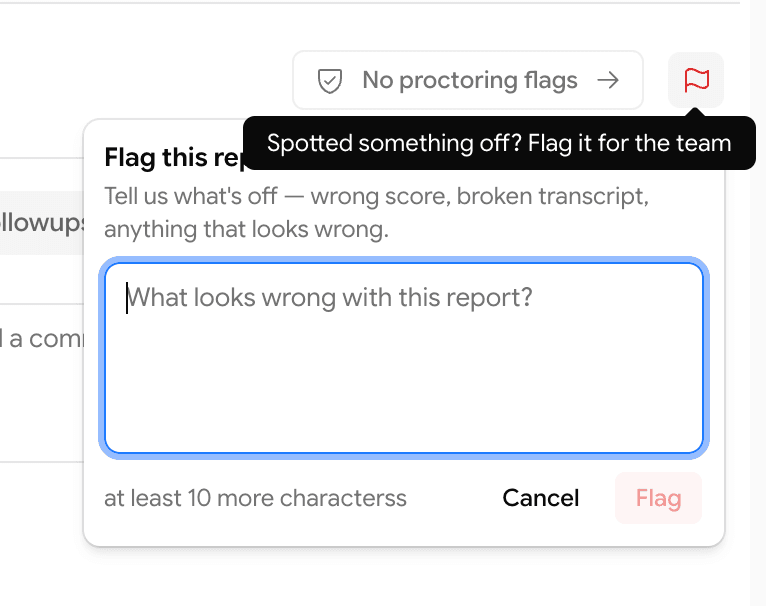
Spotted a wrong score, a broken transcript, a missing recording, or anything that doesn't add up? Flag it in one click.
- New 🚩 Flag icon at the right of the report's results strip — on both assessment and prescreening reports.
- Click it, type a short note, hit Flag.
- The flag goes straight to the GoodFit team's internal channel — so we can investigate without going back and forth.
Help
Help articles, right where you need them
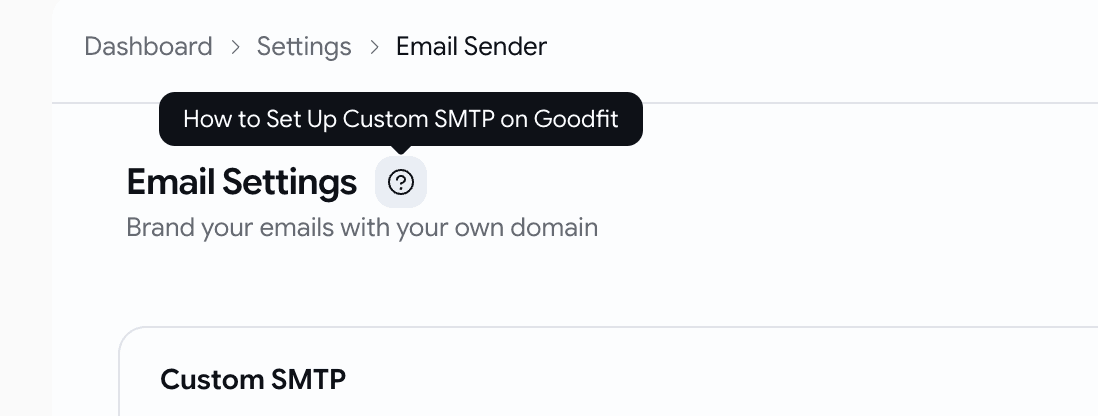
Every important page now has a question-mark icon next to its title — click it to open the matching help article.
- Icon appears on Create Job, Email Settings, Careers Page, Members & Permissions, Employee Referrals, and more (we'll keep adding).
May Week 3
Accept applications by email, pick from a 500+ verified coding bank and ~10k reusable skill questions, personalise voice scripts, run language tests in 10+ languages, send mail through Microsoft 365, and stop silently losing emails.
May Week 1
Metered billing goes live, pipeline health waterfall, invitation expiry per job, AI Phone Interview as a standalone product, sharable reports, and more.