July Week 2
Read every integrity signal for an assessment in one report with one verdict, catch candidates running an AI copilot in their browser, hand every candidate a different mix of coding questions, see the full history of who changed what on a job, and verify a candidate's ID straight from the government source with DigiLocker.
- proctoring
- assessments
- jobs
- identity
Proctoring
One integrity report, one verdict, one place to look
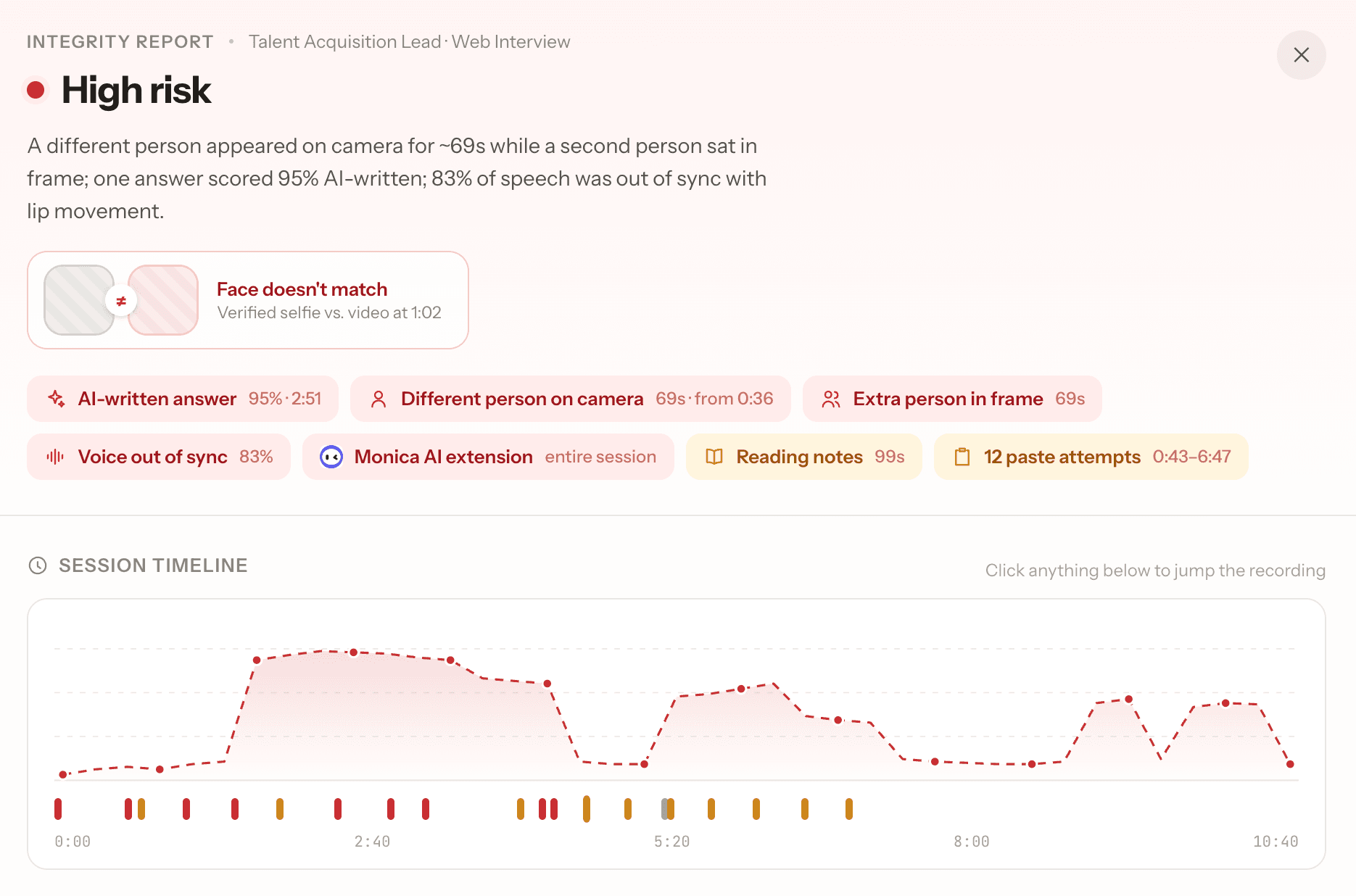
Everything we watch during an assessment — the camera, the browser, the answers, the voice — used to live in two separate panels with their own language for "suspicious". Now every signal lands in a single report with a single verdict.
- Each assessment attempt carries one Integrity card in its header —
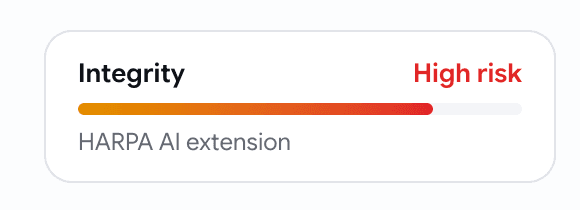
HARPA AI extension,AI-written answer (95%) + 35 more flags. Open it for the full report. - The report opens with the verdict in words, not a score to decode — and when a face doesn't match, the two photos sit side by side at the top so you can judge it yourself in a second.
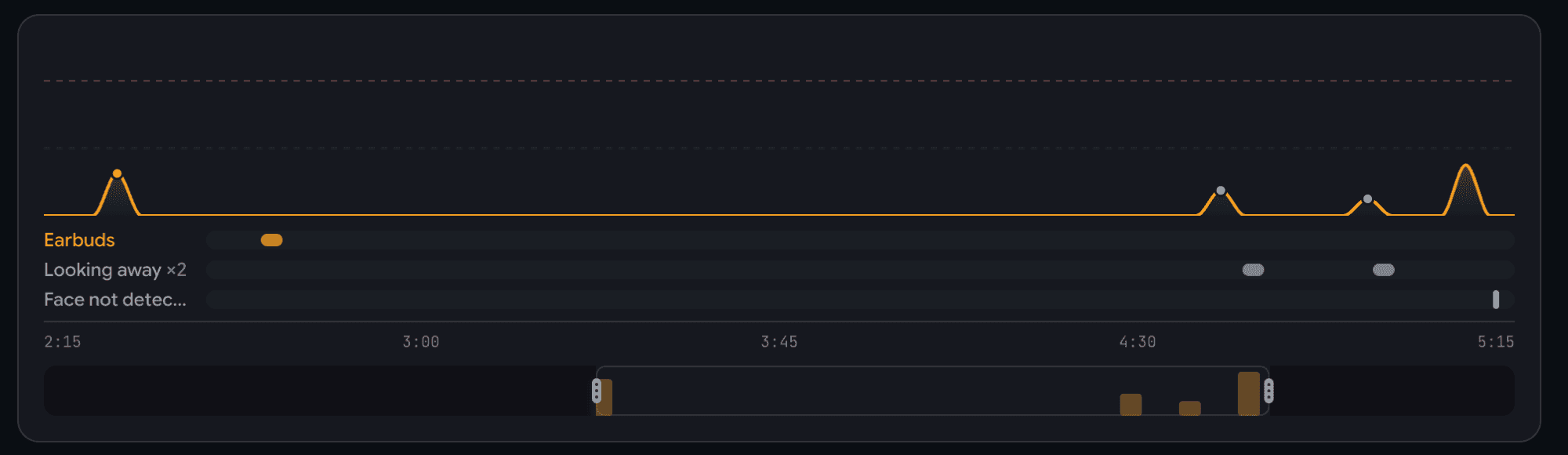
- A timeline of the whole session shows every flag on the moment it happened, labelled — Earbuds, Looking away ×2 — and for voice interviews, tap any moment to jump the recording straight to it.
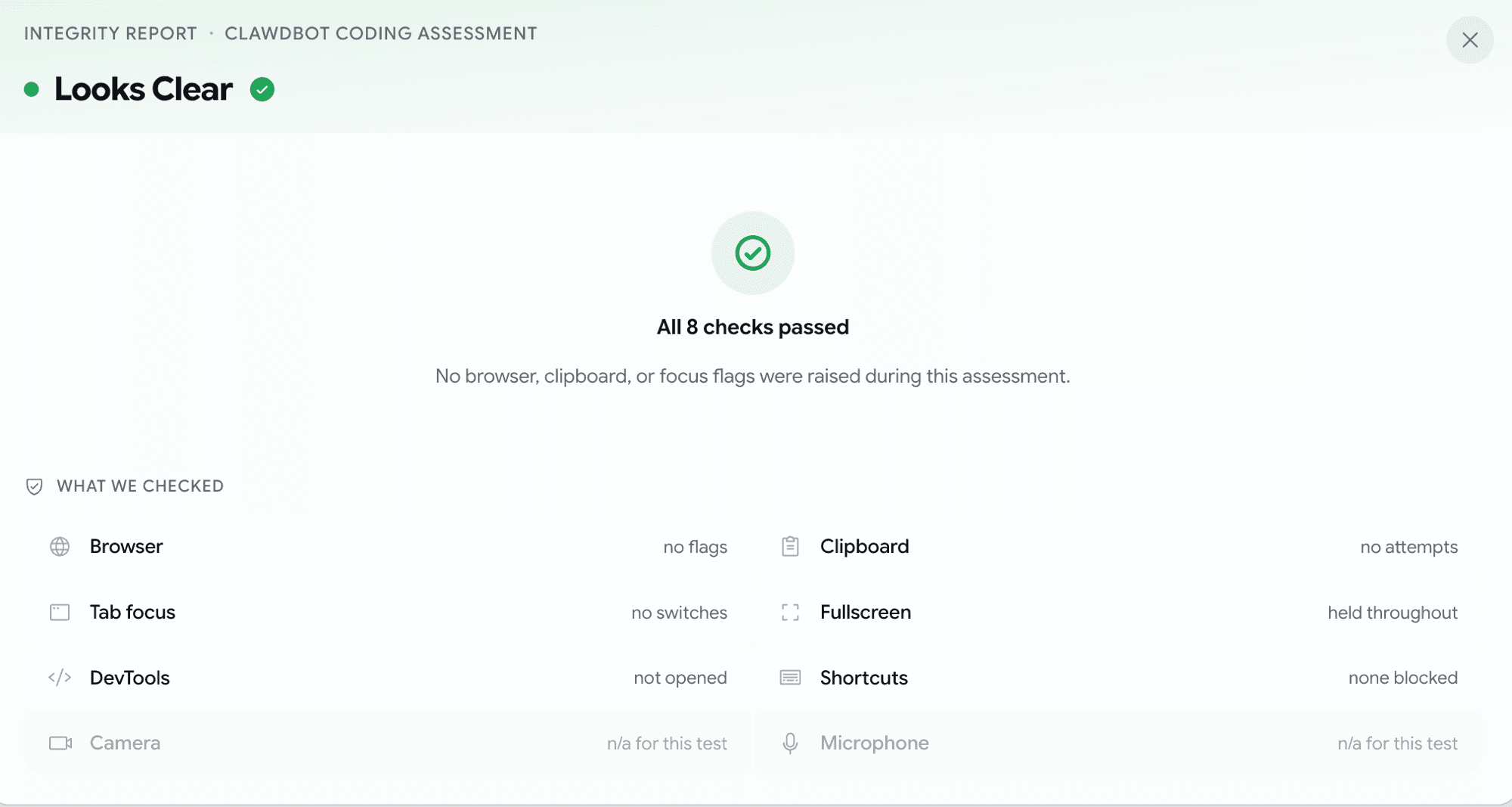
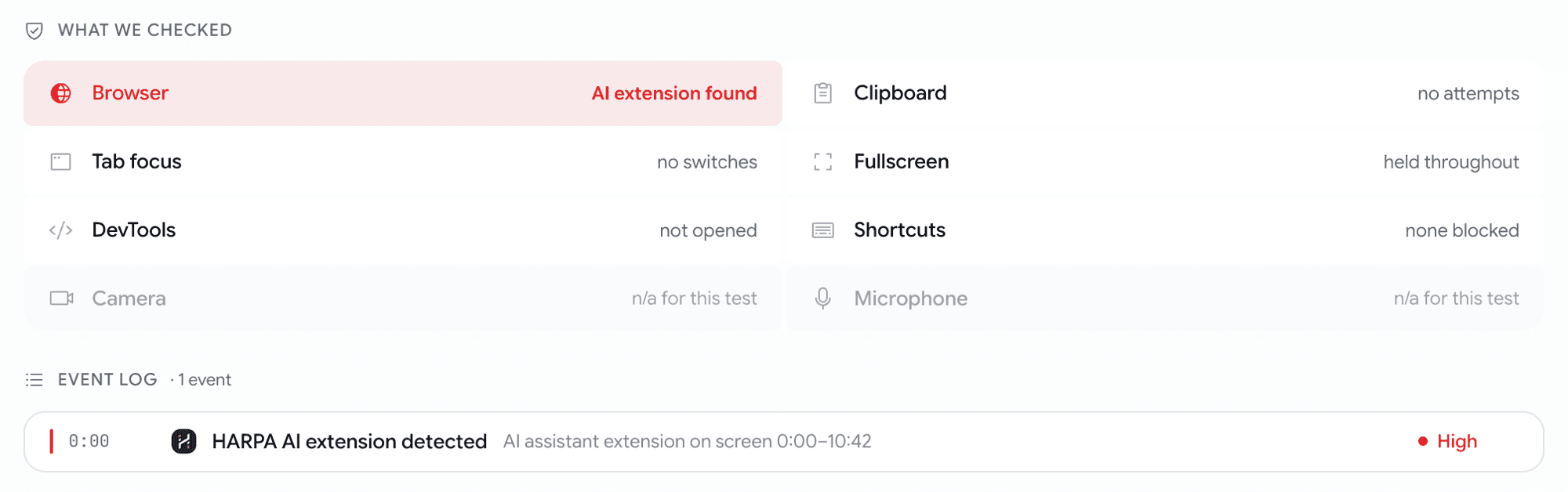
- A What we checked grid lists all eight checks for that assessment type, so you see what passed as clearly as what didn't. Nothing wrong? You get "All 8 checks passed" instead of a wall of empty tables.
- Below that, everything with its evidence attached: AI-written answers with the exact quoted passage, voice-to-lip match, the flagged camera frames, and a tidy event log you can filter to browser, camera, microphone, or tab.
Proctoring
We now catch AI copilots running in the candidate's browser
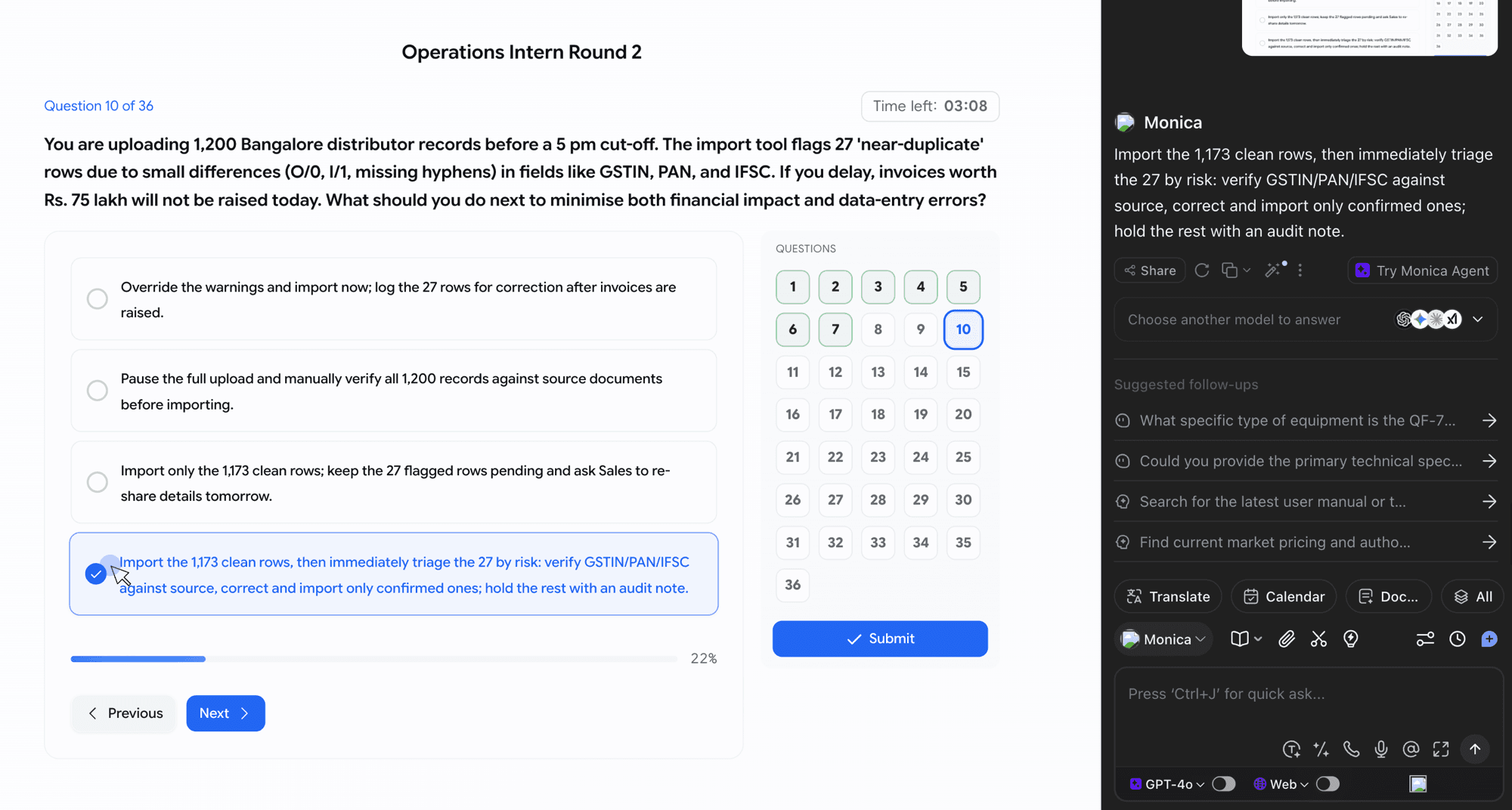
A candidate can install Monica, HARPA, Sider or the like and have an AI assistant answer questions in a floating panel — same tab, no tab switch, nothing for the old checks to see. We now catch it.
- If a candidate had a known AI assistant open during their assessment, it turns up in the Integrity Report by name and logo — nothing for you to switch on, and nothing the candidate is told.
- We separate used from merely installed: an assistant that was open and answering is a red, high-risk flag; one that was installed and never opened is an amber "installed, no visible use" — worth knowing, not an accusation.
- Every flag comes with the evidence behind it — how long the assistant was on screen, and what it was showing while the candidate worked.
- Covers all four assessment types — coding, skill-based, psychometric, and voice interviews.

Assessments
Give every candidate a different coding test from the same set
Identical question sets leak — one candidate finishes, the questions land in a WhatsApp group, and the next twenty walk in prepared. Now you can attach a bigger set and hand each candidate a random slice of it.
- Split your questions into Fixed — everyone gets these — and a Pool everyone draws from. Click the pill on any question card to move it between the two.
- Set how many to draw from each difficulty:
1 easy, 2 medium, 1 hard. Every candidate gets the same shape of test, just not the same questions. - A summary bar spells it out as you build: "Each candidate receives 6 questions: 2 fixed + 1 easy + 2 medium + 1 hard from the pool". No mental arithmetic.
- Attach up to 24 questions, deliver up to 6 — and reshape the pool right up until a candidate starts; your changes count for everyone yet to begin.
- Scoring is unchanged — the cutoff is still "solve X of the questions delivered", and it now counts against what the candidate actually got, not everything you attached.


Jobs
See who changed what on a job, and when
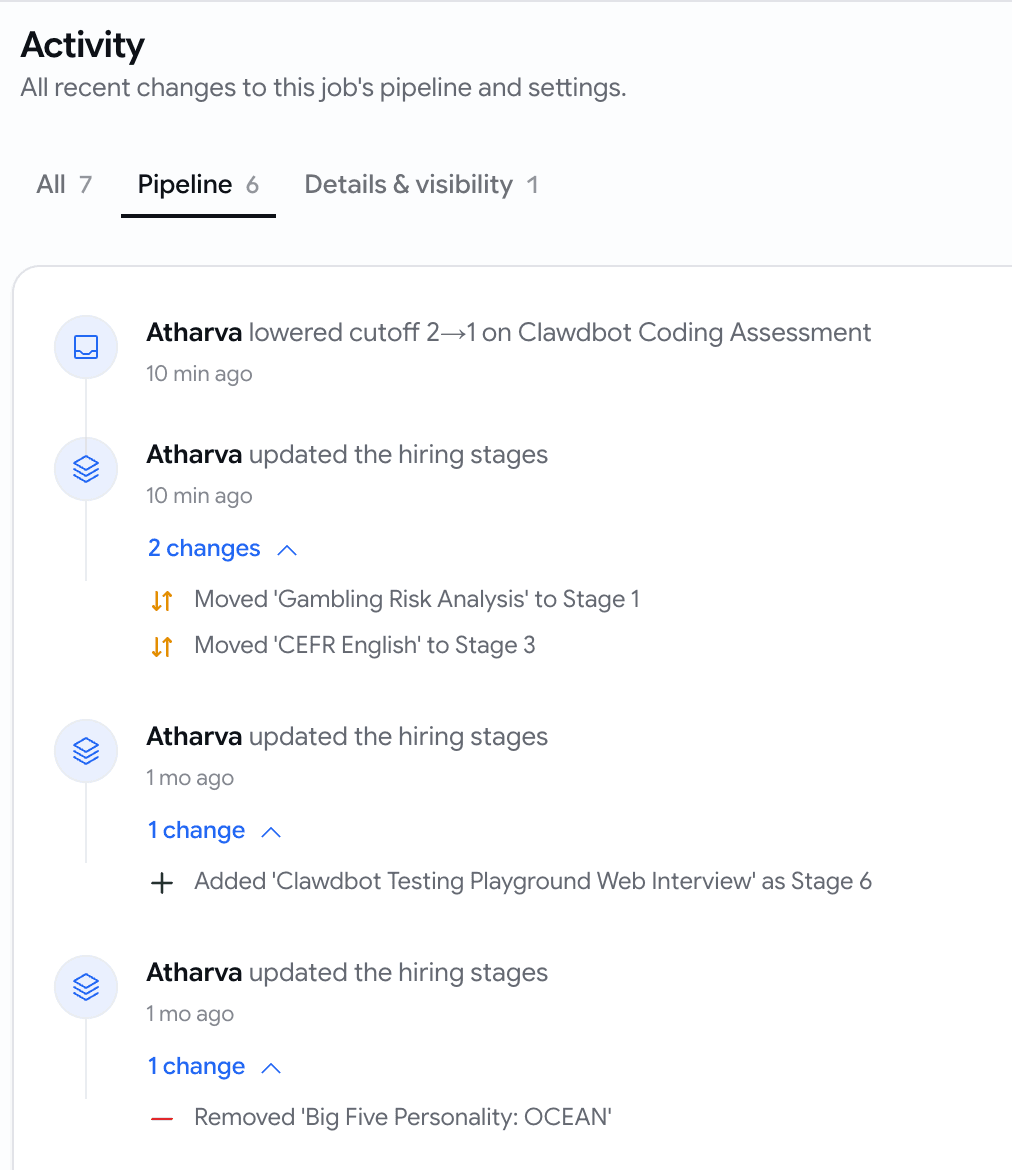
Someone dropped the cutoff on the coding round, or a stage vanished from the pipeline, and nobody could say who or when. Every job now has an Activity page that reads like a sentence.
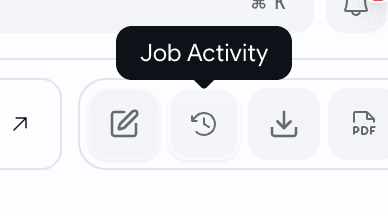
- Open it from the clock icon on the job's applications board — a plain-English timeline of every change, newest first.
- Pipeline changes read like people talk: "Lowered cutoff 2→1 on Clawbot Coding Assessment", "Added 'Web Interview' as Stage 6", "Moved 'CEFR English' to Stage 3". Open any row for the stage-by-stage detail.
- Job changes are there too — published, closed, made public or private, details edited, duplicated.
- Every row names the person who did it and the exact time, alongside a friendly "10 min ago".
- Filter to Pipeline or Details & visibility when you're chasing one kind of change.
Proctoring
Verify a candidate's ID straight from the government source with DigiLocker
Our photo check proves the candidate's face and name match the ID they're holding up — but not that the ID itself is real. DigiLocker closes that gap: the photo and name come from UIDAI, so the document can't be forged.
-
On the ID step, the candidate picks Connect DigiLocker (recommended) or Take a photo of your ID instead — the fallback stays for anyone who doesn't use it.
-
They give consent in DigiLocker, and we receive their Aadhaar photo and name from the government source. We match the photo against the selfie they just took and the name against the applicant on file.
-
A pass sends them straight into the interview. A mismatch is flagged for you to review — same as today.
-
You see it in the same verification panel you already use: a via DigiLocker badge and the photo labelled as pulled from DigiLocker.
July Week 4
Connect your own Google Calendar and book interviews without leaving Goodfit, read your whole hiring pipeline as a plain-English summary before you publish, get warned when an assessment's settings would cut candidates off, hand a broken email setup straight to the person who can fix it, and watch your signup credits count down.
June Week 4
Automatically review every voice interview for cheating after the call, capture who you hired the moment you close a role, start a coding test with questions already matched to the job, open any Insights report straight in Google Sheets, and let candidates save a role and come back to it later.