June Week 3
Score how well a candidate actually speaks the interview's language, hand a job and its notifications to the right teammate, drop a ready-made support video or getting-started banner into your invitation emails, walk candidates through what to expect before every assessment, light up the screens people get stuck on with guided walkthroughs, and stream your hiring events to your own systems in real time.
- voice
- scorecards
- jobs
- assessments
- developers
Voice
See how well a candidate actually speaks the language
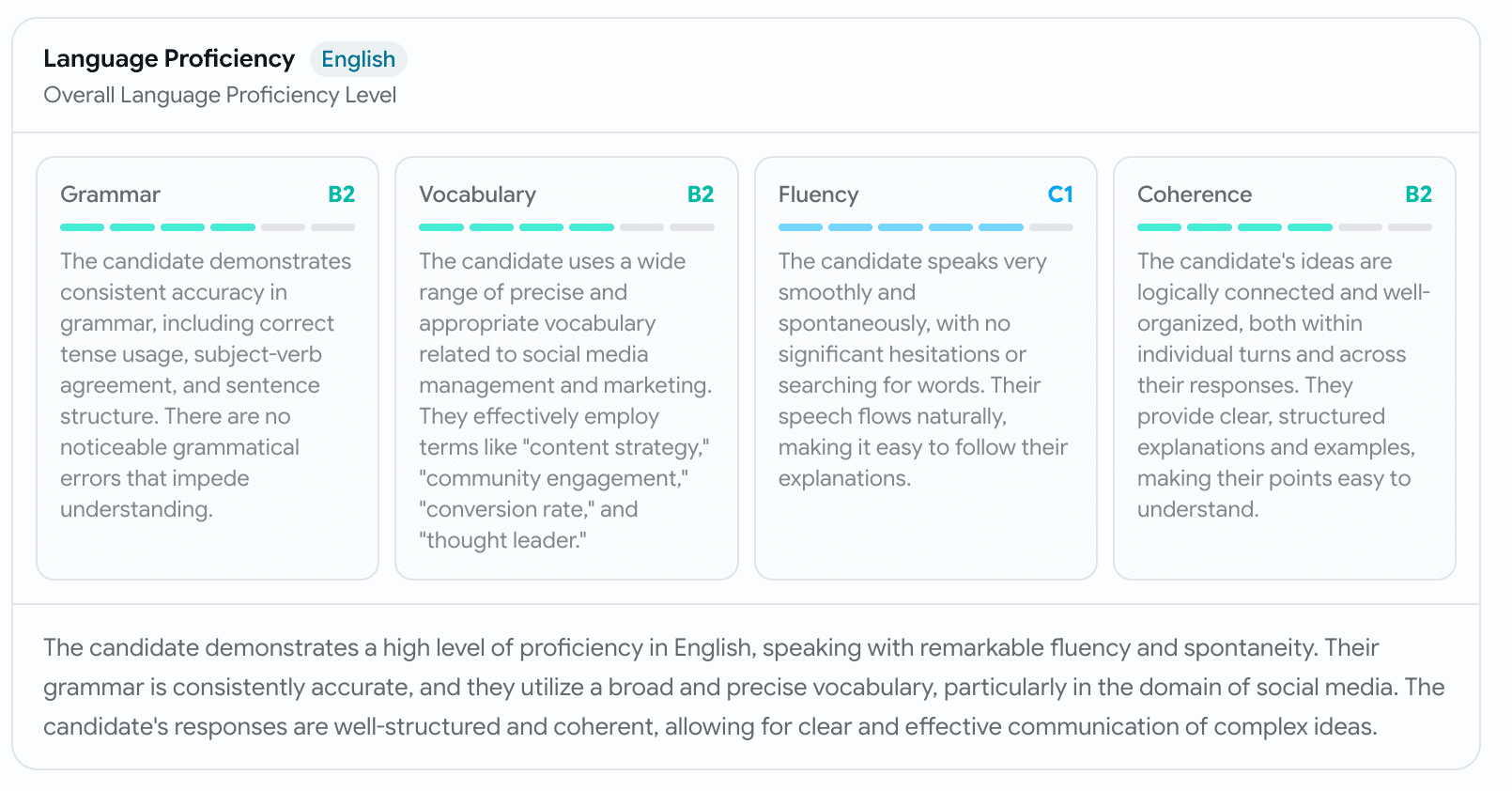
A voice scorecard told you what a candidate answered. Now it can also tell you how well they speak the language the interview ran in.
- Flip on Score language proficiency in the voice assessment's settings.
- Broken out across grammar, vocabulary, fluency, and coherence, each with a reason and a short summary.
- It's judged in the language the candidate actually spoke, answer fluently in Hindi and you're scored on Hindi, no English penalty.
- The proficiency folds into the candidate's overall
/10, so it counts toward the same cutoffs as every other skill.

Jobs
Hand a job — and its notifications — to the right person
The person who first posted a job often isn't the one who should be fielding its activity a month later. Now you can hand it over.
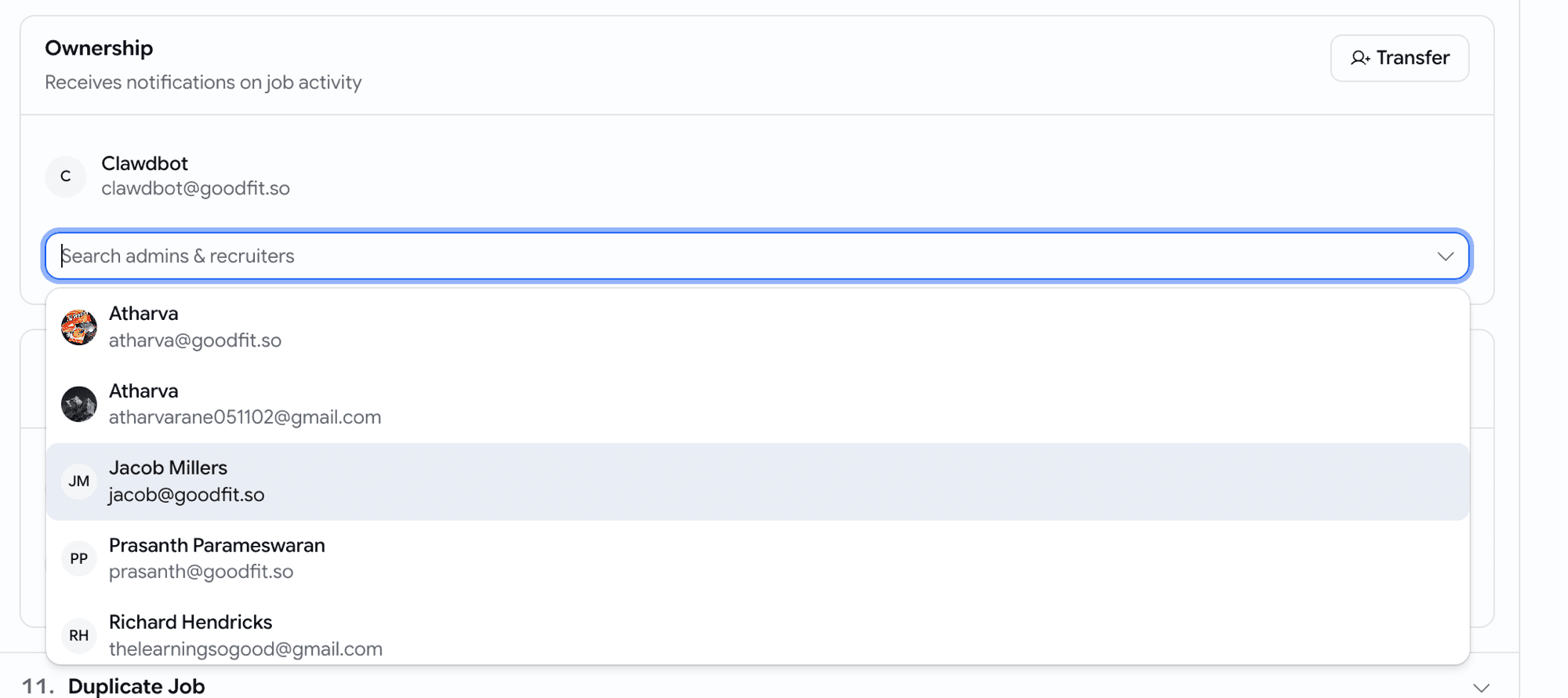
- A new Ownership card on the job's edit page shows who currently receives the job's notifications, with a Transfer button.
- Hit Transfer, search your admins & recruiters, pick the new owner, and confirm.
- From that moment, every assessment-completed, hired, and rejected email for the job lands in their inbox instead — no more forwarding by hand.
One-click onboarding blocks for your invitation emails
Candidates often open an invite wondering how to even start. Now you can answer that right inside the email — without building it by hand.
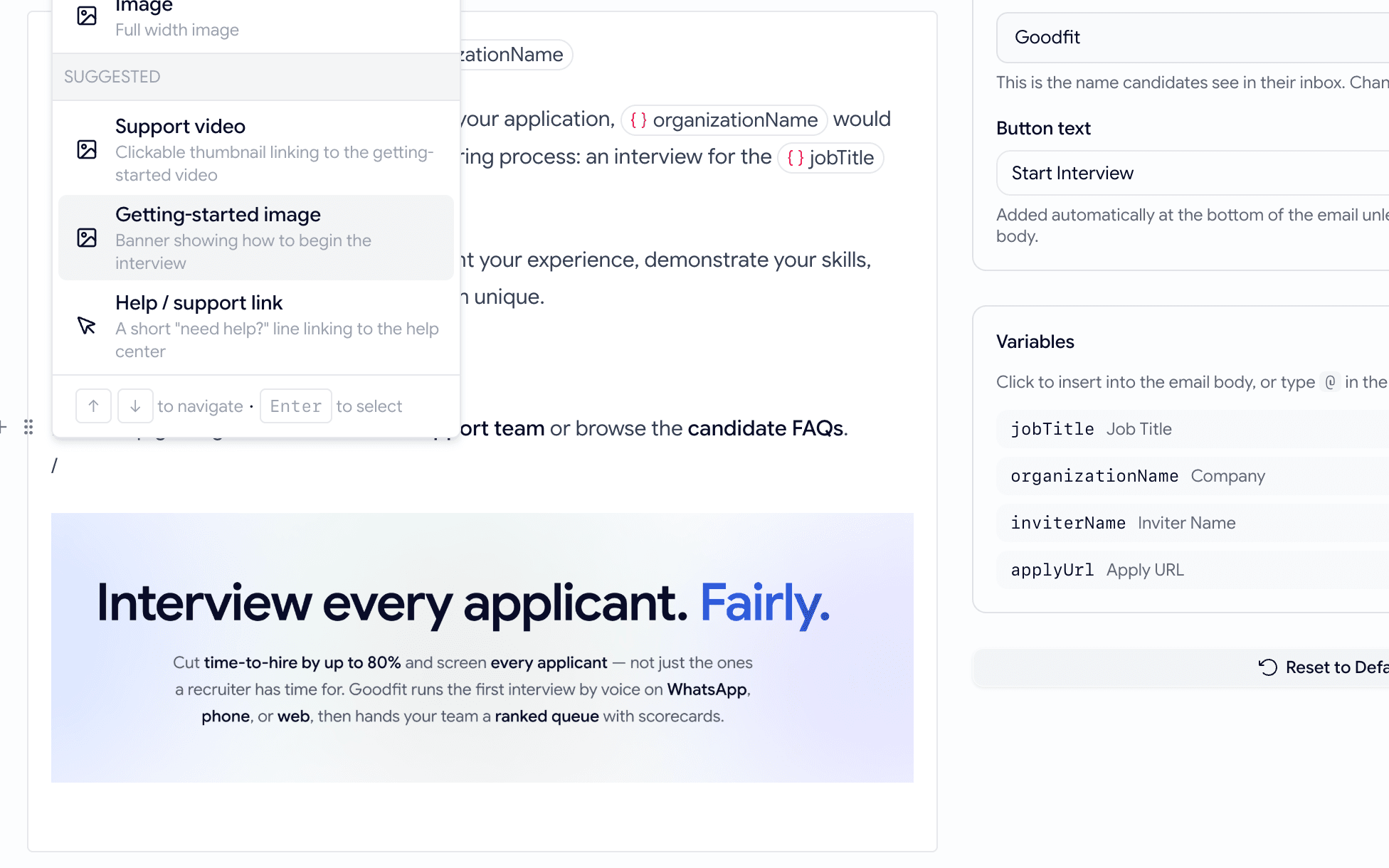
- Type
/in the email body, or use the insert menu, and you'll find a new Suggested group at the bottom. - Three ready-made, on-brand blocks: a Support video thumbnail, a Getting-started banner, and a short Help / support link.
- Each drops in complete — thumbnail, link, and copy already filled — and you can edit it afterwards like any other block.
Assessments
A guided 'what to expect' before every assessment
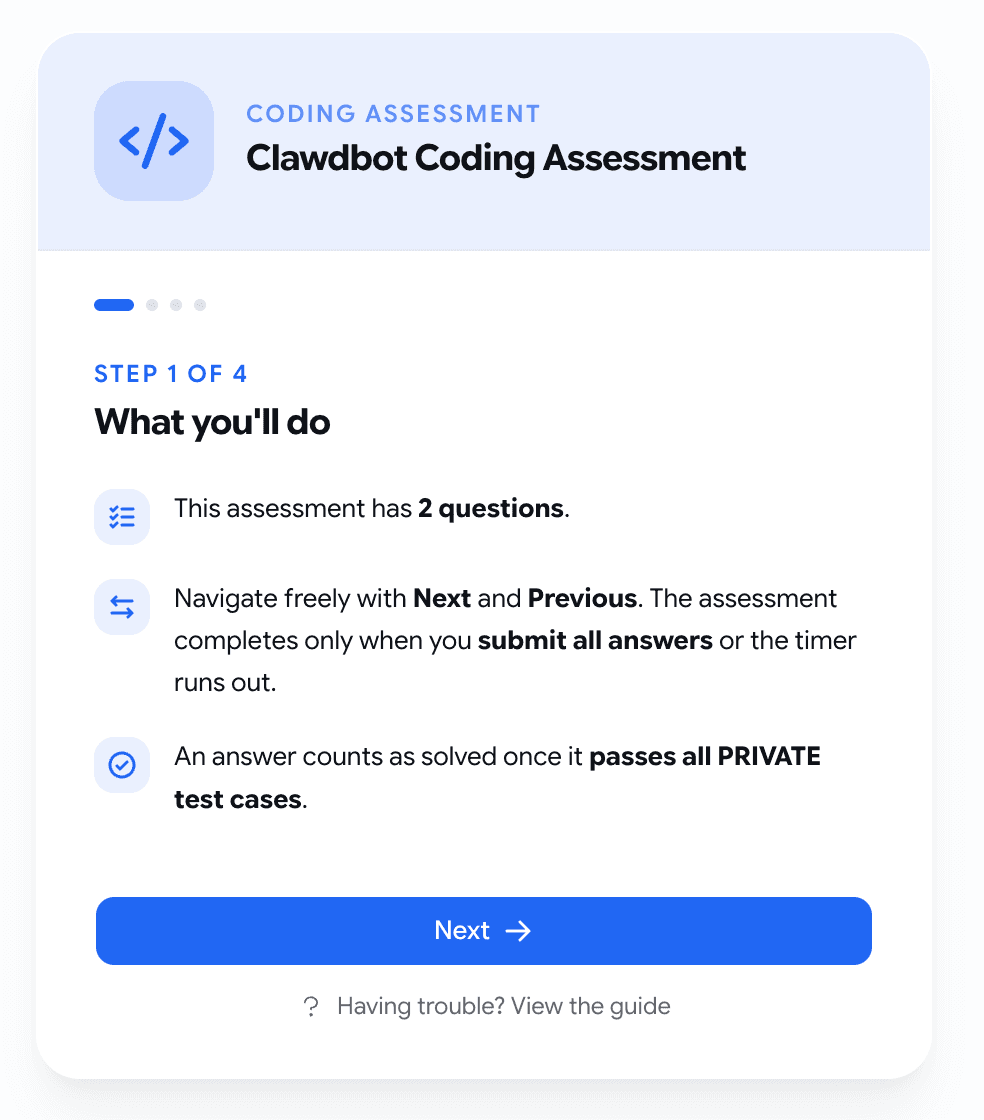
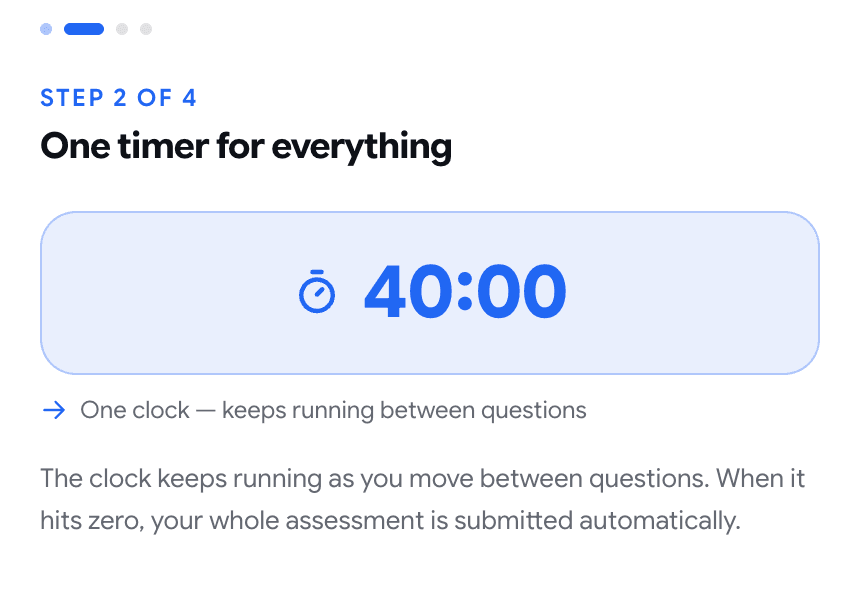
Candidates used to skim the start screen, hit Begin, and get tripped up mid-test — by the timer, the camera, or thinking that finishing one question ended the whole thing. Now they walk through it first.
- A short, stepped intro replaces the old wall of text: what you'll do → timing → camera & your space → ready, one idea per screen.
- The timing step shows the real numbers and makes it unmistakable whether each question is timed on its own or one clock runs the whole way.
- It states plainly that the camera and mic stay on and record the whole time, and asks the candidate to find a quiet, well-lit spot.
- The camera turns on quietly in the background while they read, so there's no waiting around when they reach Begin.
Getting started
Guided walkthroughs for the screens people get stuck on
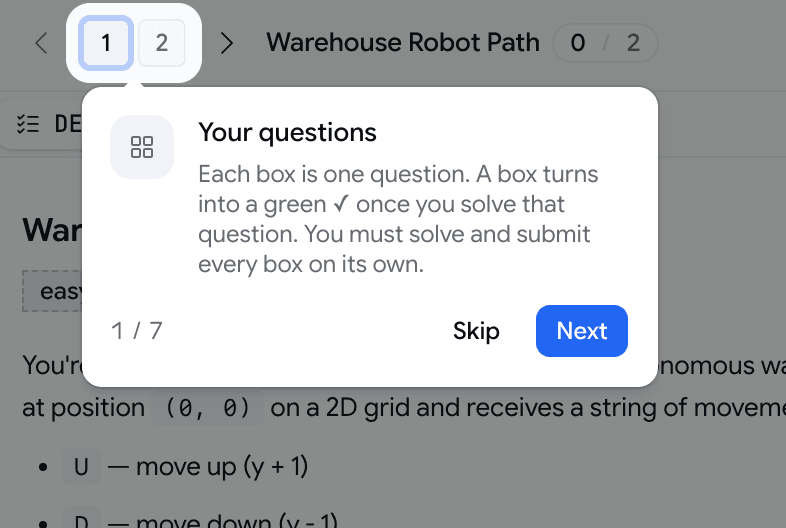
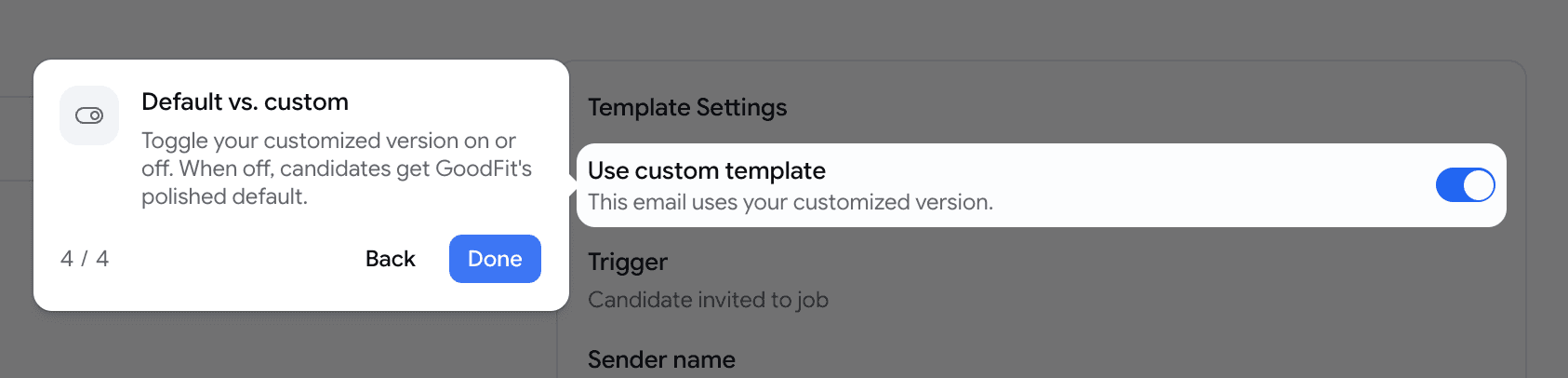
Some screens are dense enough that a first-timer just stares. Now the rest of the screen dims, one thing lights up, and a plain-language card explains it — one step at a time.
- In the coding assessment, a walkthrough covers the numbered question boxes, the green ✓ that means solved, the difference between Run and Submit, and that you submit each question on its own.
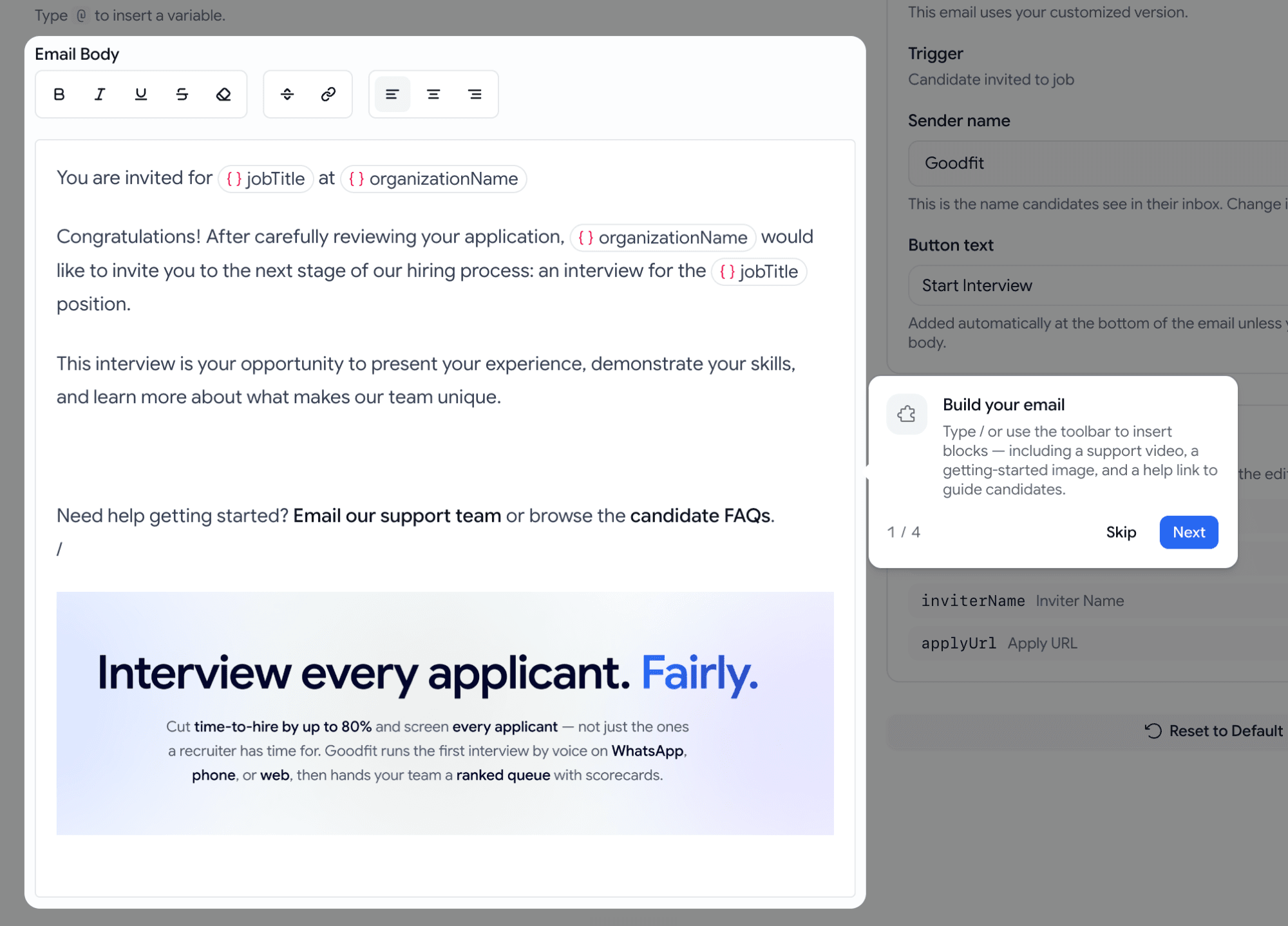
- In the email template editor, a walkthrough covers building with blocks, personalizing with variables, sending yourself a test, and the toggle between GoodFit's polished default and your custom version.
- Each shows up on its own the first time, and a ? button replays it whenever someone wants a refresher — it never replaces the option to reach a human.
Developers
Stream your hiring events to your own systems
The goodfit API could already drive your hiring end-to-end — but you had to keep asking it what changed. Now it can tell you the moment something happens.
- Subscribe a URL to the events you care about — 16 of them, spanning jobs, applications, assessments, candidates, and prescreening.
- When a matching event fires — a candidate finishes an assessment, gets hired, passes prescreening — goodfit POSTs a signed JSON payload to your endpoint within seconds.
- Delivery is durable: it's queued, retried with backoff, and every attempt is logged, so you can replay anything your system missed while it was down.
- Manage it all over the same
x-api-keyAPI you already use — create subscriptions, page the delivery log, or fire a test payload at any URL before going live.
// POST → your endpoint, on every matching event
{
  "id": "9f2c…",                 // unique per event — dedupe on this
  "event": "assessment.evaluated",
  "createdAt": "2026-06-15T12:00:00.000Z",
  "organizationId": "Qu1Dl…",
  "data": { "applicationId": "…", "assessmentType": "voice", "score": 8, "maxScore": 10 }
}
// signed with your secret in the X-Webhook-Signature header — verify before trusting
June Week 4
Automatically review every voice interview for cheating after the call, capture who you hired the moment you close a role, start a coding test with questions already matched to the job, open any Insights report straight in Google Sheets, and let candidates save a role and come back to it later.
June Week 2
Find your best-matching candidates as ready-to-invite cards on the board, catch every mention, completion, and invite in a new notification bell, @mention teammates and read your panel's verdict at a glance, filter applicants in plain English, choose how each written answer is graded, diff a candidate's coding attempts, and connect your jobs and candidates to Claude in one paste.