June Week 2
Find your best-matching candidates as ready-to-invite cards on the board, catch every mention, completion, and invite in a new notification bell, @mention teammates and read your panel's verdict at a glance, filter applicants in plain English, choose how each written answer is graded, diff a candidate's coding attempts, and connect your jobs and candidates to Claude in one paste.
- hiring
- notifications
- assessments
- scorecards
- talent-pool
- developers
Hiring
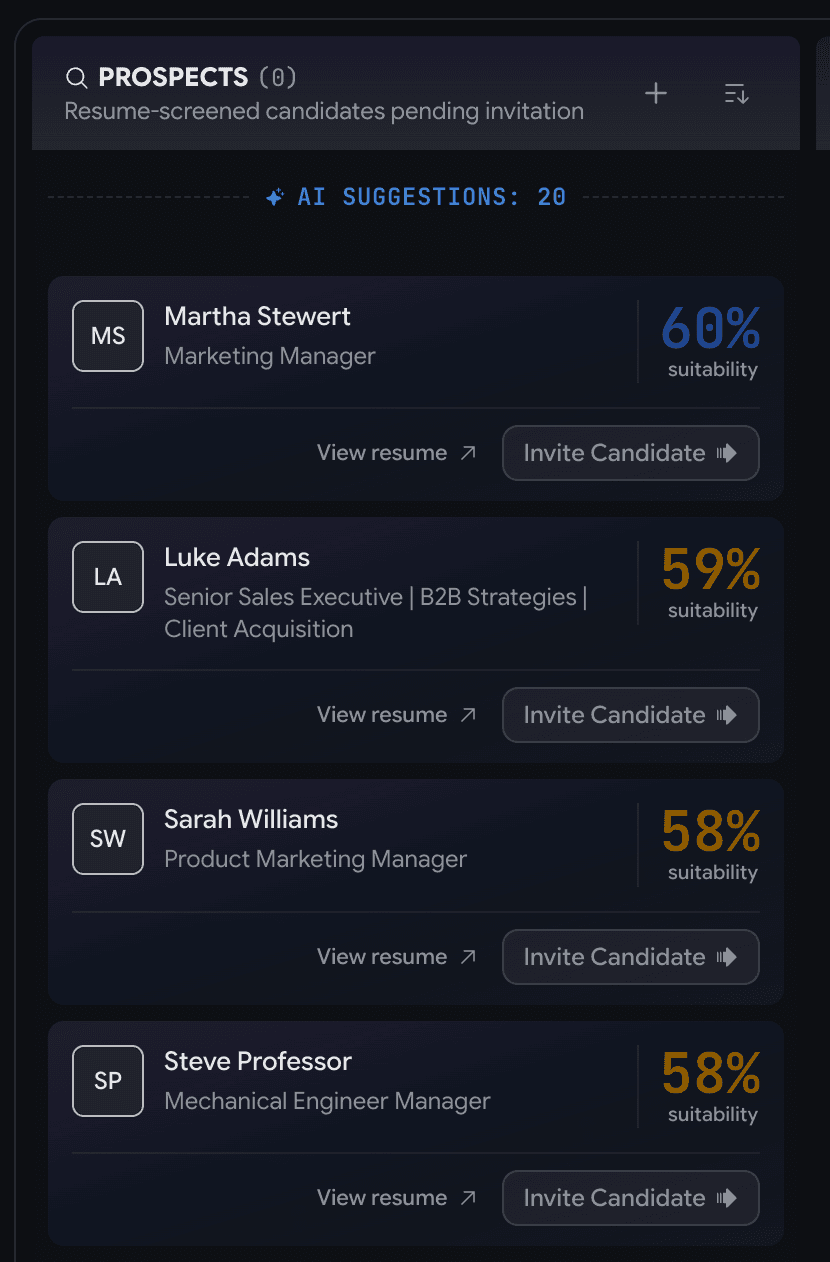
Meet your best-matching candidates right on the board
The strongest resume matches in your workspace now appear right where you work — ready to invite in one move.
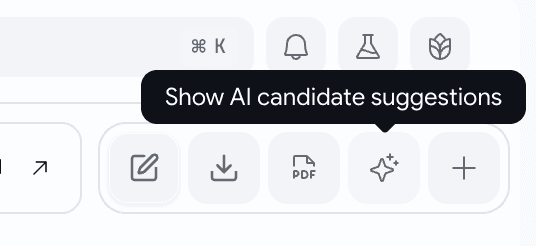
- Flip on ✨ Show AI candidate suggestions and your closest resume matches appear under Prospects, each with a fit score.
- Drag one onto Invitations or hit Invite Candidate — send the interview invite.
Notifications
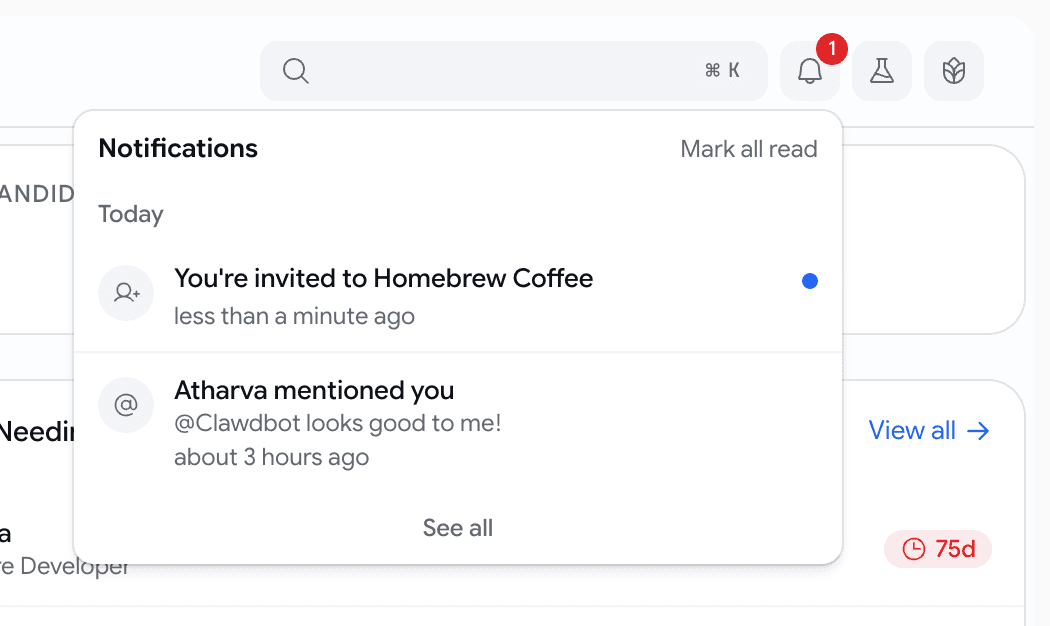
Notification bell, so nothing slips past you
Mentions, completions, and invites used to live only in your inbox. Now they also live as in-app notifications.
- Grouped Today / This Week / Earlier.
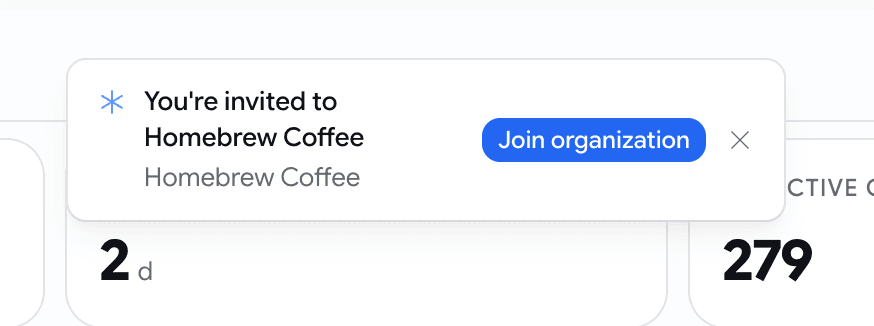
- It pings you when a teammate @mentions you, a candidate finishes their pipeline, or you're invited to an organization.
- A gentle pop-up for the moments worth interrupting you; a silent badge for the rest.
Hiring
Loop in a teammate, and read your panel's verdict at a glance
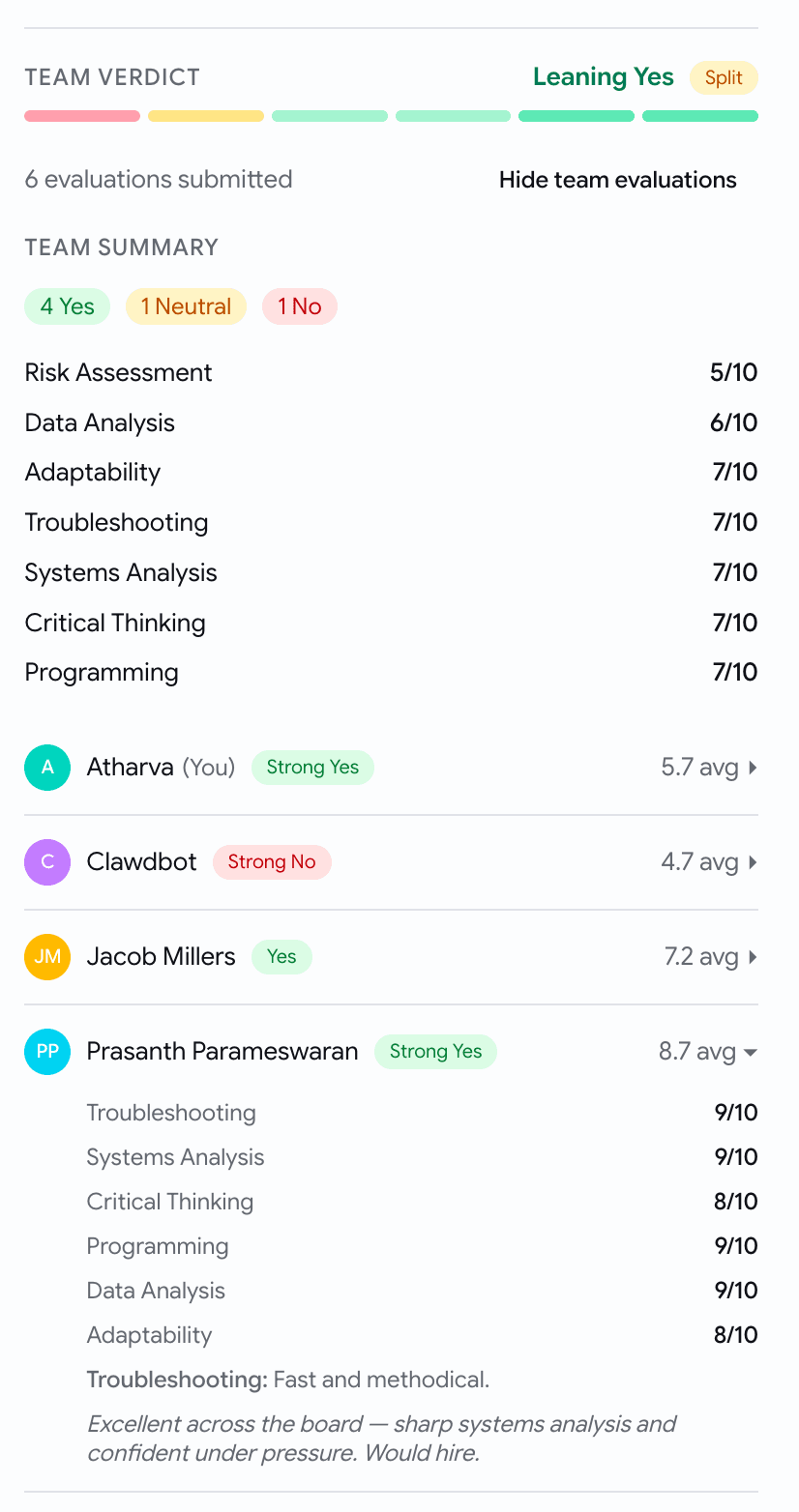
Two upgrades on a candidate's feedback panel: pull a colleague in, and see where your interviewers landed without doing the math.
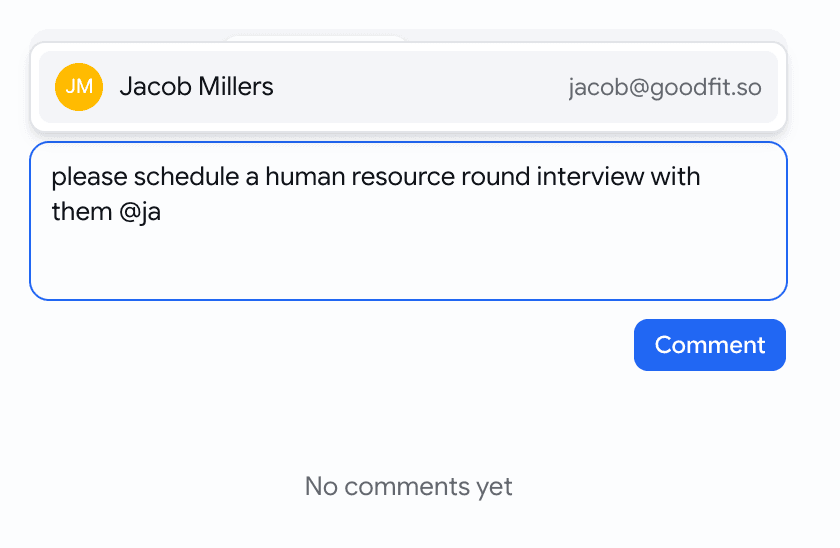
- Type @ in a comment to tag a teammate.
- A new Team verdict header turns every scorecard into one read: a lean like Leaning Yes, a bar with a segment per interviewer, and a Split badge when they disagree.
Hiring
Filter a job's applicants by typing what you mean
Last release the talent pool learned to read plain English. Now a single job's applicants board does too.
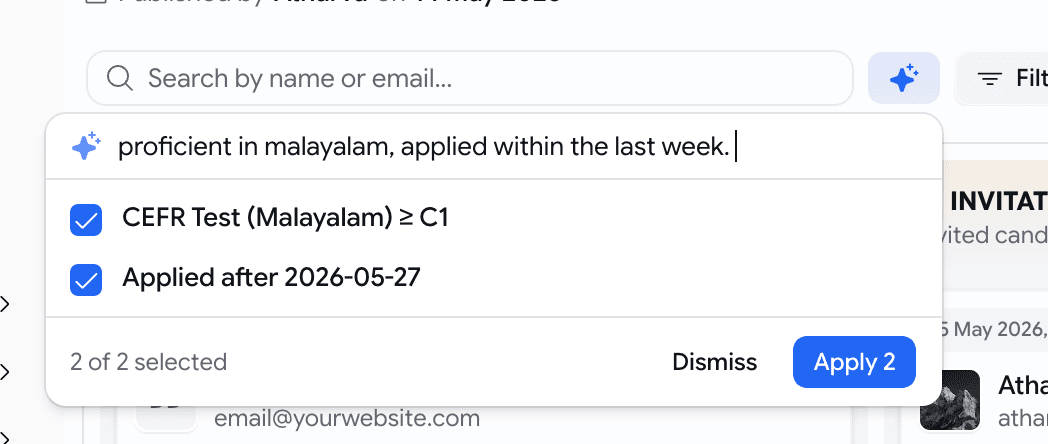
- Hit ✨ AI and type something like
proficient in Malayalam, applied within the last week. - It builds the matching filters; you tick the right ones and apply.
- Can't express something? It tells you in plain words — never a silent wrong guess.
Assessments
Choose exactly how each written answer is graded
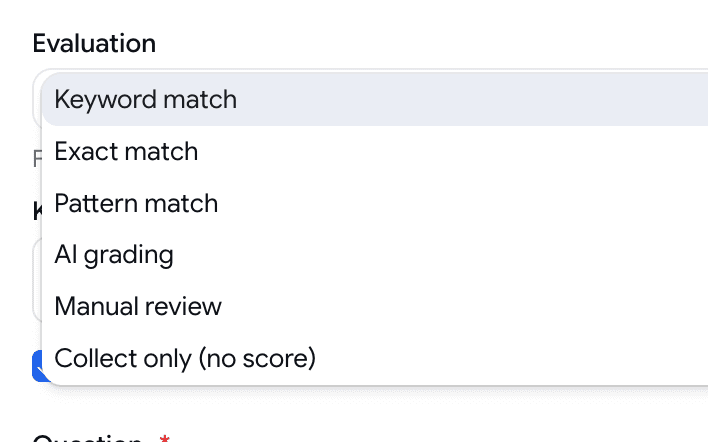
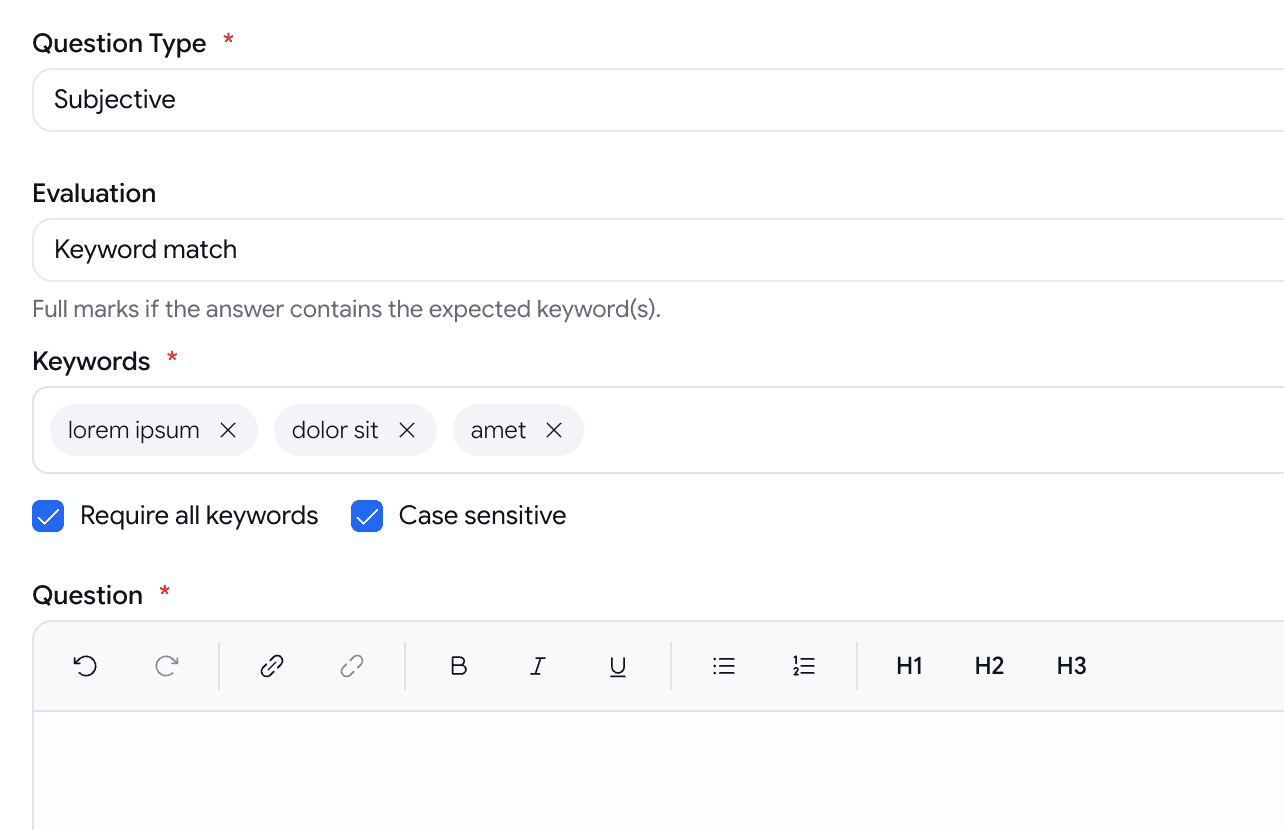
Add subjective questions for skill based assessments. Now each one carries its own grading method, so you decide what "correct" means.
- Pick how a Subjective question scores: keyword, exact, or pattern match, AI grading against an ideal answer, manual review, or collect-only.
- The match methods score instantly, no AI; manual review lets you read and score it yourself on the report.
Assessments
See what changed between a candidate's coding attempts
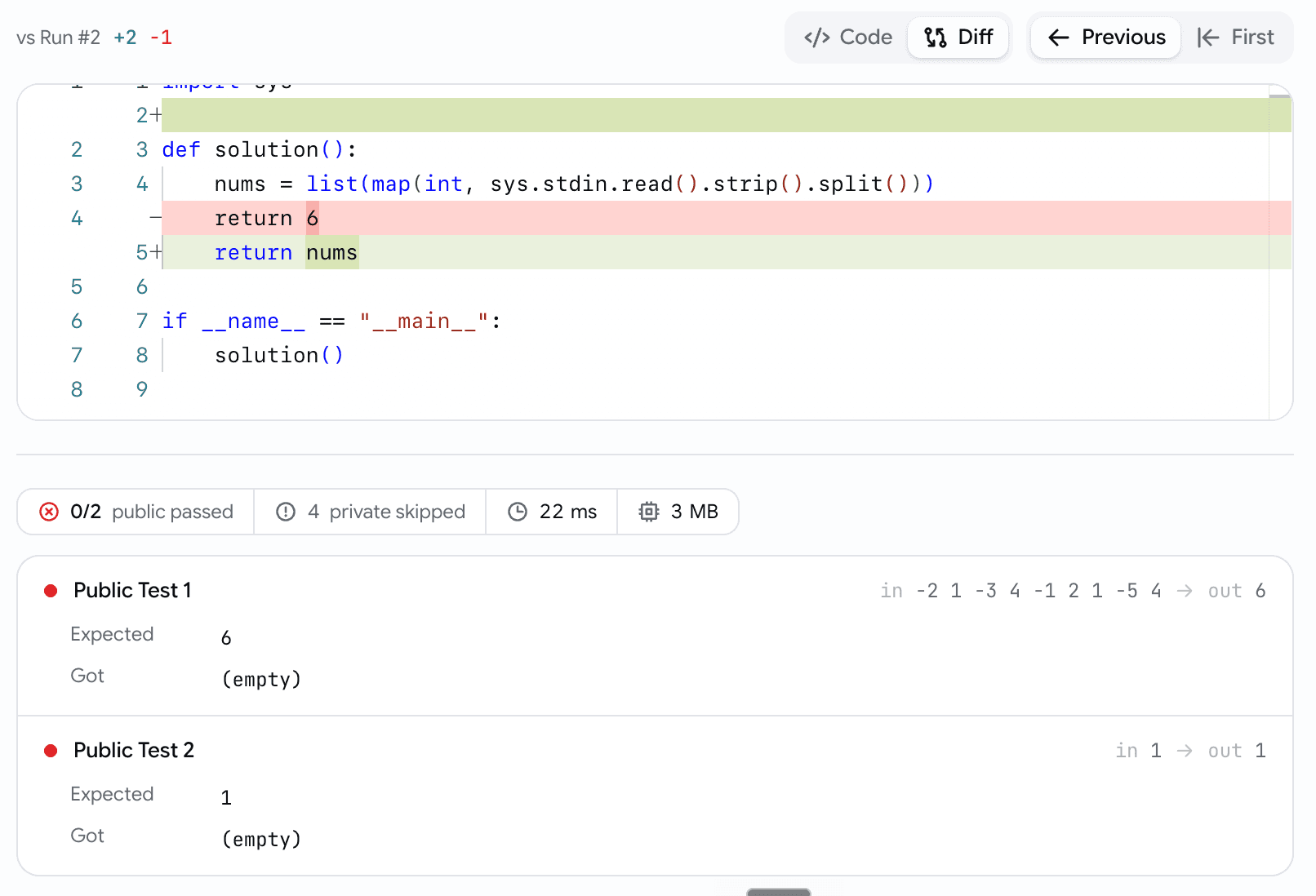
A candidate runs, fails, edits, submits again. Now you can see what they changed to finally pass.
- A Code / Diff toggle diffs any submission against the Previous, First, or Accepted one — added and removed lines called out.
- Unchanged code collapses away, so the change is front and centre.
Getting started
A quiet 'Get started' checklist for new workspaces
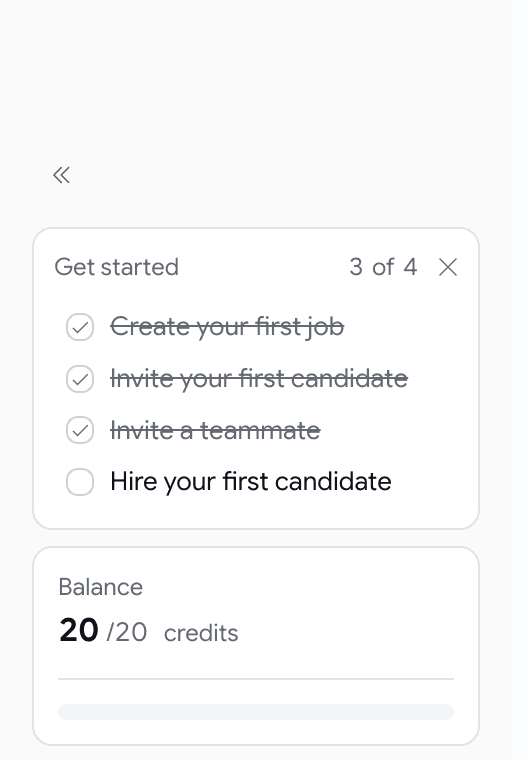
New to Goodfit? A small checklist in the sidebar shows the first four steps — then bows out.
- Create a job → invite a candidate → invite a teammate → hire — each step links to where it happens.
- It ticks itself off as you work; no wizard, no tour.
- Dismiss it whenever, and it vanishes on its own once all four are done.
Developers
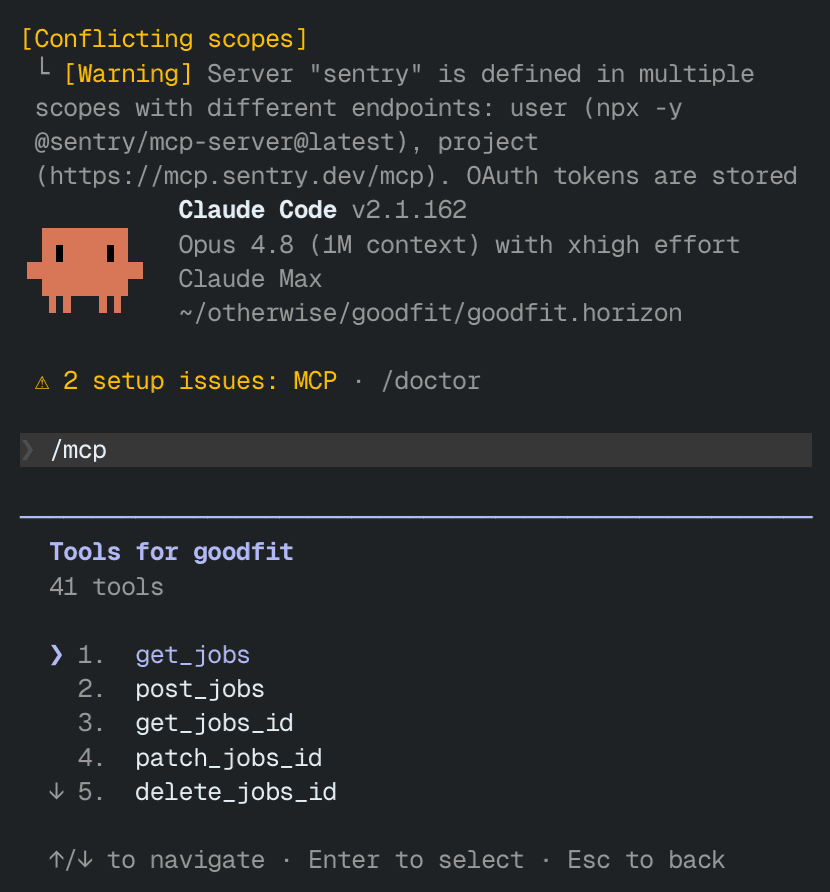
Goodfit MCP is here! Connect Goodfit to Claude
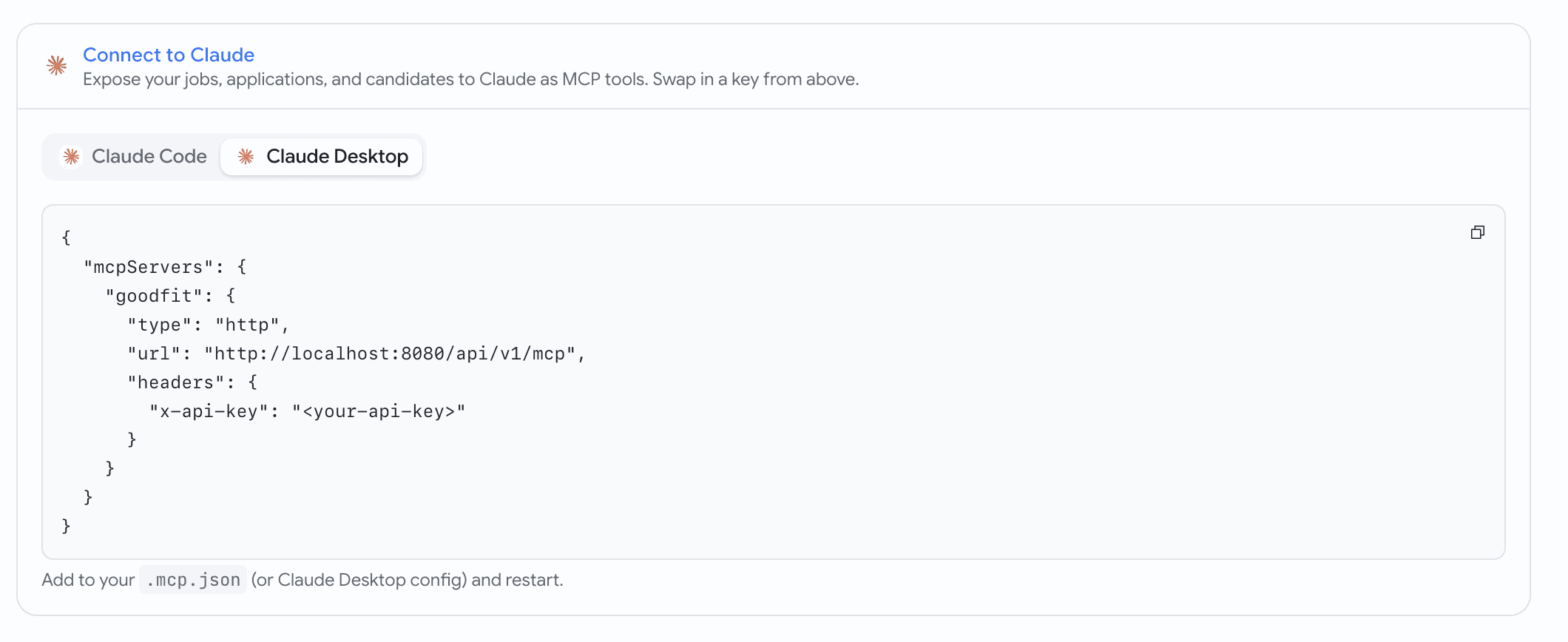
We’ve launched Goodfit MCP — now you can connect Goodfit directly using the Goodfit MCP itself, or set it up within Claude.
- Generate a key and copy a ready-to-run command for Claude Code or a config block for Claude Desktop.
- Paste it, and Claude can read and act on your jobs, applications, and candidates.
June Week 3
Score how well a candidate actually speaks the interview's language, hand a job and its notifications to the right teammate, drop a ready-made support video or getting-started banner into your invitation emails, walk candidates through what to expect before every assessment, light up the screens people get stuck on with guided walkthroughs, and stream your hiring events to your own systems in real time.
June Week 1
Slice the talent pool by every signal you collect — assessment scores, language levels, resume details, and quality flags — or just describe who you want in plain English and let AI build the filters, style your public careers page from a gallery of templates with a live desktop-and-mobile preview, and hand a hiring manager a shareable walkthrough of every screen a candidate will see.