August Week 2
Psychometric reports that carry a written behavioural profile, a read against the role you're actually hiring for, and where the candidate ranks against everyone else who took it. Plus your teammates' busy time inside the scheduling dialog, AI interviews in Japanese and Arabic, a connection check that stops doomed interviews before they start, candidate flow for every job, a seat for the agencies who source for you, and a jobs list that finally remembers how you use it.
- assessments
- interviews
- insights
- hiring
- jobs
Assessments
Psychometric reports that read like a briefing, not a score sheet
Four percentages and a paragraph tell you what the candidate scored. They don't tell you what it's like to work with them. Every psychometric report now carries a written profile underneath the numbers.
- Behaviour at work — how they decide, communicate, collaborate and lead, in plain sentences rather than trait names.
- Under pressure — where they hold up, where they slip, and what a manager should do about it.
- Trait by trait — what each score actually means, the strengths that come with it, and the watchouts.
- Motivators, blind spots and ideal work environment — what they'll work best with, and what they're less suited for.
- Role families they suit, and six interview questions worth asking next.
- Same depth for every framework: Big Five, MBTI, DISC, work values and EQ all read the same way.
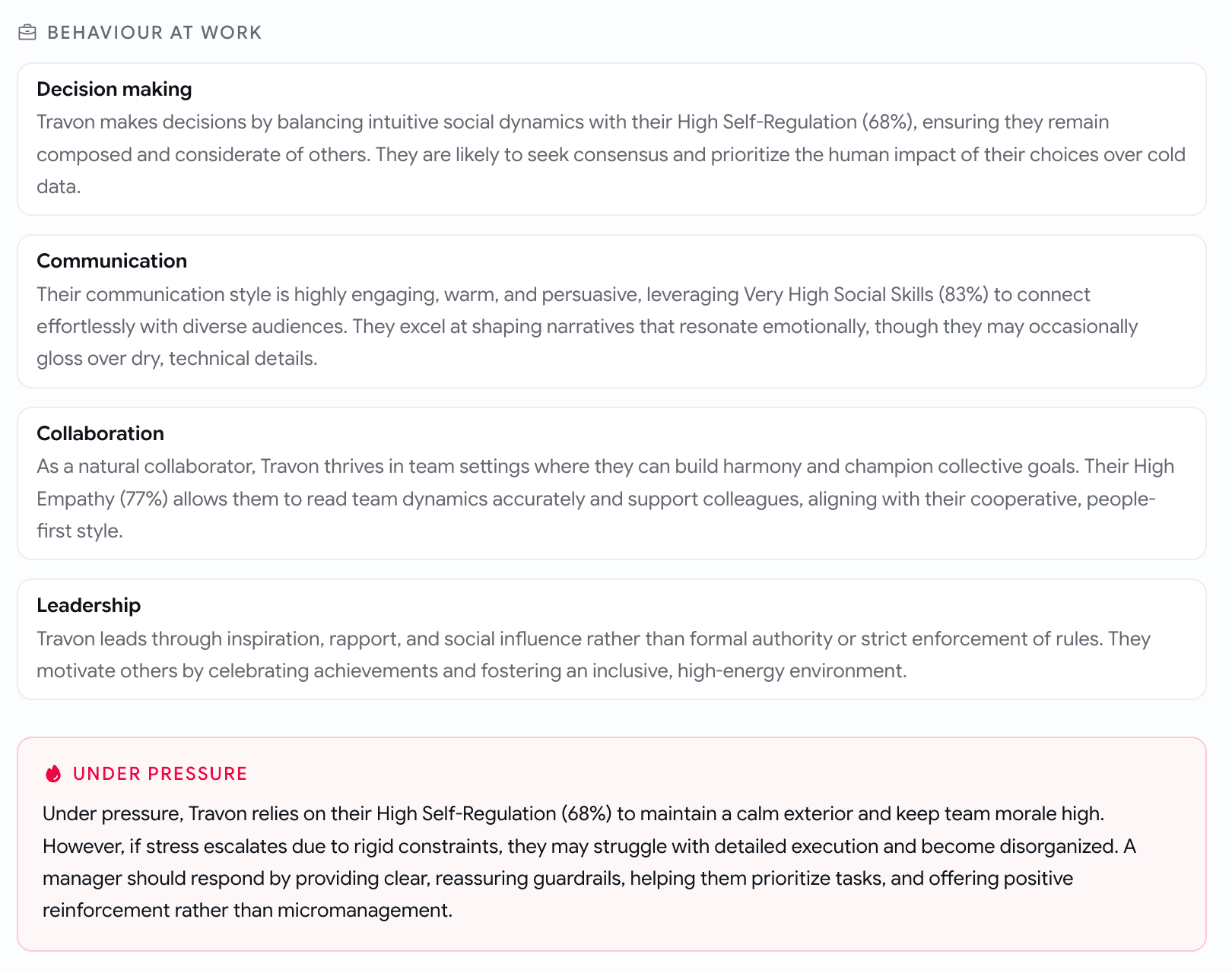
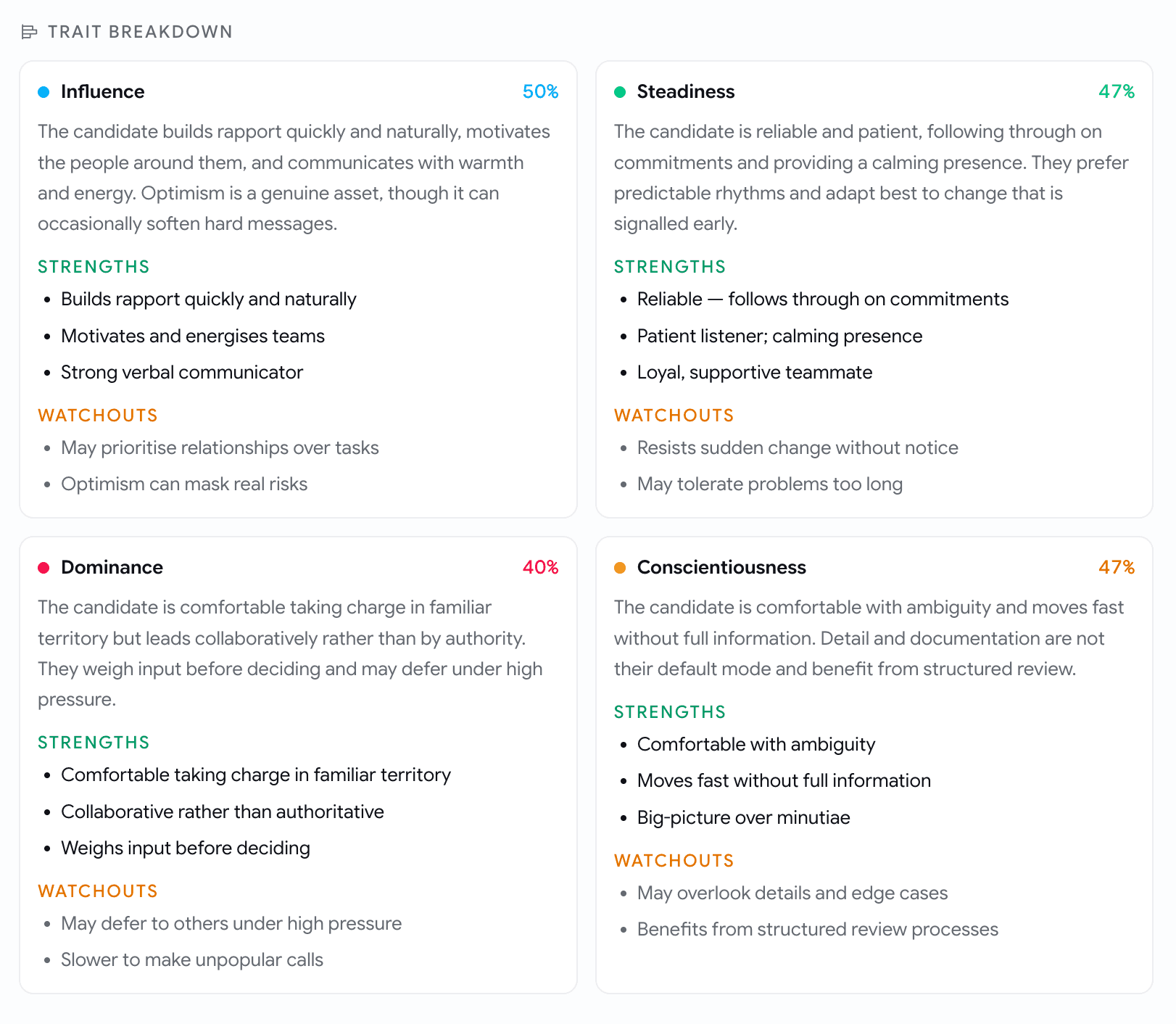
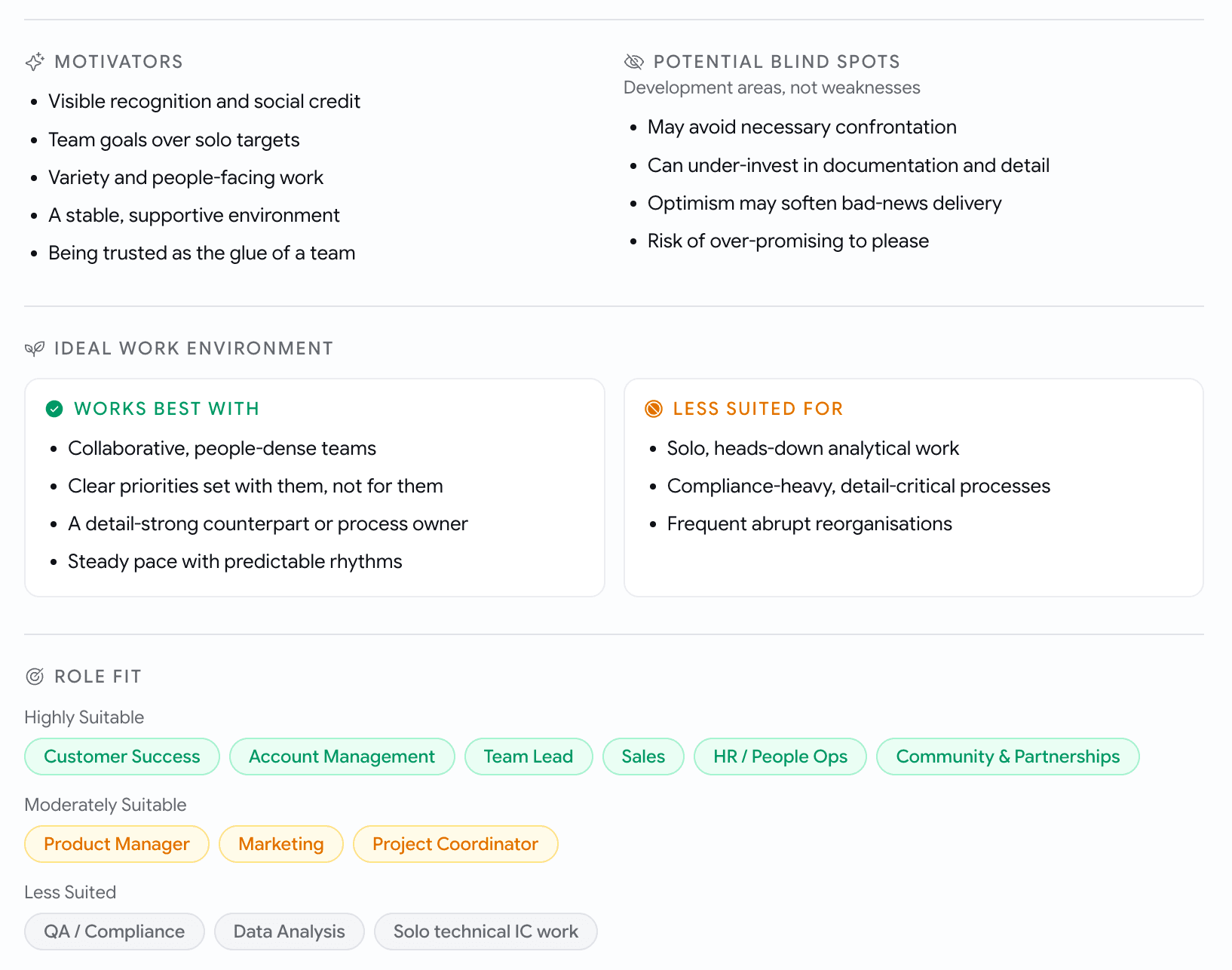
- The score strip now leads with a real fact instead of a status word: the DISC blend and its name, the MBTI archetype, the EQ score, the strongest Big Five trait, the top work value.
And three things that give the numbers an anchor they never had:
- Fit for this role. The job description sets a target band per trait, once per role, and every applicant to that role is measured against the same bands. Each trait reads in range, above range or below range, with how many points off, plus how many traits land inside and which one sits furthest away.
- Cohort percentiles. 91st percentile · vs 238 candidates for this role. Once a job has enough evaluated candidates the comparison is against that job's own pool; below that it's against everyone who has taken the assessment. The pool and its size are printed next to the number, so you always know what the rank is a rank of.
- Response quality. A profile only means something if the candidate engaged with the questions. Each report carries a band — Good, Read with care or Low confidence — worked out from pace, how much the answers varied, how often they sat on the middle option, and whether they answered consistently. It says which of those triggered it.
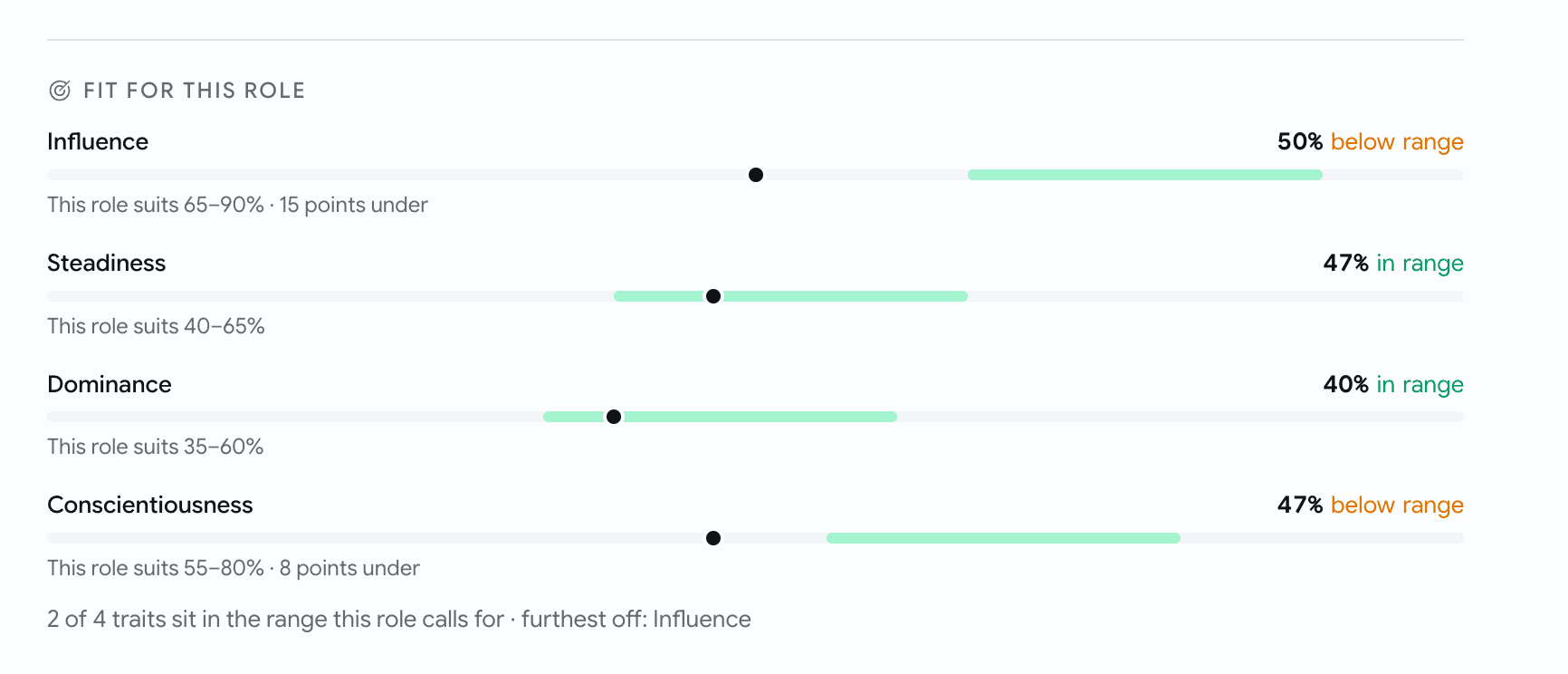
- On Low confidence the percentile is withheld and the profile carries a caveat, rather than quietly presenting a rank built on answers nobody trusts.
- Everything above is in the downloadable candidate report too, not only on screen. Reports evaluated before this update render exactly as they did.
Interviews
See who's free before you pick a time
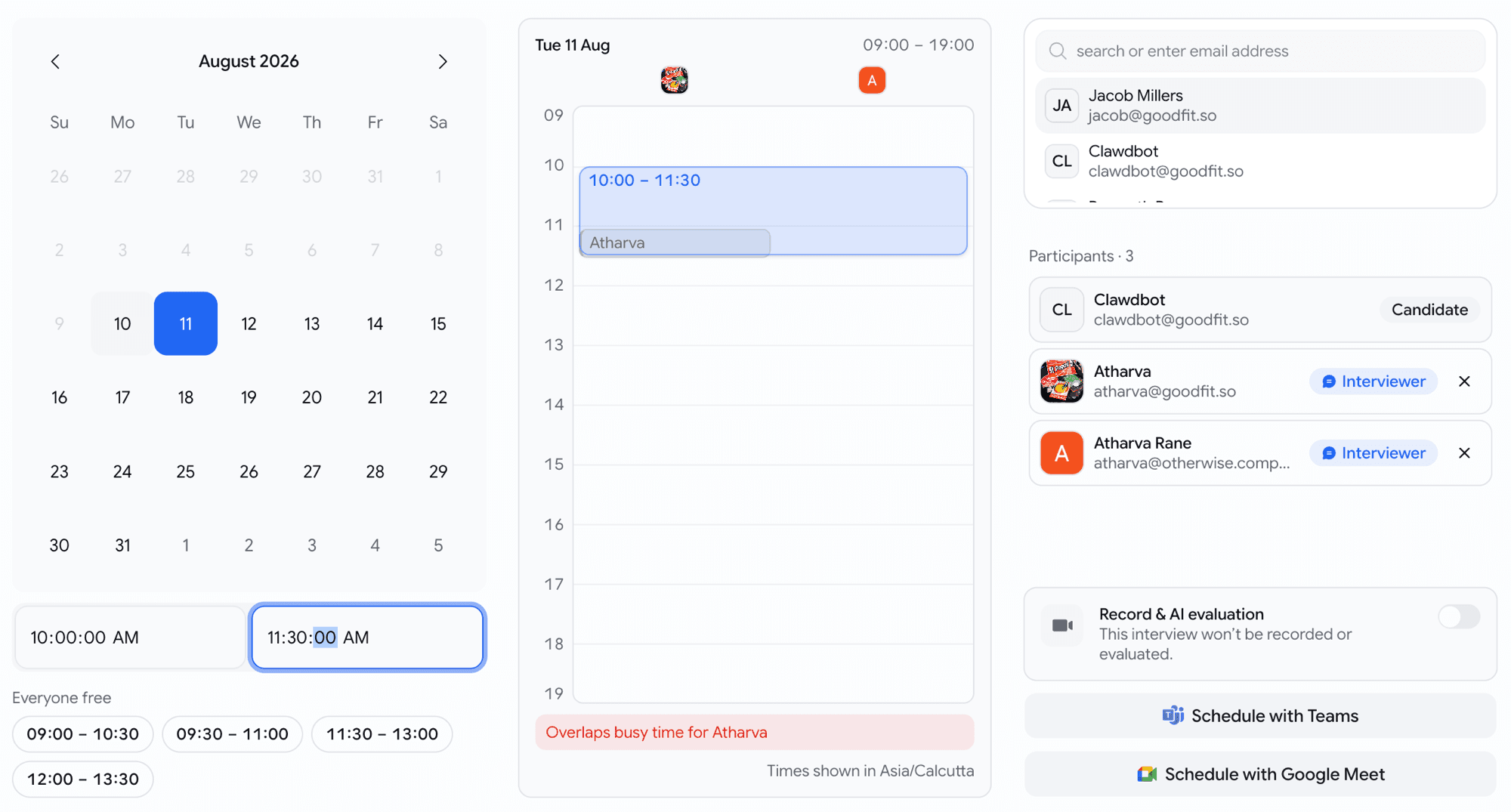
Scheduling used to be a guess: pick a day, pick a time, invite three people, hope none of them are double-booked. The schedule dialog now shows you.
- Pick a day and every invited teammate gets their own lane. Busy time is drawn as blocks with their name on it; free time is simply empty.
- Everyone free slots appear as chips under the time inputs. Click one and the start and end times fill in, at whatever duration you'd already set.
- Pick a time that clashes and a line tells you who it clashes with. It's a warning, never a block, because sometimes you know something the calendar doesn't.
- Teammates who haven't connected a calendar show as availability unknown. Nobody is blocked from being invited.
- Reads the calendars your team has already connected, Google or Microsoft. Nobody reconnects anything and nobody grants a new permission.
Interviews
Run AI interviews in Japanese and Arabic
The AI interviewer speaks beyond the Indian language set now.
- Japanese and Arabic are now available, expanding the list of supported languages alongside English, Hindi, Marathi, Telugu, Kannada, Malayalam, Bengali, Gujarati, Punjabi, Tamil, Odia, and Assamese.
Interviews
Stop the interviews a candidate's connection was never going to survive
The lobby checked the camera, the speakers and the microphone, and then let someone on a dying connection start anyway.
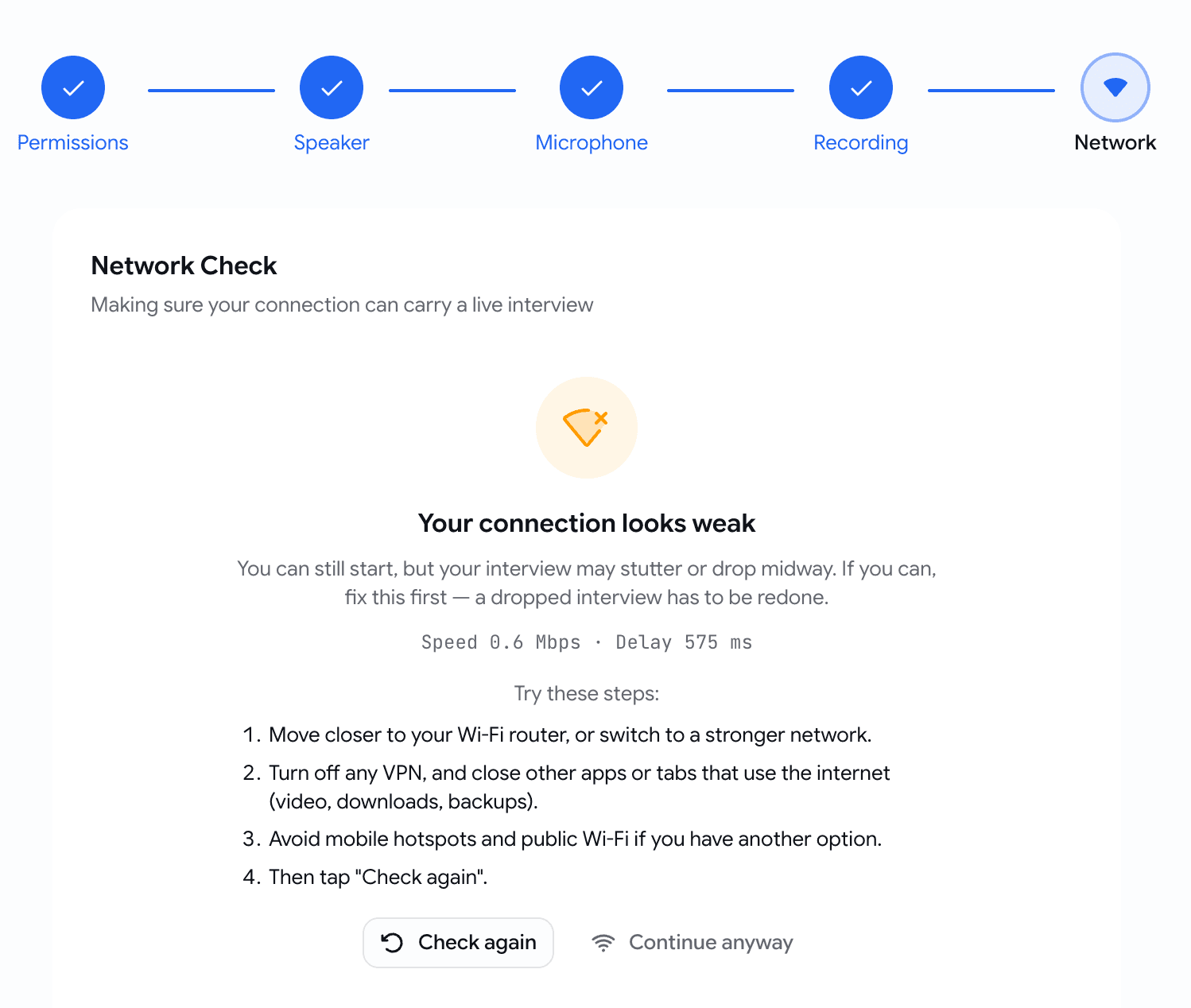
- Network joins Permissions, Speaker, Microphone and Recording in the pre-interview checks. It runs quietly in the background while the candidate does the others, so the step is already settled by the time they reach it.
- A weak connection warns, shows what was measured in terms a candidate can act on (Speed and Delay), lists four things to try, and still leaves Continue anyway available.
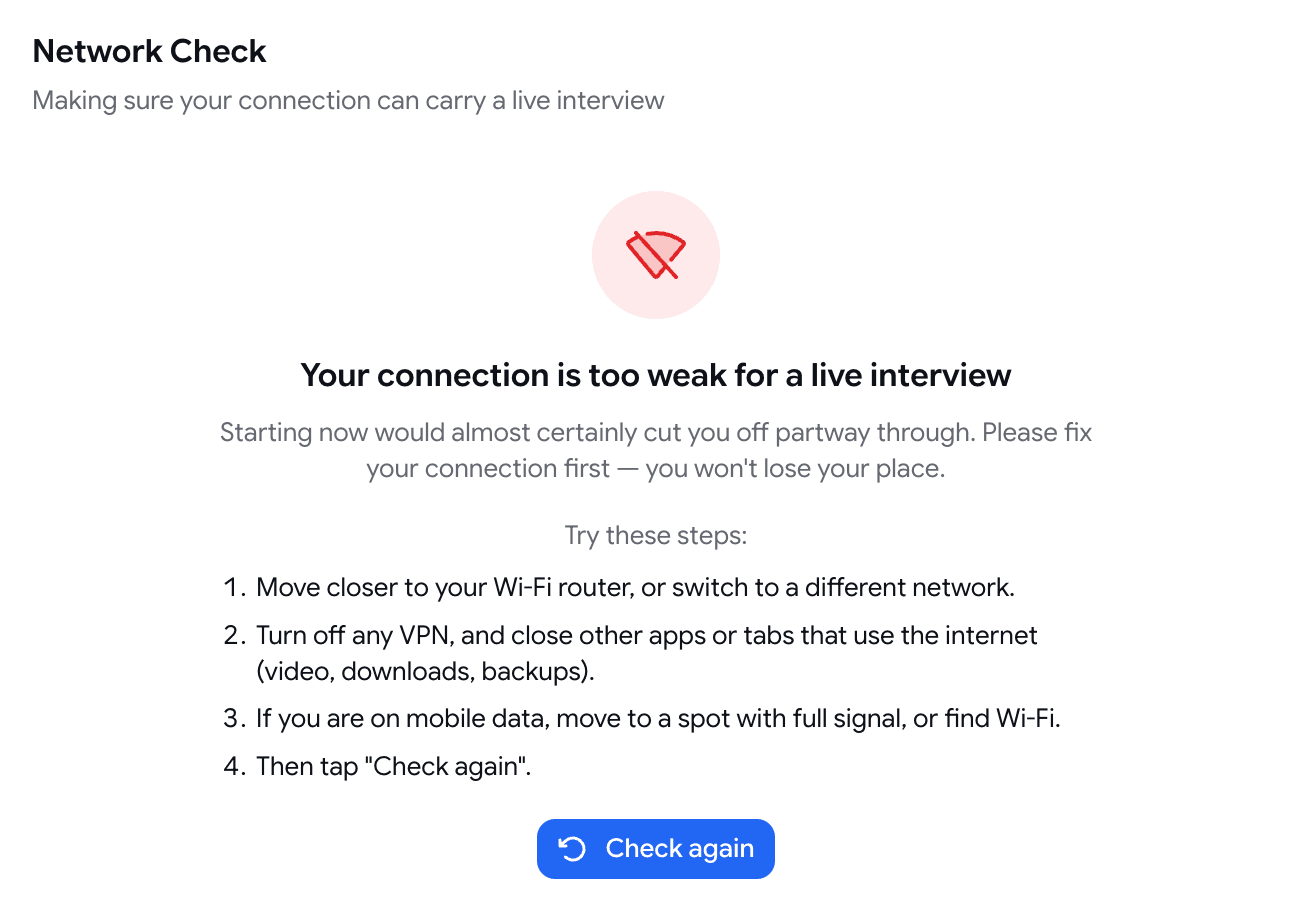
- A connection too weak to carry a call at all doesn't get to start one.
Insights
See where candidates actually move, job by job
The funnel could tell you how many candidates reached a stage. It couldn't tell you how they did there.
- Candidate Flow is a new view on every job, reached from the board. It draws your Kanban as a flow: where candidates came in, which stages they passed through, and where they're sitting now. Every column reconciles with the board it came from.
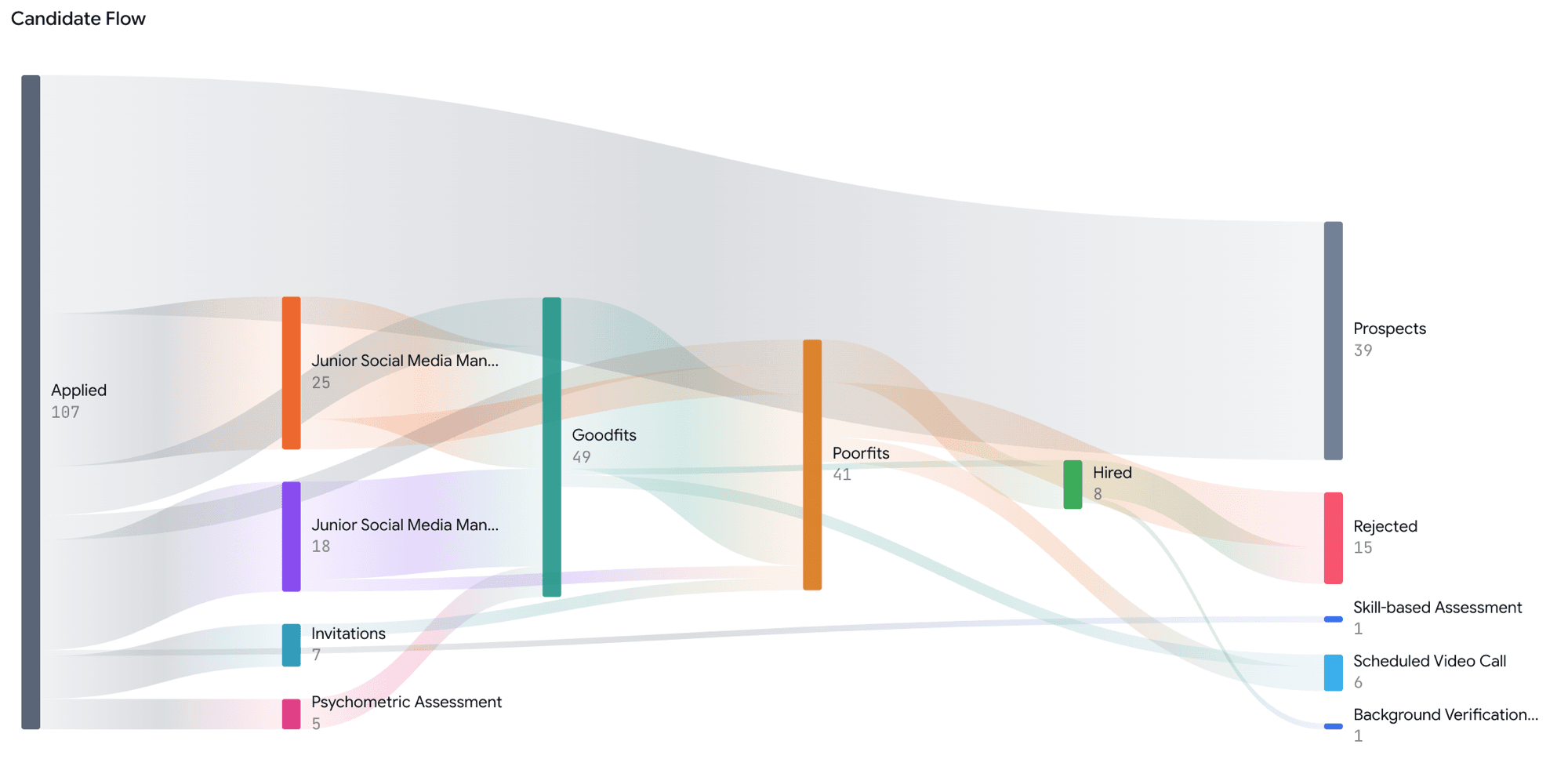
- The org-wide funnel splits its old undifferentiated "Active" band into Goodfit and Poorfit, so "how many of the people who got this far were actually any good" finally has an answer.
- A Stage Outcomes table sits under it: per stage, how many entered, how many came out good fit or poor fit, and how many were hired, rejected, withdrawn or are still in play.
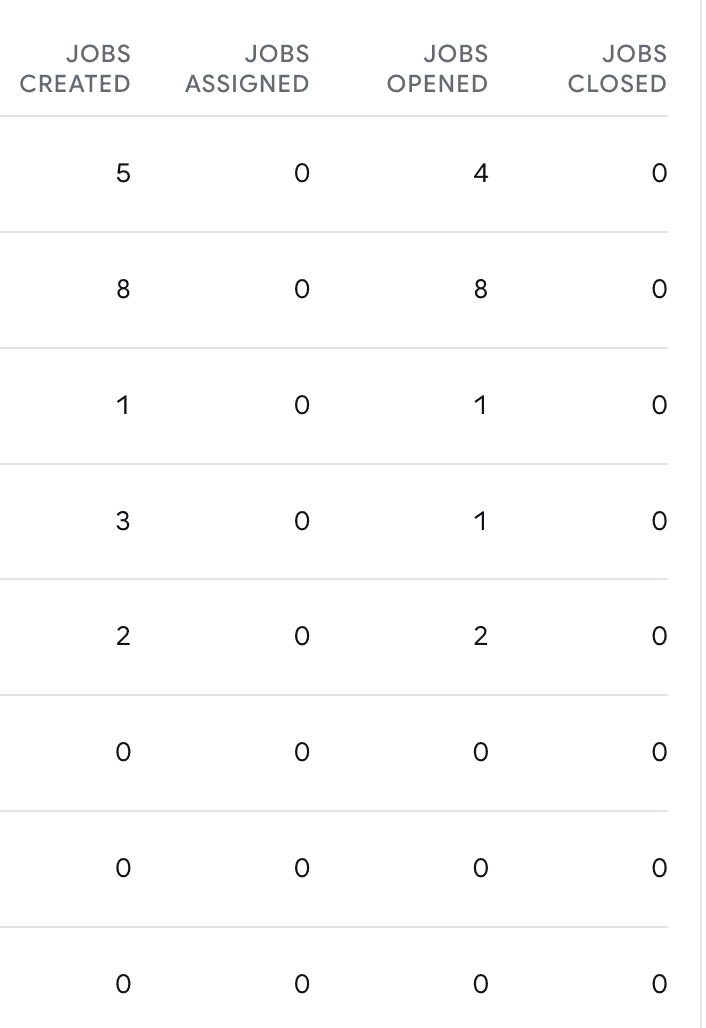
- Team Activity gains jobs opened, jobs closed and closed with a hire for the period you're looking at, and Avg Decision (days) now shows a number instead of a blank.
Insights
Interview analytics
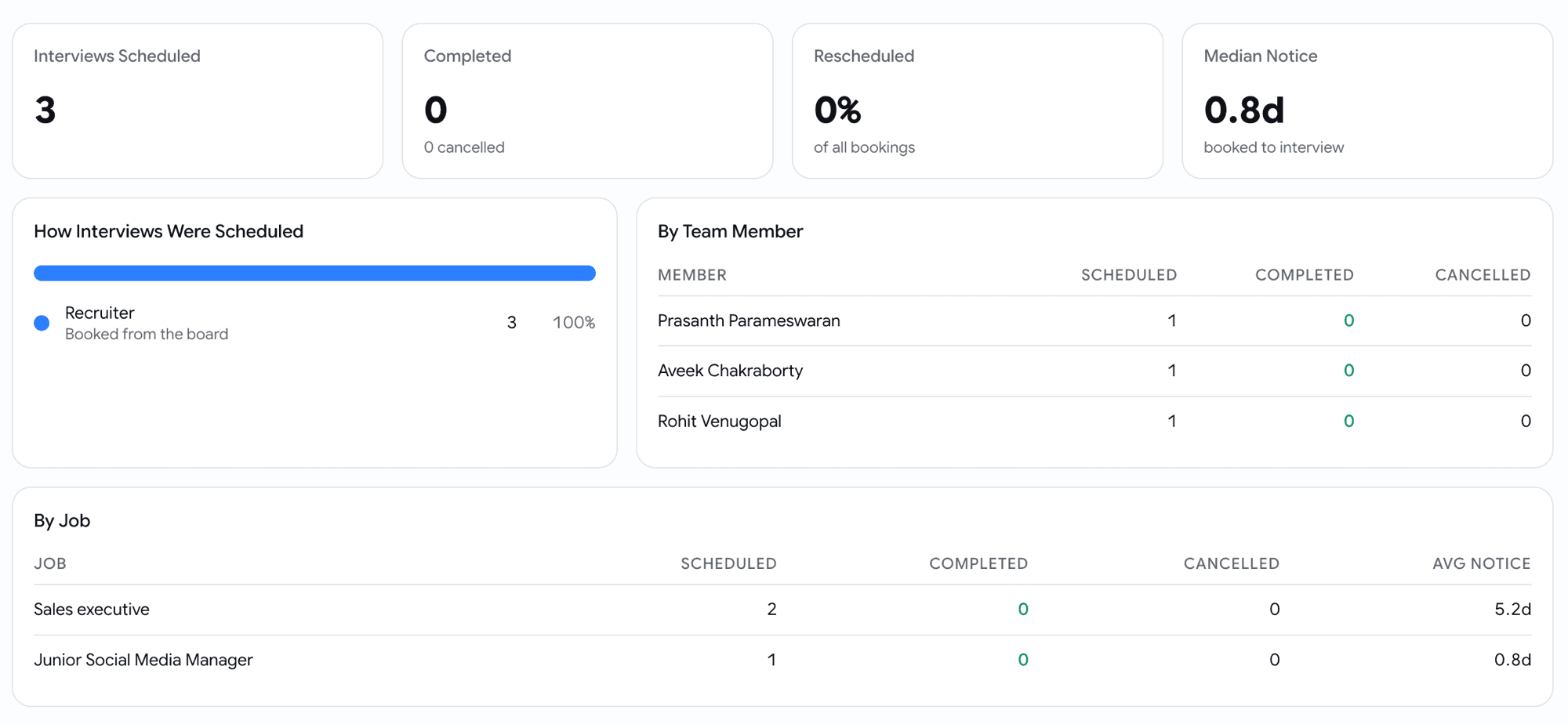
Human interviews were the one part of the pipeline with no numbers on it at all. Insights → Interviews is a new page.
- How many interviews were booked over any date range, how they ended, and how often they were rescheduled.
- How much notice interviews are typically booked with, and where they came from.
- Broken down by job and by the person who scheduled them.
Hiring
Give your recruitment agencies a seat without opening your pipeline
Agencies source for you, and until now the only role that fit gave them everything: your own candidates, and every rival agency's candidates, on every job they touched.
- Recruitment Vendor is a new role. It sees every open role in the organisation, and only the candidates their own agency submitted. Nothing else on the board exists for them.
- The agency is a real thing you name, so five people from one firm roll up to one agency. Set it while inviting them, or from the members list afterwards.
- Vendors submit candidates and follow their status. They don't move cards between stages, reject, hire, or email candidates, because the party being measured shouldn't be the party keeping score.
- Your side gets a Sourced by filter on the board and a chip on the candidate card, so you can always see which agency sent whom, and job cards count only what the viewer can see.
- Vendors can't reach members, billing, email setup or API keys, and can't edit a job.
Candidates
One live application per candidate per job
The same person could end up on the same job twice: two cards, two invitation emails, two sets of results, and a recruiter working out which one was real.
- A candidate who is already live on a job is no longer added a second time, whichever door you come in through: resume upload, bulk invite, a board re-invite, or a single manual invite.
- Re-inviting someone who is already moving through your pipeline now tells you so, and points you at their existing card rather than silently starting a parallel application.
- Bulk invites report what they skipped. The count is real now, where before the toast could only ever say zero.
- Someone you rejected or closed out earlier is a legitimate fresh application. Invite them individually and you're asked to confirm first, with the button reading Invite Again. A bulk list skips them rather than guessing on your behalf.
Jobs
Save the jobs list the way you actually use it
The jobs list could be narrowed three ways and remembered none of them. Leave the page and it was gone; refresh and it was gone.
- The jobs list now uses the same filter builder as the board and the candidates page, across twelve fields, including seniority, workplace type, locations, skills and tags. "Senior remote roles" is now something you can express.
- Save a set of filters as a named view and it becomes a tab. Views carry their filters, their sort and their columns, so a view can show different columns as well as fewer rows.
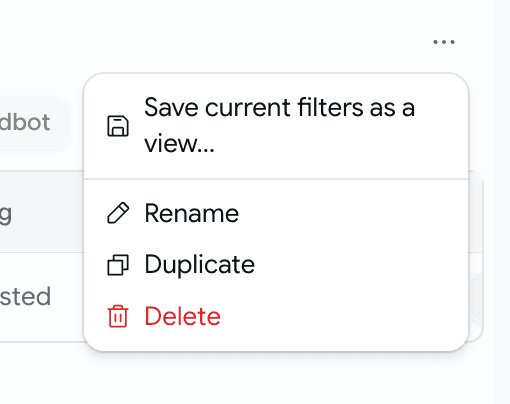
- Rename, duplicate or delete a view from the ⋯ menu beside the tabs, which is also where you save whatever you're currently looking at.
- Come back to the jobs list later and your last view is waiting, per organisation. A link with a view in it always wins.
- Views never save themselves behind your back. Change one and you get Save, Save as new and Reset; the view's own filters sit dimmed so you can see what you added on top.
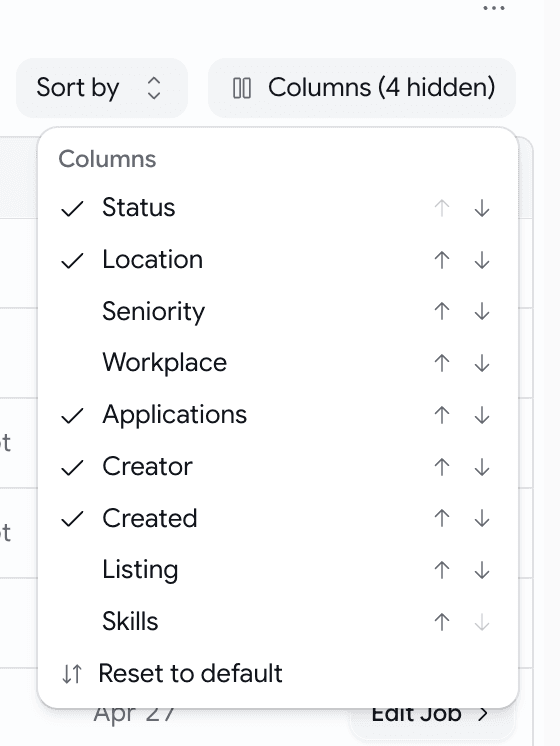
- A Columns picker decides what the table shows, and reorders it. Six columns are on by default. Views are private to you.
Phone Interviews: how to set up and use Goodfit’s AI Phone Interview
Learn how to create an AI Phone Interview in Goodfit, set call timings, and invite candidates for phone-based screening.
July Week 5
Send an assistant into your video interviews to record them, transcribe them and write up how the candidate did, collect every interviewer's verdict on one scale without asking anyone to log in, and run as many interview rounds with a candidate as the role actually needs. Plus a new browser extension that brings Goodfit into the job boards you already use — post jobs, import applicants and existing posts, and source from a LinkedIn profile, on Chrome to start.